# Connect your agent over MCP
> Connect Claude, ChatGPT, Claude Code, Cursor, Codex CLI or any MCP client to your brand's AI visibility data, by URL with sign-in or with a token.
Source: https://getintel.ai/docs/mcp/connect/
GetIntel runs a remote MCP server, so the coding agent you already use can read your topics, AI answers, competitors, sources and tasks, and act on them in your real codebase.
There are two ways to connect: by URL, with sign-in, for clients that support it; or with a token, for clients that don't, or for scripts.
## 1. Connect by URL (recommended)
If your client supports remote MCP with sign-in (Claude, ChatGPT, Cursor, VS Code, Claude Code), add the server URL with no token:
`https://app.getintel.ai/mcp`
The client sends you to GetIntel to sign in, then to an approval page:
1. **Brand.** If your account has one brand, GetIntel picks it automatically. With several, you choose which one this connection can see.
2. **What can it do?** Reading is always allowed. Tick **Also allow actions** if this agent should update tasks, plan your week and re-run the technical scan.
3. Click **Connect**.
The client gets an access token that lasts 2 hours and refreshes itself automatically, on the same brand, for as long as it's connected. One connection sees one brand; connect again for another client.
## 2. Or use a token
Use a token for a client without MCP sign-in support, or for a script calling the API directly.
1. In GetIntel, open the **Agent** page (or **Integrations**, then the agent card).
2. Choose whether this agent may **take actions** as well as read. Leave it off for a read-only token.
3. Click generate and **copy the token now**. It is shown once.
### Add GetIntel to your client with a token
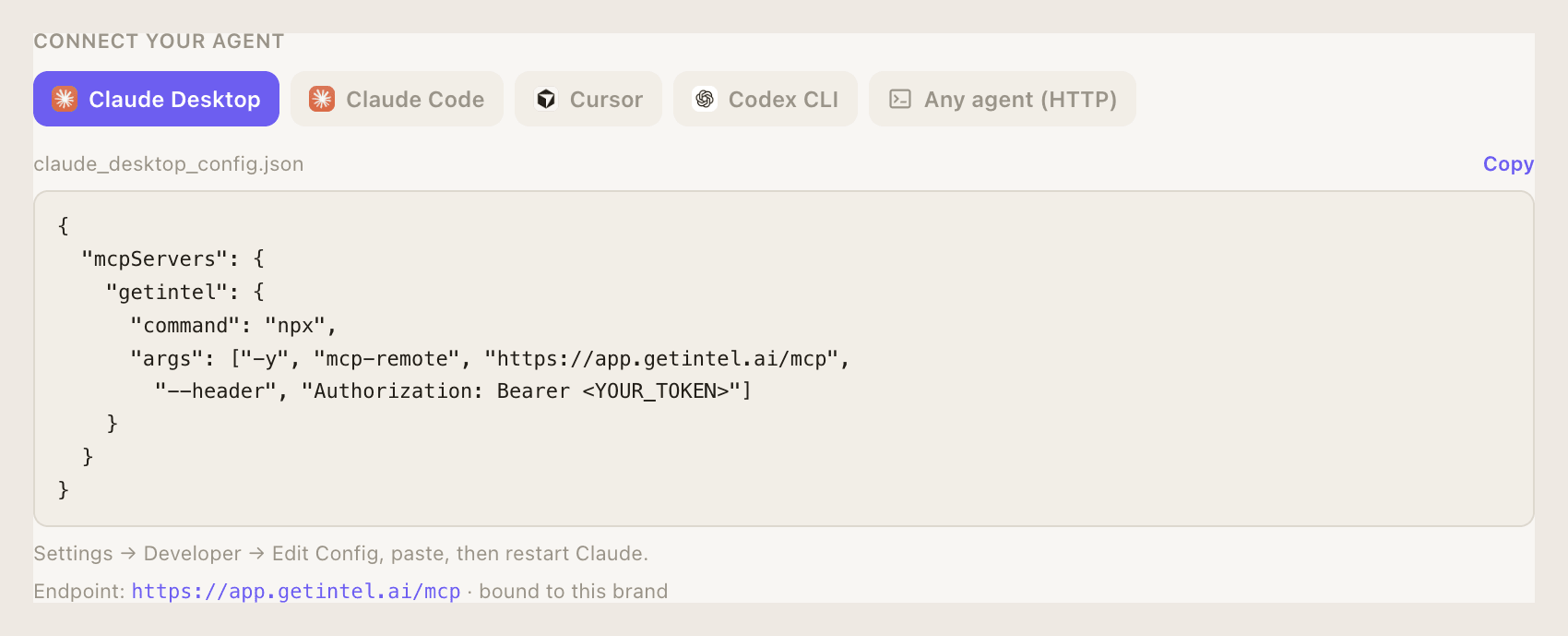
GetIntel shows the setup for each client under **Connect your agent**, ready to copy:
[](/product/agent-connect.png)
Replace `YOUR_TOKEN` with the token you copied. Every client talks to the same endpoint:
`https://app.getintel.ai/mcp`
- **Claude Code** uses its native HTTP transport. Run the command in your project, then run `/mcp` to confirm.
- **Cursor** reads `~/.cursor/mcp.json`. Enable **getintel** under Settings → MCP afterwards.
- **Codex CLI** reads `~/.codex/config.toml` and bridges through `mcp-remote`, because Codex speaks stdio.
- **Claude Desktop**: open Settings → Developer → Edit Config, paste, then restart Claude. It can read your data but cannot open pull requests.
- **Any other client** can call the endpoint directly: Streamable HTTP with JSON-RPC 2.0.
```sh
claude mcp add --transport http getintel https://app.getintel.ai/mcp \
--header "Authorization: Bearer YOUR_TOKEN"
```
```json title="~/.cursor/mcp.json"
{
"mcpServers": {
"getintel": {
"url": "https://app.getintel.ai/mcp",
"headers": { "Authorization": "Bearer YOUR_TOKEN" }
}
}
}
```
```toml title="~/.codex/config.toml"
[mcp_servers.getintel]
command = "npx"
args = ["-y", "mcp-remote", "https://app.getintel.ai/mcp", "--header", "Authorization: Bearer YOUR_TOKEN"]
```
```json title="claude_desktop_config.json"
{
"mcpServers": {
"getintel": {
"command": "npx",
"args": ["-y", "mcp-remote", "https://app.getintel.ai/mcp",
"--header", "Authorization: Bearer YOUR_TOKEN"]
}
}
}
```
```sh
curl -s https://app.getintel.ai/mcp \
-H "Authorization: Bearer YOUR_TOKEN" \
-H "Content-Type: application/json" \
-d '{"jsonrpc":"2.0","id":1,"method":"tools/list"}'
```
## Step-by-step guides per client
Setup pages with every detail: [Claude.ai and ChatGPT](/docs/mcp/clients/claude-ai-and-chatgpt/) · [Claude Code](/docs/mcp/clients/claude-code/) · [Cursor](/docs/mcp/clients/cursor/) · [Codex CLI](/docs/mcp/clients/codex-cli/) · [Claude Desktop](/docs/mcp/clients/claude-desktop/) · [VS Code](/docs/mcp/clients/vs-code/) · [Windsurf](/docs/mcp/clients/windsurf/) · [Gemini CLI](/docs/mcp/clients/gemini-cli/) · [Other clients](/docs/mcp/clients/other-clients/)
## Limits
MCP reads count against a monthly quota on your plan: 10,000 on Monitor, 50,000 on Pro and 200,000 on Growth. A read-only connection only lists the read tools; the action tools appear only once you've ticked action access, at approval for a URL connection or when generating a token.