This is the full developer documentation for GetIntel
# GetIntel documentation
> Set up GetIntel, understand how it measures AI visibility, work through your tasks, connect your coding agent over MCP, and plug in your data.
GetIntel asks the AI engines your buyers use the questions they actually ask, every day, and shows where you are recommended, merely mentioned, or left out. It groups those questions into topics, scores each topic on its own, and turns the gaps into ranked tasks you or your coding agent can ship.
**Engines:** [ChatGPT](/chatgpt-visibility-tracker/), Perplexity, Gemini and Google AI Overviews daily on every plan, plus [Claude](/claude-visibility-tracker/) weekly on Growth.
## Start here
[Section titled “Start here”](#start-here)
[Quickstart ](/docs/getting-started/quickstart/)From signup to your first topic scores in about 10 minutes.
[How measurement works ](/docs/features/how-measurement-works/)Engines, answer states, position, visibility and win rate.
## How GetIntel works
[Section titled “How GetIntel works”](#how-getintel-works)
1. **Measure.** Every day GetIntel asks each engine your buyer questions and records who it names, in what order, and which sources it cites. See [Home](/docs/features/home/) and [Prompts and answers](/docs/features/prompts/).
2. **Diagnose.** Scores roll up by [topic](/docs/features/topics/), so you can see which subjects you own, which [competitors](/docs/features/competitors/) win the rest, what [sources](/docs/features/sources/) AI trusts, and which of [your pages](/docs/features/your-pages/) get cited.
3. **Act.** Gaps become ranked [tasks](/docs/features/actions/) across On-Page, Off-Page, UGC and Technical, and the weekly plan picks what to do first. Your coding agent can work them over [MCP](/docs/mcp/connect/).
4. **Prove.** Watch topic scores move, and see AI engines read your pages and send you visitors in [AI crawlers and visitors](/docs/features/ai-traffic/).
## Features
[Section titled “Features”](#features)
[Home ](/docs/features/home/)Where you stand and what to work on next.
[Topics ](/docs/features/topics/)Every buyer topic scored on its own, with head-to-heads and win rate.
[Markets ](/docs/features/markets/)Your visibility per country and language, each tracked and compared.
[Prompts and answers ](/docs/features/prompts/)Each tracked question, every engine's answer, and its sources.
[Competitors ](/docs/features/competitors/)Every brand AI names, and why it picks them over you.
[Sources ](/docs/features/sources/)What AI cites in your category, by type and engine.
[Your pages ](/docs/features/your-pages/)Which of your pages AI cites, and which are losing citations.
[Brand perception ](/docs/features/brand-perception/)Does AI know you, and would it recommend you?
[Actions and weekly plan ](/docs/features/actions/)Ranked tasks across four layers, and this week's plan.
[AI crawlers and visitors ](/docs/features/ai-traffic/)AI bots reading your site, and people arriving from AI.
[Reddit ](/docs/features/reddit/)What buyers ask on Reddit, and which threads AI cites.
[Technical ](/docs/features/technical/)Can every AI engine reach, read and use your key pages?
## Connect your coding agent
[Section titled “Connect your coding agent”](#connect-your-coding-agent)
[Connect over MCP ](/docs/mcp/connect/)Claude Code, Cursor, Codex CLI, Claude Desktop or any MCP client.
[Tool reference ](/docs/mcp/tools/)All 42 tools, their inputs, and which need action access.
[Example prompts ](/docs/mcp/example-prompts/)What to ask, from checking your standing to shipping the fix.
## Integrations
[Section titled “Integrations”](#integrations)
[Cloudflare ](/docs/integrations/cloudflare/)AI crawler data from a read-only token.
[Google Search Console ](/docs/integrations/search-console/)Google rankings next to your AI citations.
[Looker Studio ](/docs/looker-studio/)AI visibility as native fields in your reports.
[All integrations ](/docs/integrations/)What you can connect and which plans include it.
## Agencies and your account
[Section titled “Agencies and your account”](#agencies-and-your-account)
[Managing clients ](/docs/agencies/managing-clients/)Add client brands and switch between them.
[Team members ](/docs/agencies/team/)Invite teammates and see seats per plan.
[Plans and billing ](/docs/account/plans/)What each plan includes, upgrades, invoices and currency.
[Free trial ](/docs/account/trial/)7 days of the full Pro experience, and when you are charged.
[Cancelling and your data ](/docs/account/cancelling/)What stops, what is kept, and deleting your account.
## Need a hand?
[Section titled “Need a hand?”](#need-a-hand)
Talk to the team
Stuck on setup or want to see GetIntel on your own brand? [Book a call](/book-a-call/) and we will walk through it with you.
# GetIntel Academy
> Guides for getting results from GetIntel, from reading your first scores to winning back topics from competitors and shipping fixes with your coding agent.
The Academy explains how to get results from GetIntel: what the numbers mean, what to do about them, and how to fix things when they look wrong. The [product guide](/docs/) describes each screen; the Academy is about using them well.
## Start here
[Section titled “Start here”](#start-here)
[Product map ](/docs/academy/start-here/product-map/)Every screen in one page, and when to use it.
[Your first week ](/docs/academy/start-here/first-week/)What to look at on day 1, day 3 and day 7.
[How GetIntel collects data ](/docs/academy/start-here/how-getintel-collects-data/)How each engine is read, and why answers can differ from what you see.
[Common setup mistakes ](/docs/academy/start-here/common-setup-mistakes/)The few setup problems that skew your numbers, and how to fix them.
## Understand the numbers
[Section titled “Understand the numbers”](#understand-the-numbers)
[Answer states ](/docs/academy/metrics/answer-states/)Recommended, mentioned, absent, open and no answer.
[Visibility ](/docs/academy/metrics/visibility/)How often AI names you, with a worked example.
[Win rate and head-to-heads ](/docs/academy/metrics/win-rate/)Who AI picks when buyers compare you with a rival.
[Why numbers differ ](/docs/academy/metrics/why-numbers-differ/)Why Home, Topics and MCP can show different numbers.
## Take action
[Section titled “Take action”](#take-action)
[How tasks are prioritized ](/docs/academy/take-action/how-tasks-are-prioritized/)Reach, topics helped, fit and effort.
[Working a task end to end ](/docs/academy/take-action/working-a-task/)From To do to Done, and checking it worked.
[A 20-minute weekly routine ](/docs/academy/take-action/weekly-routine/)The habit that makes GetIntel pay off.
## Playbooks
[Section titled “Playbooks”](#playbooks)
[Get recommended in AI search ](/docs/academy/playbooks/get-recommended-in-ai-search/)The complete playbook, step by step, from absent to recommended.
[Win back a topic from a competitor ](/docs/academy/playbooks/win-back-a-topic/)Diagnose why AI picks a rival, then fix it.
[Ship fixes with your coding agent ](/docs/academy/playbooks/ship-fixes-with-your-coding-agent/)A worked example in Claude Code, Cursor or Codex CLI.
[Your first 90 days ](/docs/academy/playbooks/first-90-days/)Baseline, your own pages, then other people's.
[Get cited through Reddit ](/docs/academy/playbooks/get-cited-through-reddit/)Find the threads AI cites and take part well.
[Get listed where AI looks ](/docs/academy/playbooks/get-listed-where-ai-looks/)Review sites, directories, marketplaces and lists.
[Agency playbook ](/docs/academy/playbooks/agency-playbook/)Onboard, report and show progress for clients.
## When something looks wrong
[Section titled “When something looks wrong”](#when-something-looks-wrong)
[Visibility is zero ](/docs/academy/troubleshooting/visibility-zero/)Causes, in the order to check them.
[Topic score dropped ](/docs/academy/troubleshooting/topic-score-dropped/)Real change or normal variation?
[Bot blocked or no AI crawlers ](/docs/academy/troubleshooting/bot-blocked/)A runbook with curl checks.
[Glossary ](/docs/academy/reference/glossary/)Every GetIntel term in one place.
# AI readiness score
> How GetIntel's technical AI readiness score is calculated for each engine, what the 80 / 15 / 5 weighting means, and what raises it.
The **AI readiness score** (0 to 100) measures whether an AI engine can reach, read and use your key pages. GetIntel scores each of ChatGPT, Google AI, Perplexity, Claude and Copilot, and the overall score is the average of the five.
## How it’s calculated
[Section titled “How it’s calculated”](#how-its-calculated)
For each engine:
| Part | Weight | What it measures |
| -------------------- | ------ | ---------------------------------------------------------------------------------------- |
| **Usable key pages** | 80 | The share of your key pages this engine can reach and read, weighted by page importance. |
| **Discover & Fresh** | 15 | Sitemap coverage, honest last-modified dates, internal links, freshness and IndexNow. |
| **Page health** | 5 | Unique titles, no broken internal links, no near-duplicates, Core Web Vitals. |
**Worked example.** Perplexity can use 9 of your 10 key pages (90%), discovery checks pass at 80% and health at 60%: 80 × 0.9 + 15 × 0.8 + 5 × 0.6 = **87**.
## Why engines score differently
[Section titled “Why engines score differently”](#why-engines-score-differently)
Checks apply only where they matter. JavaScript-dependent content, for example, only hurts engines that don’t run JavaScript: ChatGPT, Perplexity and Claude. A site that renders its content in the browser can score well on Google AI and poorly on ChatGPT.
## Where to find it
[Section titled “Where to find it”](#where-to-find-it)
**Technical → Overview**: the overall score and its history, a score per engine, and every check. Fixes appear under **Actions → Technical**.
## What raises it
[Section titled “What raises it”](#what-raises-it)
Start with **Reach**: a bot blocked by robots.txt or a firewall makes every page unusable for that engine, which costs most of the 80 points. See [AI crawlers show nothing or a bot is blocked](/docs/academy/troubleshooting/bot-blocked/).
# Answer states
> What recommended, mentioned, absent, open and no answer mean in GetIntel, how each answer is classified, and what to do about each state.
Every answer from every engine gets one **answer state** for your brand: recommended, mentioned, absent, open or no answer. States are the raw material for every other score in GetIntel.
## The five states
[Section titled “The five states”](#the-five-states)
| State | What happened in the answer | How it counts |
| --------------- | ------------------------------------------------------------------------------------ | ------------------ |
| **Recommended** | You are named, and named first among all the products in the answer. | Named |
| **Mentioned** | You are named, but another product comes before you. | Named |
| **Absent** | Other products are named, but not you. | Not named |
| **Open** | The answer names no product at all. | Not named |
| **No answer** | The engine returned nothing to read: a failed call, or Google showed no AI Overview. | Left out of scores |
## How an answer is classified
[Section titled “How an answer is classified”](#how-an-answer-is-classified)
GetIntel finds every product the answer names and the order they first appear in. If your brand appears first, the state is recommended; if it appears later, mentioned. If products appear but you don’t, absent. If no product appears, open.
**Worked example.** A buyer asks “What’s the best tool to track AI visibility?”
* *“Tools like Acme, YourBrand and Beta can help…”* → **Mentioned**, position 2.
* *“YourBrand is a strong choice, as is Acme…”* → **Recommended**, position 1.
* *“Acme and Beta are popular options…”* → **Absent**.
* *“Start by listing the questions your buyers ask…”* → **Open**.
Note
“Recommended” is about order, not wording. The first product named is the one a reader treats as the lead suggestion, whether or not the answer says “we recommend”.
## States versus the neighbouring metrics
[Section titled “States versus the neighbouring metrics”](#states-versus-the-neighbouring-metrics)
* **[Position](/docs/academy/metrics/position/)** is the number behind recommended and mentioned: 1 for recommended, 2 or more for mentioned.
* **[Visibility](/docs/academy/metrics/visibility/)** is the share of answers where you are recommended or mentioned.
* **No answer is not absent.** Absent means the engine answered and left you out; no answer means there was nothing to read.
## Where to find it
[Section titled “Where to find it”](#where-to-find-it)
* **Prompts**: the **Where you stand** bar splits all answers into the four states, and each prompt shows every engine’s state. Filter by state, including No answer.
* **A topic’s Prompts tab**: each engine’s latest state per question.
* **MCP**: `get_ai_answers` and `get_prompt_matrix`.
## What moves it
[Section titled “What moves it”](#what-moves-it)
* **Absent → mentioned:** get onto the pages AI cites for that question. See [Sources](/docs/features/sources/) and your Off-Page tasks.
* **Mentioned → recommended:** make the comparison obvious. Pages that state your advantages plainly against named rivals help AI lead with you.
* **[Open answers](/blog/open-slot-explained/) are opportunities:** nobody holds the slot yet. A clear, citable page that answers the question directly is often enough.
# Brand perception scores
> How GetIntel's knowledge and recommendation scores are calculated from each engine's answers, with the points behind every result.
[Brand perception](/docs/features/brand-perception/) produces two scores out of 100, each averaged across ChatGPT, Perplexity, Gemini and Google AI Overviews. It runs weekly, on Mondays.
## Knowledge: does AI know you?
[Section titled “Knowledge: does AI know you?”](#knowledge-does-ai-know-you)
Each engine is asked directly what your product is. Its answer earns points:
| Result | Points |
| ------------------------ | ------ |
| Accurately describes you | 100 |
| Partially accurate | 60 |
| Vague / unsure | 30 |
| Describes you wrong | 10 |
| Doesn’t know you | 0 |
Knowledge = the average across engines.
## Recommendation: would AI recommend you?
[Section titled “Recommendation: would AI recommend you?”](#recommendation-would-ai-recommend-you)
Two turns per engine, blended **40% unprompted, 60% when asked**.
**Unprompted**, a category question that never names you:
| Result | Points |
| -------------------------- | ------ |
| Named you first | 100 |
| Named you | 65 |
| Named nobody | 40 |
| Named competitors, not you | 20 |
**When asked**, a follow-up that names you:
| Result | Points |
| ---------------------- | ------ |
| Recommends you | 100 |
| Lists you as an option | 60 |
| No clear signal | 30 |
| Points to competitors | 20 |
| Speaks negatively | 0 |
**Worked example.** One engine names you (65) unprompted, then lists you as an option (60) when asked: 65 × 0.4 + 60 × 0.6 = **62**. Recommendation = the average of these per-engine scores.
## What moves them
[Section titled “What moves them”](#what-moves-them)
* **Knowledge** improves when there is clear, consistent information about what you do across your site and the places AI reads, such as review sites and directories.
* **Recommendation** improves with the same levers as [win rate](/docs/academy/metrics/win-rate/): comparisons and reviews that show why you are the better choice.
# Citations vs mentions
> The difference between being mentioned in an AI answer and being cited as a source, how GetIntel counts each, and why you need both.
For the general approach, see [Mentioned vs Cited by AI Difference Explained](/blog/mentioned-vs-cited-by-ai-difference/).
A **mention** is your brand’s name appearing in an answer. A **citation** is the answer linking to a page as a source; see the [mentioned vs cited difference](/blog/mentioned-vs-cited-by-ai-difference/) in more depth. They are separate signals: an answer can mention you without citing you, or cite your page without naming you as a recommendation.
## How GetIntel counts each
[Section titled “How GetIntel counts each”](#how-getintel-counts-each)
| | Mention | Citation |
| ------------ | --------------------------------------------------- | -------------------------------------------------------------- |
| What it is | Your brand is named in the answer text | A page appears in the answer’s sources |
| Drives | Answer states, visibility, share of voice, position | Sources, Your pages, citation share |
| Home measure | Visibility | **Citations**: the share of answers that link to your own site |
## Why you need both
[Section titled “Why you need both”](#why-you-need-both)
* **Mentioned but not cited:** AI knows you but builds its answer from other people’s pages. Your reputation is in someone else’s hands. Getting your own pages cited gives you more control over what is said.
* **Cited but not mentioned:** AI uses your page as background but doesn’t name you as an option. The page is useful but doesn’t make your product the answer.
## Where to find it
[Section titled “Where to find it”](#where-to-find-it)
* **Citations**: Home (Citations tab), [Sources](/docs/features/sources/), and [Your pages](/docs/features/your-pages/).
* **Mentions**: every visibility, share of voice and position number.
# Data freshness
> When each part of GetIntel updates, from the daily AI answer scan to weekly brand perception and technical checks and hourly AI crawler syncs.
GetIntel updates different data on different schedules, matched to how fast each thing really changes.
| Data | Updates | Notes |
| ----------------------------------------------------------------- | ----------------------- | ------------------------------------------------------------------------------------------------- |
| **AI answers** (ChatGPT, Perplexity, Gemini, Google AI Overviews) | Daily, starting 9am IST | Every tracked question on every engine. |
| **Topics, competitors, sources, your pages** | After each daily scan | Rebuilt from the new answers. |
| **Tasks** | After each daily scan | Confirmed tasks appear once seen on 2 days or backed by 3 answers. |
| **Claude** (Growth) | Weekly, Mondays | |
| **Brand perception** | Weekly, Mondays | Once during a free trial. |
| **Technical scan** | Weekly, Mondays | Or on demand with Re-check now, once an hour. |
| **Reddit** | Daily | Threads are scanned daily; each topic’s summary covers the last 7 days. Once during a free trial. |
| **AI crawlers** (Cloudflare) | Hourly | The first sync pulls what Cloudflare still holds, 8 days on most plans. |
| **Competitor websites** | Weekly | Daily on Growth. |
| **Weekly plan** | Live | Unfinished tasks carry into the new week. |
## Why today looks thinner
[Section titled “Why today looks thinner”](#why-today-looks-thinner)
A day’s numbers are complete only after that day’s scan has finished and been scored. Earlier in the day, today’s point rests on fewer answers, so compare complete days.
## A new brand or prompt
[Section titled “A new brand or prompt”](#a-new-brand-or-prompt)
* **A new brand** gets its first scan straight away, then joins the daily scan.
* **A new prompt** is asked from the next daily scan.
# Position
> How GetIntel measures where your brand appears among the products an answer names, how average position is calculated, and what moves it.
**Position** is where you appear among the products an answer names, counting from 1. Position 1 is the same as the **recommended** state.
## How it’s calculated
[Section titled “How it’s calculated”](#how-its-calculated)
GetIntel orders every product in an answer by where it first appears. Your position is your place in that order. Position only exists when you are named; absent and open answers have none.
**Average position** is the mean across the answers that named you.
**Worked example.** You are named in four answers, at positions 1, 2, 1 and 4. Average position = (1 + 2 + 1 + 4) ÷ 4 = **2.0**.
## Position versus the neighbouring metrics
[Section titled “Position versus the neighbouring metrics”](#position-versus-the-neighbouring-metrics)
* **[Visibility](/docs/academy/metrics/visibility/)** tells you how often you are named; position tells you how prominently. A brand named rarely but always first has low visibility and a great position.
* **Lower is better.** An average of 1.3 beats 2.5.
* **Looker Studio** calls this **[Average Citation Rank](/blog/average-citation-rank-explained/)**. It is the same measure: your place among the brands named.
## Where to find it
[Section titled “Where to find it”](#where-to-find-it)
* **Home**: the Position tab.
* **Competitors**: **Avg position** for every brand.
* **Prompts**: your average position alongside visibility, and each answer’s position.
## What moves it
[Section titled “What moves it”](#what-moves-it)
Answers tend to lead with the product that the sources they rely on present as the default choice. Being the clear, specific answer on those sources, and on your own comparison pages, moves you up the list.
# Share of voice
> What share of voice measures in GetIntel, how it is calculated with a worked example, and how it differs from visibility.
For the general approach, see [How to Measure Share of Voice in Generative Engines](/blog/measure-share-of-voice/).
**[Share of voice](/blog/measure-share-of-voice/)** is your share of all brand mentions in the answers: your mentions divided by every brand mention in the same answers.
## How it’s calculated
[Section titled “How it’s calculated”](#how-its-calculated)
Count every brand named across the answers in the window, including you. Share of voice = your mentions ÷ all brand mentions.
**Worked example.** Across 10 answers, brands are named 40 times in total. You are named 6 times, Acme 14, Beta 10, and other brands 10.
* Your share of voice = 6 ÷ 40 = **15%**.
* Acme’s = 14 ÷ 40 = 35%.
## Share of voice versus visibility
[Section titled “Share of voice versus visibility”](#share-of-voice-versus-visibility)
The two answer different questions:
* **Visibility**: *are* you named? Here you might be named in 6 of 10 answers, which is 60% visibility.
* **Share of voice**: how much of the conversation is *yours*? 15%, because every answer names several brands.
High visibility with low share of voice means you are in the conversation but crowded. It is common in categories where answers list many tools.
## Where to find it
[Section titled “Where to find it”](#where-to-find-it)
* **Home**: the Share of voice tab, against the top brands AI names.
* **Competitors**: the **SoV** column for every brand.
* **Looker Studio**: the Share of Voice metric.
* **MCP**: `get_overview` and `get_competitors`.
## What moves it
[Section titled “What moves it”](#what-moves-it)
Share of voice grows when you are named more often *and* rivals are named less. Comparison pages, listicles and review sites that include you alongside rivals raise your share; the Off-Page tasks target these.
# Topic score (Found)
> How GetIntel scores each buyer topic on its own, what Found means, when a topic counts as found, and why some topics show Collecting data or Needs more prompts.
A [topic’s](/features/topics/) score, shown as **Found**, is how often AI names you unprompted on that topic’s buyer questions, over a rolling 7 days.
## How it’s calculated
[Section titled “How it’s calculated”](#how-its-calculated)
Found is [visibility](/docs/academy/metrics/visibility/) limited to one topic: for each of the topic’s buyer questions, the share of answers in the last 7 days that named you, averaged across the questions.
## When a topic counts as “found”
[Section titled “When a topic counts as “found””](#when-a-topic-counts-as-found)
Found is judged against your rivals, not a fixed bar. You count as found on a topic when AI names you at least **75% as often as your most-named competitor** there. If no tracked competitor is named on the topic, the bar is **25%**. A score of zero never counts as found.
**Worked example.** On “pricing”, AI names Acme in 40% of answers and you in 32%. 32% is 80% of 40%, so you count as **found**. If you were at 28%, that is 70% of Acme’s rate: **not found**.
## Why a topic shows no score yet
[Section titled “Why a topic shows no score yet”](#why-a-topic-shows-no-score-yet)
| Label | Why | What to do |
| ---------------------- | -------------------------------------------------------------------------- | ------------------------------ |
| **Needs more prompts** | The topic has fewer than 3 buyer questions, too few to score as a subject. | Add prompts to the topic. |
| **Collecting data** | Fewer than 8 answers so far. | Wait for the next daily scans. |
## Found versus the neighbouring metrics
[Section titled “Found versus the neighbouring metrics”](#found-versus-the-neighbouring-metrics)
* **Found and [win rate](/docs/academy/metrics/win-rate/)** together decide the topic’s **Status**.
* **Home’s visibility** covers all topics for the period you pick; Found is one topic over a fixed 7 days. See [Why numbers differ](/docs/academy/metrics/why-numbers-differ/).
## Where to find it
[Section titled “Where to find it”](#where-to-find-it)
* **Topics**: the **Found**, **Trend** and **Change** columns.
* **A topic’s Dashboard tab**: **Found unprompted**, with its history.
* **MCP**: `get_topics` and `get_topic`.
## What moves it
[Section titled “What moves it”](#what-moves-it)
Open the topic and check its **Content** tab: it shows the facts AI compares for the topic and what the pages it cites have in common. The topic’s **To do** tab lists the tasks most likely to move it.
# Visibility
> How GetIntel's visibility score is calculated from answer states, with a worked example, how it differs from share of voice and position, and what moves it.
**[Visibility](/blog/ai-visibility-score-explained/)** is how often AI names you when buyers ask your questions: the share of answers where you are recommended or mentioned, averaged across your buyer questions.
## How it’s calculated
[Section titled “How it’s calculated”](#how-its-calculated)
1. For each buyer question, GetIntel takes the answers in the window and works out the share that named you (recommended or mentioned).
2. It averages those shares across questions.
Averaging per question means a question asked many times, on many engines, doesn’t outweigh the rest. Answers marked **No answer** are left out.
**Worked example.** Three questions in a window:
| Question | Answers | Named you | Rate |
| ------------------------------- | ------- | --------- | ---- |
| Best AI visibility tool | 8 | 4 | 50% |
| AI visibility tool for agencies | 8 | 2 | 25% |
| How to track ChatGPT mentions | 4 | 3 | 75% |
Visibility = (50% + 25% + 75%) ÷ 3 = **50%**.
## Visibility versus the neighbouring metrics
[Section titled “Visibility versus the neighbouring metrics”](#visibility-versus-the-neighbouring-metrics)
* **[Share of voice](/docs/academy/metrics/share-of-voice/)** asks how much of the conversation is about you compared with rivals. You can have high visibility and a modest share of voice if many brands are named alongside you.
* **[Position](/docs/academy/metrics/position/)** asks where you appear when you are named. Visibility only asks whether you are named.
* **[Topic score (Found)](/docs/academy/metrics/topic-score/)** is visibility for one topic’s questions over a rolling 7 days.
## Where to find it
[Section titled “Where to find it”](#where-to-find-it)
* **Home**: the Visibility tab, for the period you pick, against the top brands AI names.
* **Topics**: per topic, as Found.
* **Prompts**: across all prompts and engines.
* **MCP**: `get_overview`, `get_topics`, and `get_visibility` for the long-run brand-wide number. See [Why numbers differ](/docs/academy/metrics/why-numbers-differ/).
## What moves it
[Section titled “What moves it”](#what-moves-it)
Visibility rises when more answers name you. The biggest levers are being cited by the sources AI already trusts for your questions, having a clear page that answers each question directly, and fixing anything that stops engines reading your site. Your On-Page, Off-Page and Technical tasks target exactly these.
# Why numbers differ between screens
> Why Home, Topics, Competitors, MCP and Looker Studio show different AI visibility numbers for the same brand, and how to compare them fairly.
For the general approach, see [Why AI Visibility Scores Can Be Misleading in 2026](/blog/why-ai-visibility-scores-can-be-misleading/), and for why the industry’s headline numbers disagree, [The AI Visibility Numbers Everyone Cites Are Wrong](/blog/ai-visibility-numbers-are-wrong/).
If Home says one visibility number and Topics another, both can be right. Each screen answers a slightly different question, over a different window or a different set of questions.
## What each number covers
[Section titled “What each number covers”](#what-each-number-covers)
| Where | What it covers | Window |
| ------------------------ | --------------------------------------------------------------------------------------- | -------------------------------------------------------------------------------------- |
| **Home** | Answers to your topics’ buyer questions | The period you pick (7 days by default). The daily chart plots each day’s own answers. |
| **Topics (Found)** | One topic’s buyer questions | Rolling 7 days |
| **Competitors** | The same answers, per brand | The period you pick |
| **MCP `get_visibility`** | All tracked questions, brand-wide | Trailing 7 days, with 12 weeks of history |
| **Looker Studio** | One row per day, question and engine, summed or averaged however your chart groups them | The report’s date range |
## The usual reasons for a difference
[Section titled “The usual reasons for a difference”](#the-usual-reasons-for-a-difference)
1. **Different windows.** Home over 30 days and a topic over 7 days describe different stretches of time.
2. **Different questions.** A topic covers only its own questions. `get_visibility` counts every tracked question, not only topic questions.
3. **Averaging.** Home averages across questions, so a topic with few questions carries the same weight per question as a big one. An average of topic scores is not the same as the overall number.
4. **Today is partial.** Until today’s scan finishes, today’s point on a daily chart rests on fewer answers.
5. **Grouping in [Looker Studio](/features/looker-studio/).** Adding Source Domain or Competitor Named to a chart repeats each answer once per domain or competitor. Keep those dimensions off headline totals.
Tip
To compare two screens, set them to the same period first. Most differences disappear.
# Win rate and head-to-heads
> How GetIntel asks AI to choose between you and a named rival every day, how win rate is calculated, and what it means for a topic's status.
**Win rate** is how often AI picks you when a buyer asks it to choose between you and a [named rival](/features/competitors/). It comes from **head-to-head** questions GetIntel asks every day, separately from your buyer questions.
## Head-to-heads
[Section titled “Head-to-heads”](#head-to-heads)
For each topic, GetIntel asks each engine questions that name you and a rival and require a choice, for example “YourBrand or Acme for tracking AI visibility?”. Each answer is judged as a win for you, a win for the rival, or undecided.
## How win rate is calculated
[Section titled “How win rate is calculated”](#how-win-rate-is-calculated)
Win rate = your wins ÷ decisive answers. **Undecided answers count for neither side**: they are left out, not counted as losses.
**Worked example.** 10 head-to-head answers on a topic: you win 6, the rival wins 2, and 2 refuse to pick. Win rate = 6 ÷ 8 = **75%**.
Note
A win rate only shapes a topic’s status once it rests on at least 5 decisive answers. Fewer than that, and one answer could flip it.
## Win rate versus Found
[Section titled “Win rate versus Found”](#win-rate-versus-found)
The two measure different moments in a buyer’s search:
* **[Found](/docs/academy/metrics/topic-score/)**: does AI bring you up *unprompted* when a buyer asks an open question?
* **Win rate**: when a buyer is already comparing you with a rival, does AI pick *you*?
Together they give each topic its status:
| | Win rate 50% or more | Win rate below 50% |
| ------------- | -------------------- | ------------------------------- |
| **Found** | **Strong** | **Found, but losing to rivals** |
| **Not found** | **Hidden strength** | **Not found, and losing** |
* **Hidden strength**: you win comparisons but AI rarely brings you up on its own. The fix is getting discovered.
* **Found, but losing to rivals**: AI knows you but prefers a rival when buyers compare. Sharpen your positioning against them.
## Where to find it
[Section titled “Where to find it”](#where-to-find-it)
* **Topics**: the **Win rate** and **Status** columns.
* **A topic’s Brand tab**: **Head to head**, with each question, the outcome and what AI said.
* **MCP**: `get_topic`.
## What moves it
[Section titled “What moves it”](#what-moves-it)
Win rate responds to comparison content: pages that set out plainly where you are stronger than a named rival, and third-party comparisons that do the same. Your Off-Page comparison tasks target these.
# Agency playbook
> How agencies run AI visibility for clients with GetIntel, from onboarding a client and setting a baseline to reporting in Looker Studio and showing progress.
For the general approach, see [AI Visibility Agency: How Agencies Add AI Search Monitoring to Their Service Menu in 2026](/blog/ai-visibility-for-agencies/), and for what the agency offer looks like, [AI visibility for agencies](/solutions/agencies/).
This playbook covers running GetIntel across a roster of clients. See [white-label AI visibility for agencies](/solutions/agencies/) for how the account is built for this.
## Onboard a client
[Section titled “Onboard a client”](#onboard-a-client)
1. **Add the client.** In the brand switcher, choose **+ Add client** and complete the setup with the client’s website, product, audience and geography. See [Managing clients](/docs/agencies/managing-clients/).
2. **Review competitors with the client.** Clients know their real rivals. Remove wrong ones, add missing ones.
3. **Check the questions.** Make sure the buyer questions match how the client’s customers really search. Add any that are missing.
4. **Record the baseline** after 7 days: every topic’s Found and win rate.
## Report
[Section titled “Report”](#report)
* **Looker Studio:** generate one key for your whole account, then create a report per client from the template. Each report asks which client it covers. See [Looker Studio](/docs/looker-studio/).
* **What to show:** topic scores against baseline, wins and losses by topic, the sources that started citing the client, and the work shipped.
## Run the work
[Section titled “Run the work”](#run-the-work)
* **One weekly plan per client.** Switch to the client and work their **Weekly plan** with the [weekly routine](/docs/academy/take-action/weekly-routine/).
* **Connect agents per client.** An MCP token only sees the client it was created for, so create one per client for your team’s agents.
* **Invite your team.** Team members see every client on the account. See [Team members](/docs/agencies/team/).
## Show progress
[Section titled “Show progress”](#show-progress)
Clients respond to evidence. Pair each report’s numbers with one or two real AI answers from **Prompts**: an answer that named a rival before, and names the client now.
# Your first 90 days
> A 90-day plan for improving AI visibility with GetIntel, month by month, from baseline and technical fixes to content, sources and comparison wins.
AI visibility builds over weeks, not days. This plan gives the first three months a clear shape.
## Month 1: baseline and foundations
[Section titled “Month 1: baseline and foundations”](#month-1-baseline-and-foundations)
**Goal:** a trustworthy baseline, and nothing technical holding you back.
* **Week 1:** follow [Your first week](/docs/academy/start-here/first-week/). Fix setup issues, clean up competitors and note your day-7 baseline for every topic.
* **Week 2:** fix everything in **Technical** that blocks engines from reaching or reading your key pages. See [AI readiness score](/docs/academy/metrics/ai-readiness-score/).
* **Weeks 3 to 4:** choose 2 or 3 priority topics (revenue-relevant, winnable) and start the [weekly routine](/docs/academy/take-action/weekly-routine/).
## Month 2: your own pages
[Section titled “Month 2: your own pages”](#month-2-your-own-pages)
**Goal:** a clear, citable page for every priority topic.
* Work the **On-Page** tasks for your priority topics: refresh pages that exist, write the ones that don’t.
* Use each topic’s **Content** tab so every page covers the facts AI compares.
* Build comparison pages against the [rival that leads each topic](/features/competitors/).
* Ship with your coding agent where it saves time. See [Ship fixes with your coding agent](/docs/academy/playbooks/ship-fixes-with-your-coding-agent/).
## Month 3: other people’s pages
[Section titled “Month 3: other people’s pages”](#month-3-other-peoples-pages)
**Goal:** show up on the sources AI already trusts.
* Work **Off-Page** tasks: get onto the lists, reviews and marketplaces that cite rivals. See [Get listed where AI looks](/docs/academy/playbooks/get-listed-where-ai-looks/).
* Work **UGC** tasks: join the Reddit threads AI cites. See [Get cited through Reddit](/docs/academy/playbooks/get-cited-through-reddit/).
* Revisit topics where you are **Found, but losing to rivals** with sharper comparisons.
## Day 90: review
[Section titled “Day 90: review”](#day-90-review)
Compare every priority topic’s Found and win rate against your month-1 baseline, and check **Brand perception** and [AI crawlers](/features/ai-traffic/) trends. Keep what moved the numbers, pick the next topics, and repeat.
# Get cited through Reddit
> How to use GetIntel's Reddit view to find the threads AI already cites for your topics, join them early and well, and turn Reddit into more AI mentions.
For the general approach, see [Find the Reddit and G2 Pages AI Cites for Your Competitors](/blog/find-reddit-g2-sources-ai-cites-competitors/).
[Reddit](/features/signals/) is one of the sources AI engines cite most when buyers ask for recommendations. A helpful reply in the right thread can reach the answers your buyers read, often without publishing anything new.
We use this ourselves
GetIntel runs this playbook for its own brand. Helpful replies in relevant Reddit threads have brought us signups.
## TL;DR
[Section titled “TL;DR”](#tldr)
1. Find the Reddit threads AI already cites for your topics.
2. Join them with genuinely useful replies.
3. Mention your product only where it fits, and say you work on it.
4. Get into new threads early, while they’re still forming.
5. Track whether your topics move.
## Why Reddit shapes AI answers
[Section titled “Why Reddit shapes AI answers”](#why-reddit-shapes-ai-answers)
* **Engines trust it.** Community threads read as real experience, so engines cite them for comparisons and recommendations.
* **Threads last.** A well-received thread can keep being cited for months.
* **It ranks in Google too**, so the same reply reaches search as well as AI answers.
* **It tells you what buyers care about.** The problems and tools people name are free research for your pages and positioning.
## Step 1 — Find the threads that shape answers
[Section titled “Step 1 — Find the threads that shape answers”](#step-1--find-the-threads-that-shape-answers)
Open **Reddit**. Threads are grouped by your topics. Look for the **AI cites** badge, and hover it to see how many answers cite the thread.
**Prioritize:** threads AI cites for your most important topics, especially where the **Weekly summary** shows rivals in **Tools people named** and **You** not mentioned. Those are the clearest gaps.
You can also open **Sources**, filter the type to **UGC**, and sort by **Cited in** to see Reddit threads alongside other community sources.
## Step 2 — Read before you reply
[Section titled “Step 2 — Read before you reply”](#step-2--read-before-you-reply)
For each thread, read the whole conversation, not just the first post. Then read the topic’s **Weekly summary**: **Problems people raised** tells you what people are really stuck on.
## Step 3 — Reply the way that works
[Section titled “Step 3 — Reply the way that works”](#step-3--reply-the-way-that-works)
1. **Answer the question first.** Explain how to solve the problem, including options that aren’t you.
2. **Be specific.** Concrete details (who it suits, what it costs, what it doesn’t do) make a reply useful, upvoted and quotable.
3. **Mention your product only if it genuinely helps.** A brand name in a well-received reply is enough; a link isn’t required.
4. **Say that you work on it.** Honest disclosure keeps the reply credible and within most subreddits’ rules.
Caution
Quality beats volume. Promotional replies get downvoted or removed quickly, and never become citations. Don’t use fake accounts or copy-paste the same reply across threads.
## Step 4 — Get in early
[Section titled “Step 4 — Get in early”](#step-4--get-in-early)
The best time to join a thread is soon after it’s posted. A thread that is still forming is easy to help shape; one with hundreds of comments is not.
GetIntel scans Reddit daily. Check **Threads this week** under each topic a few times a week and join new, relevant threads while they’re young.
## Step 5 — Work your UGC tasks
[Section titled “Step 5 — Work your UGC tasks”](#step-5--work-your-ugc-tasks)
Your **UGC** tasks under **Actions** rank the Reddit, YouTube and LinkedIn opportunities most likely to move your topics. Add one or two to each week’s plan.
## Step 6 — Measure
[Section titled “Step 6 — Measure”](#step-6--measure)
* **Weekly summaries:** are you starting to appear in **Tools people named**, and is **You** mentioned?
* **Topics:** are the topics you engaged on moving?
* **Sources:** are the threads you joined still cited, and do they now name you?
Helpful replies can show in answers within days to a couple of weeks. Broader movement in topic scores usually takes a few weeks to a month.
## Keep listening
[Section titled “Keep listening”](#keep-listening)
Reddit is a live feedback loop. Questions that come up again and again are content you should publish, and complaints about rivals are positioning you can use.
# Get listed where AI looks
> How to find the lists, articles and review sites AI cites in your category using GetIntel, get your brand included, and use directories for the mentions and trust that help AI name you.
For the general approach, see [209 SaaS Directories to Submit Your Product in 2026 (Free and Dofollow, Ranked by DR)](/blog/best-saas-directories-2026/).
When AI names your competitors, it is usually repeating the pages it cites: “best of” articles, comparison posts, Reddit threads and vendor sites (see [which sources AI engines actually cite](/blog/which-sources-ai-cites/)). Getting onto those pages is one of the most reliable ways to start being named.
Directories play a different part. ChatGPT and Gemini rarely cite them as sources: across 9,978 answers in 126 software categories, only five review directories ever ranked among a category’s eight most-cited sources ([the data is in our list of 209 SaaS directories](/blog/best-saas-directories-2026/)). But directories are where reviews, brand mentions and consistent product facts build up, and those help AI name you even when the directory is not the link. List for mentions and trust, not for citations.
## TL;DR
[Section titled “TL;DR”](#tldr)
1. Find the sources AI actually cites in your category, usually articles, lists and threads.
2. Check which ones list your rivals but not you.
3. Get included, starting with the most-cited.
4. Complete your key directory and review profiles for mentions and trust, and keep your facts consistent everywhere.
## Why it works
[Section titled “Why it works”](#why-it-works)
This is the fast track. Publishing your own page means waiting for engines to find and trust it. A mention on a page they **already cite** can change answers as soon as they read it again, and a brand name helps even without a link.
## 1. Find the sources
[Section titled “1. Find the sources”](#1-find-the-sources)
Open [Sources](/features/sources/) and filter the type to **Editorial** (publications and ranked lists) and **Reference** (review sites, directories and marketplaces such as G2, Capterra, Product Hunt and app stores). Sort by **Cited in**. Expect editorial sources to lead: in most categories the review sites sit well down the list, if they appear at all.
## 2. Check where you are missing
[Section titled “2. Check where you are missing”](#2-check-where-you-are-missing)
For each high-ranking source, check whether it lists you. Your **Off-Page** tasks already flag the lists and listings that cite rivals but not you.
## 3. Get included
[Section titled “3. Get included”](#3-get-included)
| Source type | What usually works |
| --------------------------------------------- | ------------------------------------------------------------------------------------------------------------------------------------------ |
| **Review sites** (G2, Capterra, Trustpilot) | Claim your profile, complete it fully, and ask happy customers for reviews. |
| **Marketplaces and app stores** | List your integration or app, with a clear description of what it does. |
| **Directories** (Product Hunt, AlternativeTo) | Create or complete the listing, including alternatives you compete with. Treat it as a mention and a backlink, not as a page AI will cite. |
| **Ranked lists and articles** | Contact the author with a short, specific reason your product belongs, and offer accurate details. |
## 4. Keep listings consistent
[Section titled “4. Keep listings consistent”](#4-keep-listings-consistent)
Use the same product name, category and one-line description everywhere. Consistent facts help AI describe you accurately, which also lifts your [brand perception](/docs/academy/metrics/brand-perception-scores/) knowledge score.
## 5. Measure
[Section titled “5. Measure”](#5-measure)
Check **Sources** after a few weeks to a month: are the sources you worked on starting to cite you? Then check the topics they serve.
# Get recommended in AI search
> The GetIntel playbook for going from absent to recommended in ChatGPT, Perplexity, Gemini and Google AI Overviews, step by step across every screen.
For the general approach, see [AI Search Optimization: How GEO, AEO and LLM SEO Fit Together](/blog/ai-search-optimization/).
When a buyer asks [ChatGPT](/chatgpt-visibility-tracker/) which product to use in your category, one brand gets named first. That brand gets the click, the trial and often the sale. This guide is the full playbook for becoming that brand, and how to run it in GetIntel.
## TL;DR
[Section titled “TL;DR”](#tldr)
1. Find out where you stand on the questions that matter.
2. Find the sources making AI recommend your rivals.
3. Get your brand onto those sources: the fast track.
4. Publish pages AI wants to cite: the slow track.
5. Join the Reddit threads AI already cites, early.
6. Make sure engines can read your site.
7. Watch the leading indicators.
8. Measure the business impact.
## Why AI recommendations work differently
[Section titled “Why AI recommendations work differently”](#why-ai-recommendations-work-differently)
Google ranks pages. AI engines **read sources and write an answer**. The brands that get recommended are the ones named repeatedly, and favourably, across the pages the engine reads while forming that answer: comparison articles, review sites, Reddit threads and the brands’ own pages.
Those sources aren’t random. For each question, engines return to a fairly stable set of pages they trust. Getting your brand into those pages, or publishing a better one, is how you move from absent to recommended. It helps in Google too: the same comparison article and the same Reddit thread often rank there as well.
## Step 1 — Find out where you stand
[Section titled “Step 1 — Find out where you stand”](#step-1--find-out-where-you-stand)
Open **Topics**. Every buyer question is grouped into a topic and scored on its own, so you can see where you win and where a rival does.
Make sure your questions cover two kinds of intent:
* **Buying questions**: “best \[category] tool”, “\[category] for agencies”, “alternative to \[rival]”. Being named first here is a direct lead.
* **Research questions**: “how do I…”, “what is…”. These shape which sources engines trust, even when no product is named.
**What to look for:** topics with the status **Not found, and losing** or **Found, but losing to rivals** on subjects that matter to revenue. Pick two or three to start. Missing a question buyers really ask? **Add prompt**.
## Step 2 — Find what’s working for your competitors
[Section titled “Step 2 — Find what’s working for your competitors”](#step-2--find-whats-working-for-your-competitors)
Open **Sources**. It lists every page engines cited across your questions, ranked by how many answers cite it.
**What to look for:**
* **The formats that win.** If “best \[category] tools” lists dominate, that is the format to be in. If review sites dominate, those are your targets.
* **Weak incumbents.** An old, thin or outdated page cited often is vulnerable to a better one.
* **Your rival’s footholds.** Open **Competitors → View details** on the rival leading your topics and read **Pages AI cites for them**. These are the exact pages keeping them ahead.
## Step 3 — Get mentioned on sites AI already trusts (fast track)
[Section titled “Step 3 — Get mentioned on sites AI already trusts (fast track)”](#step-3--get-mentioned-on-sites-ai-already-trusts-fast-track)
Publishing your own page takes time to earn trust. A faster, parallel track is getting your brand named on pages engines **already cite**. A mention on a trusted page can change answers as soon as engines read it again.
Work your **Off-Page** tasks: they list the lists, reviews and marketplaces that cite rivals but not you. Prioritize by how many answers cite the page.
* **Lists and roundups:** ask the author to include you. Make it easy: a one-line description, who it suits, pricing and a link.
* **Review sites and marketplaces:** claim and complete your profile, and ask customers for reviews.
A brand mention helps even without a link: engines read the words on the page, not just its links. See [Get listed where AI looks](/docs/academy/playbooks/get-listed-where-ai-looks/).
## Step 4 — Publish pages AI wants to cite (slow track)
[Section titled “Step 4 — Publish pages AI wants to cite (slow track)”](#step-4--publish-pages-ai-wants-to-cite-slow-track)
A single strong page can earn citations across many questions for months. Work your **On-Page** tasks, and use each topic’s **Content** tab to see the facts engines compare and what the cited pages have in common.
What makes a page get cited:
* **Clear headings** that match the question being asked.
* **Structured comparisons**: tables, numbered lists, plain pros and cons.
* **A neutral, factual tone.** Engines cite pages that read like references, not sales pages.
* **Current information.** Outdated pages lose citations over time.
* **Density.** Useful detail beats length.
Name your brand where it genuinely fits, and be honest about who it suits. Your coding agent can make these changes for you: see [Ship fixes with your coding agent](/docs/academy/playbooks/ship-fixes-with-your-coding-agent/).
## Step 5 — Join the conversations AI already cites
[Section titled “Step 5 — Join the conversations AI already cites”](#step-5--join-the-conversations-ai-already-cites)
Engines cite Reddit heavily for recommendation questions, and a well-received thread can stay a source for months. Open **Reddit** and look for threads with the **AI cites** badge: these are already shaping answers.
Read the thread, answer the question properly, and mention your product only where it genuinely helps, saying that you work on it. We do this for GetIntel itself, and it has brought us signups. See [Get cited through Reddit](/docs/academy/playbooks/get-cited-through-reddit/).
## Step 6 — Make sure engines can read you
[Section titled “Step 6 — Make sure engines can read you”](#step-6--make-sure-engines-can-read-you)
None of this works if engines can’t reach your pages. Open **Technical** and fix anything under **Reach** or **Index & Read** first, especially bots blocked by robots.txt or a firewall. See [AI crawlers show nothing, or a bot is blocked](/docs/academy/troubleshooting/bot-blocked/).
## Step 7 — Watch the leading indicators
[Section titled “Step 7 — Watch the leading indicators”](#step-7--watch-the-leading-indicators)
Topic scores move last. Earlier signals show whether you are on track:
* **AI crawlers**: engines reading a page more often usually comes before it gets cited.
* **Your pages**: new pages appearing under **Cited**, and fewer under **Losing citations**.
* **Sources**: pages you worked on starting to cite you.
| What you see on a page | What it means | What to do |
| ---------------------------------- | ---------------------------------------------------- | ----------------------------------------------------------------------------------------- |
| **Read by AI crawlers, not cited** | Engines are considering it but prefer other sources. | Sharpen it: clearer headings, a comparison table, the facts from the topic’s Content tab. |
| **Read and cited** | Your best page for that topic. | Keep it current and link to it from related pages. |
| **Not read at all** | Engines aren’t finding it. | Check it’s in your sitemap, linked internally and not blocked. |
## Step 8 — Measure the business impact
[Section titled “Step 8 — Measure the business impact”](#step-8--measure-the-business-impact)
AI visibility matters because it brings buyers. Two ways to see it:
* **Ask.** Add “How did you hear about us?” to your signup or demo form, with ChatGPT, Perplexity, Google and Reddit as options. People who found you through an AI answer know it, and no analytics tool captures that as well.
* **[AI visitors](/features/ai-traffic/).** In **Analytics → AI visitors**, see the people arriving from AI assistants and the pages they land on.
## What to expect
[Section titled “What to expect”](#what-to-expect)
* **Days to a couple of weeks:** mentions on already-cited pages and helpful Reddit replies can start to show in answers.
* **A few weeks to a month:** new and updated pages start being read and cited.
* **One to three months:** topic scores and win rates move steadily as the sources shift.
Tip
AI visibility compounds. Once your brand is in a cited page or thread, engines keep reading it, which makes the next citation easier. The sources that shape answers in your category are forming now.
# Ship fixes with your coding agent
> A worked example of using Claude Code, Cursor or Codex CLI with GetIntel's MCP server to read a task, change your site, open a pull request and update the task.
For the general approach, see [Which AI Visibility Tools Connect to Claude Code](/blog/ai-visibility-tools-mcp-claude-code/).
GetIntel finds what is missing; your [coding agent can change the real site](/features/ship-the-fix/). This playbook walks through one fix end to end, in [Claude Code](/blog/ai-visibility-tools-mcp-claude-code/). Cursor and Codex CLI work the same way.
**You need:** GetIntel connected over MCP with a token that has **action access** (see [Connect over MCP](/docs/mcp/connect/)), and your agent open in your website’s repository.
1. **Find the work.** Ask:
> What are my top three On-Page tasks this week? Show why each matters.
The agent calls `get_weekly_plan` or `list_tasks` and summarizes them.
2. **Read the brief.** Ask:
> Open the first task and tell me exactly what needs to change.
The agent calls `get_task`, which returns why it matters, the steps, and the topics it moves.
3. **Pull the context.** For a content task, ask:
> Get the topic this task moves and list the facts AI compares that our page doesn’t cover.
The agent calls `get_topic` and reads its content analysis.
4. **Make the change.** Ask:
> Find the page in this repo and update it to cover those facts, in our existing style. Don’t invent numbers; mark anything you’re unsure about.
5. **Review and ship.** Read the diff. When it’s right:
> Commit this on a new branch and open a pull request.
6. **Update GetIntel.** Ask:
> Mark the task as done.
The agent calls `update_task`.
Caution
Review every change before it merges. The agent works from GetIntel’s evidence, but you know your product: check facts, prices and claims.
## Technical fixes
[Section titled “Technical fixes”](#technical-fixes)
For technical tasks, the loop is shorter and verifiable:
> Check the latest technical scan, fix the robots.txt and canonical issues in this repo, then re-run the technical scan.
The agent reads `get_technical`, makes the fixes, and after you deploy, calls `recheck_technical` (once an hour). Results appear in `get_technical` a few minutes later.
## Measure
[Section titled “Measure”](#measure)
Content changes usually take a few weeks to a month to show in topic scores. Ask your agent later: “How has the topic this task moved changed since we shipped the fix?”
# Win back a topic from a competitor
> A step-by-step playbook for winning back a buyer topic where AI names a competitor instead of you, using GetIntel's Topics, Competitors and Sources views.
For the general approach, see [How to Diagnose Why AI Recommends a Competitor Over You](/blog/diagnose-why-ai-recommends-competitors/).
Use this when a topic’s status is **Not found, and losing** or **Found, but losing to rivals**, and one competitor keeps getting named instead of you.
## TL;DR
[Section titled “TL;DR”](#tldr)
1. Pick one revenue-relevant topic a single rival leads.
2. Read the answers and find out why AI picks them.
3. Decide whether you have a discovery problem or a comparison problem.
4. Get onto the sources that cite them, and publish a plain comparison.
5. Measure after a few weeks to a month.
## Why it works
[Section titled “Why it works”](#why-it-works)
Engines recommend the brand their sources present as the default for a question. Your rival is winning because specific pages name them, and name them first. Once you know which pages, the work is concrete: get onto those pages, and give engines a better page to cite.
1. **Pick one topic.** In **Topics**, choose a topic that matters to revenue, where a single rival leads. One topic at a time beats spreading effort thin.
2. **Read the answers.** Open the topic’s **Prompts** tab and read what ChatGPT, Perplexity and Gemini say. Note which rival is named first and the reasons the answer gives.
3. **Find out why AI picks them.** Open [Competitors](/features/competitors/) **→ View details** for that rival. Read **Why AI picks them**, **Prompts they win that you lose** and **Pages AI cites for them**.
4. **See what the sources want.** Open the topic’s **Content** tab. It lists the facts AI compares for the topic and what the cited pages have in common. That is your checklist for what a page must say.
5. **Diagnose which fight you’re in.** Look at the topic’s status:
* **Hidden strength**: you win comparisons but AI rarely brings you up. Work on **discovery**: get onto the sources AI cites (step 6).
* **Found, but losing to rivals**: AI knows you but prefers them. Work on **comparison**: make your advantages explicit (step 7).
* **Not found, and losing**: do both, starting with your own pages.
6. **Get onto the sources.** In the topic’s **Sources** tab and your **Off-Page** tasks, find the lists, reviews and articles that cite the rival but not you. Work those tasks.
7. **Win the comparison.** Create or improve a page that compares you with the rival plainly, fact by fact, using the checklist from step 4. Your **On-Page** tasks for the topic include this.
8. **Measure.** Note the topic’s Found and win rate today, then check again after a few weeks to a month of new answers.
Tip
Ask your coding agent: “Open the pricing topic with get\_topic, compare our pricing page with the facts AI compares, and update the page to cover what’s missing.” See [Ship fixes with your coding agent](/docs/academy/playbooks/ship-fixes-with-your-coding-agent/).
# AI bot types
> The three kinds of AI bots that visit websites, training crawlers, search indexers and live fetchers, and which ones affect AI citations and visibility.
For the general approach, see [We Tested the AI Access Checklist on 37 Cited Pages](/blog/ai-access-gates-tested/).
Not every AI bot does the same job. Knowing which is which tells you what to allow.
| Type | What it does | Examples | Affects whether AI cites you? |
| ---------------- | --------------------------------------------------------- | ------------------------------------------------------------------ | ----------------------------------------------------------------- |
| **Search index** | Builds the index an AI engine searches when answering. | OAI-SearchBot, PerplexityBot, Claude-SearchBot, Googlebot, Bingbot | **Yes.** Block it and that engine can’t find your pages. |
| **Live fetch** | Opens a page in real time because someone asked about it. | ChatGPT-User, Perplexity-User, Claude-User | **Yes.** Block it and the engine can’t read your page mid-answer. |
| **Training** | Collects content to train future models. | GPTBot, ClaudeBot, Google-Extended, CCBot | **No.** Blocking it doesn’t stop engines citing you. |
## What to allow
[Section titled “What to allow”](#what-to-allow)
* **Allow search index and live fetch bots** for every engine you care about.
* **Training bots are your choice.** Block them if you don’t want your content used for training; it won’t affect citations.
## Google and Bing are special
[Section titled “Google and Bing are special”](#google-and-bing-are-special)
Googlebot feeds [Google AI Overviews](/ai-overview-tracker/) and AI Mode, and Bingbot feeds Copilot and ChatGPT search. Blocking either affects those AI surfaces as well as normal search.
## Check your site
[Section titled “Check your site”](#check-your-site)
**Technical → Bot access** shows robots.txt and a live request result for each bot. If one is blocked, see [AI crawlers show nothing, or a bot is blocked](/docs/academy/troubleshooting/bot-blocked/).
# Glossary
> Definitions of GetIntel's own product terms, from answer states and visibility to topic score, win rate, open slots, tasks and AI readiness.
This glossary covers GetIntel’s own product terms. For industry terms such as GEO, AEO, llms.txt, AI visibility and AI findability, see the [main glossary](/glossary/).
**Absent**: an answer that names other products but not you. See [Answer states](/docs/academy/metrics/answer-states/).
**Action access**: permission on an MCP token to change your task list and run technical re-checks, not just read.
**AI crawlers**: AI engines’ bots reading your pages, from your Cloudflare analytics.
**AI readiness score**: whether each engine can reach, read and use your key pages, 0 to 100. See [AI readiness score](/docs/academy/metrics/ai-readiness-score/).
**[AI visitors](/features/ai-traffic/)**: people who arrive on your site from an AI assistant.
**Answer state**: how your brand appears in one answer: recommended, mentioned, absent, open or no answer.
**Brand perception**: whether AI knows your brand and would recommend it, measured weekly.
**Buyer question (prompt)**: a question a real buyer asks an AI engine, tracked daily.
**Citation**: in GetIntel, a page an answer links to as a source, counted per answer. See [Citations vs mentions](/docs/academy/metrics/citations-vs-mentions/).
**Confirmed task**: a task seen on at least 2 days or backed by at least 3 answers.
**Found**: a topic’s score, how often AI names you unprompted on it over 7 days. See [Topic score](/docs/academy/metrics/topic-score/).
**Head-to-head**: a daily question that asks an engine to choose between you and a [named rival](/features/competitors/).
**Hidden strength**: a topic status where you win comparisons but AI rarely brings you up.
**Layer**: a group of tasks: On-Page, Off-Page, UGC or Technical.
**Mention**: your brand’s name appearing in an answer.
**Mentioned**: an answer that names you, but not first.
**No answer**: the engine returned nothing to read; left out of scores.
**Open (open slot)**: an answer that names no product at all, a slot any brand could fill. See [what an open slot means](/blog/open-slot-explained/).
**Position**: where you appear among the products an answer names, from 1. See [Position](/docs/academy/metrics/position/).
**Recommended**: an answer that names you first.
**Share of voice**: your share of all brand mentions in the answers. See [Share of voice](/docs/academy/metrics/share-of-voice/).
**Source type**: how a cited site is classed: corporate, editorial, UGC, reference, competitor or you.
**Topic**: a group of buyer questions about one subject, scored on its own.
**Topic score**: how often AI names you unprompted on a topic over 7 days, shown as Found. See [Topic score](/docs/academy/metrics/topic-score/).
**Visibility**: how often AI names you, averaged across your buyer questions. See [Visibility](/docs/academy/metrics/visibility/).
**Weekly plan**: this week’s chosen tasks, 2 On-Page, 2 Off-Page, 1 UGC and 1 Technical by default.
**Win rate**: how often AI picks you in head-to-heads, among answers that pick a side. See [Win rate](/docs/academy/metrics/win-rate/).
# Common setup mistakes
> The setup problems that most often skew GetIntel's AI visibility numbers, how to spot each one in your account, and how to fix it fast.
A few setup problems account for most numbers that look wrong. Check these first; each takes a minute.
## 1. The wrong country
[Section titled “1. The wrong country”](#1-the-wrong-country)
**Symptom:** competitors you have never heard of, or answers that talk about another market.
**Why:** questions are asked from your [market](/docs/features/markets/)’s country. A UK business measured from the US sees US answers.
**Fix:** pick the right market during setup. On Pro and Growth, change it in **Settings → Markets**; questions are rewritten for the new market on the next scan.
## 2. Competitors that aren’t really rivals
[Section titled “2. Competitors that aren’t really rivals”](#2-competitors-that-arent-really-rivals)
**Symptom:** a leaderboard led by huge brands you don’t compete with, or a real rival missing.
**Why:** competitors are found automatically from the brands AI names and from sites that rank for the same things as yours. Adjacent brands can slip in.
**Fix:** in **Competitors**, remove brands that aren’t rivals and **Add competitor** for any that are missing.
## 3. A vague product description
[Section titled “3. A vague product description”](#3-a-vague-product-description)
**Symptom:** buyer questions that feel generic or off-target.
**Why:** your questions and topics are built from your product profile. A thin description produces thin questions.
**Fix:** in **Settings → Product & audience**, describe what the product does, who it is for and the problems it solves. Then **Add prompt** for any question your buyers really ask that is missing.
## 4. Judging scores on day 1
[Section titled “4. Judging scores on day 1”](#4-judging-scores-on-day-1)
**Symptom:** a topic swings a lot between the first days.
**Why:** topic scores use a rolling 7-day window, and early on there are only a few answers behind them.
**Fix:** wait for a full week before comparing. See [Your first week](/docs/academy/start-here/first-week/).
## 5. Expecting Claude on Pro
[Section titled “5. Expecting Claude on Pro”](#5-expecting-claude-on-pro)
**Symptom:** no Claude column.
**Why:** [Claude](/claude-visibility-tracker/) is included on Growth only, and refreshes weekly.
**Fix:** nothing is broken. Upgrade to Growth if Claude matters to your buyers.
## 6. A Cloudflare token without the right access
[Section titled “6. A Cloudflare token without the right access”](#6-a-cloudflare-token-without-the-right-access)
**Symptom:** AI crawlers stays empty after connecting, or shows “Last sync failed”.
**Why:** the token needs both `Zone · Analytics · Read` and `Zone · Zone · Read`, limited to your site’s zone.
**Fix:** create a new token with both permissions and choose **Use a different token**. See [Cloudflare](/docs/integrations/cloudflare/).
## 7. An MCP token for the wrong brand
[Section titled “7. An MCP token for the wrong brand”](#7-an-mcp-token-for-the-wrong-brand)
**Symptom:** your agent reports another brand’s data.
**Why:** an MCP token only sees the brand that was selected when it was created.
**Fix:** switch to the right brand, create a new token and update your agent’s config. See [Connect over MCP](/docs/mcp/connect/).
# Your first week on GetIntel
> What to look at on day 1, day 3 and day 7, when your scores become reliable, and the few things worth doing before then.
Your first scores arrive within about 10 minutes of starting, but they settle over the first week. GetIntel scores topics over a rolling 7-day window, so day 1 is a starting point, not a verdict.
## Day 1: get oriented
[Section titled “Day 1: get oriented”](#day-1-get-oriented)
1. **Wait for the first scan.** About 10 minutes. It finds your competitors, asks each engine your buyer questions, scores your topics, reads the pages AI cites and builds your task list.
2. **Check your setup.** Open **Settings** and confirm your website and product description are right, and check your market in **Settings → Markets**. The market decides which country the questions are asked from and in which language. See [Common setup mistakes](/docs/academy/start-here/common-setup-mistakes/).
3. **Check your competitors.** Open **Competitors**. Remove any brand that isn’t really a rival and add any that is missing.
4. **Look at Topics.** Note which topics you lead and which a rival leads. Don’t act on small differences yet.
Note
Day 1 numbers come from a single scan. One engine giving an unusual answer can move a topic noticeably, so treat them as a first look.
## Days 2 to 3: patterns appear
[Section titled “Days 2 to 3: patterns appear”](#days-2-to-3-patterns-appear)
* **Daily scans add evidence.** Every engine is asked your questions again each day, and topic scores start averaging over more answers.
* **Tasks firm up.** A task appears once it is confirmed: seen on at least 2 days, or backed by at least 3 answers. Your task list grows and reorders in these first days.
* **Read a few answers.** Open **Prompts** and read what [ChatGPT](/chatgpt-visibility-tracker/) or Perplexity actually said for a question you care about. It makes the scores concrete.
## Days 4 to 7: start acting
[Section titled “Days 4 to 7: start acting”](#days-4-to-7-start-acting)
* **Plan your week.** Open **Weekly plan** and choose **Plan my week**. It picks 2 On-Page, 2 Off-Page, 1 UGC and 1 Technical task.
* **Fix the technical basics first.** Anything in **Technical** that blocks an engine from reaching your pages limits every other effort.
* **Connect your coding agent** if you want fixes shipped from your editor. See [Connect over MCP](/docs/mcp/connect/).
## Day 7: your first reliable baseline
[Section titled “Day 7: your first reliable baseline”](#day-7-your-first-reliable-baseline)
By day 7 every topic score rests on a full 7-day window. Note your topic scores and win rates now: this is the baseline to measure your work against.
## What runs on its own schedule
[Section titled “What runs on its own schedule”](#what-runs-on-its-own-schedule)
| What | How often |
| ---------------------------------------------------------------------- | ------------------ |
| Buyer questions on ChatGPT, Perplexity, Gemini and Google AI Overviews | Daily |
| Claude (Growth) | Weekly, on Mondays |
| Brand perception | Weekly, on Mondays |
| Technical scan | Weekly, on Mondays |
| Reddit | Daily |
| AI crawlers (Cloudflare) | Hourly |
During the free trial, brand perception and Reddit run once rather than on a recurring schedule.
# How GetIntel collects data
> How GetIntel asks ChatGPT, Perplexity, Gemini and Claude your buyer questions, how answers are classified, and why a score can differ from what you see.
GetIntel asks each AI engine the buyer questions you track, keeps the full answer, and classifies how your brand appears in it. Wherever possible it reads the real product your buyers use, not a developer API, because API answers are retrieved differently and miss what a buyer actually sees.
## How each engine is read
[Section titled “How each engine is read”](#how-each-engine-is-read)
| Engine | How GetIntel reads it | How often |
| ------------------------------------------------- | ----------------------------------------------------------------------------------------------------------------------------- | ----------------- |
| **ChatGPT** | The real chatgpt.com interface | Daily |
| **Gemini** | The real gemini.google.com interface | Daily |
| **[Perplexity](/perplexity-visibility-tracker/)** | The real perplexity.com interface on the daily scan. Your very first scan uses Perplexity’s API so results arrive in minutes. | Daily |
| **Google AI Overviews** | Real Google results pages, reading the AI Overview when Google shows one | Daily |
| **Claude** | Anthropic’s API with web search switched on | Weekly, on Growth |
## Asked from your market
[Section titled “Asked from your market”](#asked-from-your-market)
Questions are asked from your [market](/docs/features/markets/): a country and a language, picked during setup. AI answers vary by country, so a brand selling in the UK should be measured from the UK. Pro and Growth can track several markets, each with its own questions and results.
## What happens to each answer
[Section titled “What happens to each answer”](#what-happens-to-each-answer)
1. **The full answer is stored**, with the sources it cited.
2. **Every brand named is found**, in the order it appears.
3. **The answer gets a state for your brand**: recommended, mentioned, absent, open or no answer. See [How measurement works](/docs/features/how-measurement-works/#answer-states).
4. **Scores are rebuilt** for your topics, competitors and pages, then your task list is refreshed.
## When an engine returns nothing
[Section titled “When an engine returns nothing”](#when-an-engine-returns-nothing)
Sometimes an engine fails to respond, or Google shows no AI Overview for a search. GetIntel records that as **No answer** and leaves it out of your scores. A missing answer is never counted as the engine ignoring you.
## AI crawler data
[Section titled “AI crawler data”](#ai-crawler-data)
AI crawler numbers come from your own [Cloudflare](/docs/integrations/cloudflare/) analytics. Each bot visit is checked against the IP ranges the AI company publishes, so scrapers pretending to be GPTBot are not counted.
## Why an answer can differ from what you see
[Section titled “Why an answer can differ from what you see”](#why-an-answer-can-differ-from-what-you-see)
If you ask ChatGPT the same question yourself, you may get a different answer. That is expected:
* **Your account shapes answers.** Chat history, memory and personalization change what you are told. GetIntel asks every question in a fresh, clean session, so no history or personalization shapes its answers.
* **Location matters.** Answers differ by country.
* **Answers vary run to run.** The same question can name different brands on different days, which is why GetIntel scores over many answers and a 7-day window instead of a single response.
* **Models change.** Engines update their models and search behaviour without notice.
Tip
To compare fairly, open the answer GetIntel stored for that day in **Prompts** rather than asking the engine again later.
# Product map
> Every screen in GetIntel's AI visibility dashboard on one page, what each one answers, and when to open it while working a topic or task.
Every screen in GetIntel answers one question. Use this page to find the right one.
## Daily view
[Section titled “Daily view”](#daily-view)
| Screen | The question it answers | Details |
| --------------- | ---------------------------------------------- | -------------------------------------------------- |
| **Home** | Where do we stand, and what should we work on? | [Home](/docs/features/home/) |
| **Weekly plan** | What are we doing this week? | [Actions and weekly plan](/docs/features/actions/) |
## Monitoring
[Section titled “Monitoring”](#monitoring)
| Screen | The question it answers | Details |
| -------------------- | ------------------------------------------------------- | ---------------------------------------------------- |
| **Topics** | Which buyer topics do we own, and which does a rival? | [Topics](/docs/features/topics/) |
| **Markets** | How do AI answers differ in each country we sell in? | [Markets](/docs/features/markets/) |
| **Competitors** | Who does AI name instead of us, and why? | [Competitors](/docs/features/competitors/) |
| **Brand perception** | Does AI know us, and would it recommend us? | [Brand perception](/docs/features/brand-perception/) |
| **Sources** | What does AI cite in our category? | [Sources](/docs/features/sources/) |
| **Your pages** | Which of our pages get cited, and which are slipping? | [Your pages](/docs/features/your-pages/) |
| **Reddit** | What are buyers asking, and which threads does AI cite? | [Reddit](/docs/features/reddit/) |
| **Technical** | Can every AI engine reach and read our key pages? | [Technical](/docs/features/technical/) |
## Actions
[Section titled “Actions”](#actions)
| Screen | The question it answers | Details |
| ------------- | -------------------------------------------------------- | ---------------------------------- |
| **On-Page** | Which pages should we write or refresh? | [Actions](/docs/features/actions/) |
| **Off-Page** | Which lists, reviews and articles should mention us? | [Actions](/docs/features/actions/) |
| **UGC** | Where should we show up on Reddit, YouTube and LinkedIn? | [Actions](/docs/features/actions/) |
| **Technical** | What should we fix so engines can use our pages? | [Actions](/docs/features/actions/) |
## Analytics
[Section titled “Analytics”](#analytics)
| Screen | The question it answers | Details |
| --------------- | --------------------------------------- | ------------------------------------------------------ |
| **AI crawlers** | Are AI engines reading our pages? | [AI crawlers and visitors](/docs/features/ai-traffic/) |
| **AI visitors** | Are people arriving from AI assistants? | [AI crawlers and visitors](/docs/features/ai-traffic/) |
## Around the product
[Section titled “Around the product”](#around-the-product)
* **Integrations**: Cloudflare, Search Console, Looker Studio and your coding agent over [MCP](/docs/mcp/connect/).
* **Settings**: your product profile, team, clients and billing.
* **Plans**: compare plans, start or cancel a trial.
## Where to start
[Section titled “Where to start”](#where-to-start)
New to GetIntel? Open **Topics** first: it shows where you win and lose by subject. Then work the **Weekly plan**. Read [Your first week](/docs/academy/start-here/first-week/) for the full sequence.
# How tasks are prioritized
> How GetIntel turns findings into tasks and ranks them by reach, topics helped, fit and effort, and why a task appears, moves or disappears.
GetIntel ranks tasks by how much they are likely to move your AI visibility for the effort they take. Every task list is sorted best first.
## From findings to tasks
[Section titled “From findings to tasks”](#from-findings-to-tasks)
After each scoring run, GetIntel collects everything worth fixing: pages to write or refresh, lists and reviews that don’t mention you, [Reddit and video opportunities](/features/signals/), and technical problems. Similar findings merge into one task, so dozens of findings on a 10-topic brand usually become 20 to 30 tasks. A task that helps several topics becomes one task with a higher rank, not several.
## How a task is ranked
[Section titled “How a task is ranked”](#how-a-task-is-ranked)
Four things decide a task’s score:
| Factor | What it means |
| ----------------- | ------------------------------------------------------------------------------------------------------------------------------------------------------------------ |
| **Reach** | How many AI answers and buyer questions the task touches. |
| **Topics helped** | How many of your topics it moves. More topics rank higher, with diminishing returns. |
| **Fit** | Whether this lever is the topic’s actual bottleneck. Writing a page helps most where you have no page; outreach helps most where AI relies on third-party sources. |
| **Effort** | The estimated time to do it. More effort lowers the score. |
Roughly: **score = evidence × topic boost × fit ÷ effort**, where evidence grows with reach and topic boost grows with the number of topics helped.
## When a task appears
[Section titled “When a task appears”](#when-a-task-appears)
A task shows up once it is **confirmed**: found on at least 2 separate days, or backed by at least 3 answers. This keeps one unusual answer from filling your list.
## When a task disappears
[Section titled “When a task disappears”](#when-a-task-disappears)
* **Detected as done**: GetIntel no longer finds the problem on a new scan, so the task resolves itself.
* **Done**: you marked it done.
* **Not relevant**: you dismissed it.
* **Snoozed**: hidden for 2 weeks.
## Why the order changes
[Section titled “Why the order changes”](#why-the-order-changes)
Rankings are rebuilt after every daily scan. A task climbs when it starts touching more answers or more topics, and drops when its evidence fades.
# A 20-minute weekly routine
> A simple weekly routine for GetIntel, from checking what moved to planning and working the week's tasks, in about 20 minutes.
Most of the value in GetIntel comes from a steady weekly habit. This routine takes about 20 minutes. Monday works well, after the weekly brand perception and technical checks have run.
## 1. What moved? (5 minutes)
[Section titled “1. What moved? (5 minutes)”](#1-what-moved-5-minutes)
* **Home**: set the period to 7 days. Note any topic that changed a lot, and any page in **Losing citations**.
* **Topics**: sort by **Change**. For the biggest drop, open the topic and read a few of its latest answers.
## 2. Anything broken? (3 minutes)
[Section titled “2. Anything broken? (3 minutes)”](#2-anything-broken-3-minutes)
* **Technical**: check **Since the last scan** for anything new.
* **[AI crawlers](/features/ai-traffic/)**: check no engine has dropped to zero.
## 3. Plan the week (5 minutes)
[Section titled “3. Plan the week (5 minutes)”](#3-plan-the-week-5-minutes)
* **Weekly plan**: choose **Refresh** to swap unstarted tasks for the current top ones.
* Add anything urgent from step 1, such as the task that addresses a big drop.
## 4. Ship one thing (7 minutes)
[Section titled “4. Ship one thing (7 minutes)”](#4-ship-one-thing-7-minutes)
Start the smallest high-value task on the plan, or hand an On-Page task to your coding agent. Shipping one fix every week compounds.
## Monthly
[Section titled “Monthly”](#monthly)
Once a month, compare **Topics** against last month’s baseline, review **Brand perception** trends, and check whether competitors have changed.
# Working a task end to end
> How to take a GetIntel task from To do to Done, what each part of the brief means, and how to confirm the fix worked.
A task is only useful once it ships. This is the full loop, from picking a task to seeing it move your numbers.
1. **Pick the task.** Take it from **Weekly plan**, or the top of any layer under **Actions**.
2. **Read the brief.** **Why this matters** gives the evidence: the answers and topics behind the task. **What to do** is the checklist. **Your work** holds anything already assembled, such as the facts AI compares or the pages it cites for a rival.
3. **Start it.** Choose **Start** so the task moves to **In progress**, and tick steps off as you go.
4. **Do the work, or hand it to your agent.** On-page fixes can go straight to [Claude Code, Cursor or Codex CLI](/blog/ai-visibility-tools-mcp-claude-code/): ask it to read the task with `get_task` and make the change in your repo. See [Ship fixes with your coding agent](/docs/academy/playbooks/ship-fixes-with-your-coding-agent/).
5. **Mark it done.** Choose **Mark done**.
6. **Check the effect.** Look at the topics the task moves after a full 7 days of new answers.
Note
If GetIntel stops finding the problem before you mark the task done, it shows as **Detected as done**. That is confirmation the fix is visible to its scans.
## When a task isn’t right
[Section titled “When a task isn’t right”](#when-a-task-isnt-right)
* **Not relevant**: dismiss it, for example a comparison against a brand you don’t compete with.
* **Snooze**: hide it for 2 weeks when the timing is wrong.
## How long results take
[Section titled “How long results take”](#how-long-results-take)
Technical fixes can show in the next technical scan (or run **Re-check now**). Content and off-page work take longer: engines need to find the change, and topic scores average over 7 days. Give content changes a few weeks to a month before judging them.
# AI crawlers show nothing, or a bot is blocked
> A runbook for when GetIntel's technical scan shows an AI bot blocked or AI crawlers shows no visits, with the checks and curl commands to find the cause.
If **Technical → Bot access** shows a bot as blocked, or [AI crawlers](/features/ai-traffic/) shows no visits from an engine, work through this runbook.
## How GetIntel tests bots
[Section titled “How GetIntel tests bots”](#how-getintel-tests-bots)
The technical scan requests your site as each bot, using the bot’s real user agent, and also reads your robots.txt. A request counts as **blocked** when it gets status 401, 402, 403, 406, 429, 451 or 503, or a challenge page such as “Just a moment…” or a captcha.
| Bot | Engine | Role |
| ---------------- | --------------------------------- | ------------ |
| OAI-SearchBot | ChatGPT | Search index |
| ChatGPT-User | ChatGPT | Live fetch |
| PerplexityBot | Perplexity | Search index |
| Perplexity-User | Perplexity | Live fetch |
| Claude-SearchBot | Claude | Search index |
| Claude-User | Claude | Live fetch |
| Googlebot | Google (AI Overviews and AI Mode) | Search index |
| Bingbot | Copilot and ChatGPT search | Search index |
**Training bots** (GPTBot, ClaudeBot, Google-Extended, CCBot) are listed separately. Blocking them does not stop AI engines from citing you.
## 1. Check robots.txt
[Section titled “1. Check robots.txt”](#1-check-robotstxt)
Open `https://yoursite.com/robots.txt`. Look for a `Disallow: /` under the bot’s name, or under `User-agent: *` without a later allow for the bot.
## 2. Request your site as the bot
[Section titled “2. Request your site as the bot”](#2-request-your-site-as-the-bot)
```sh
curl -s -o /dev/null -w "%{http_code}\n" \
-A "Mozilla/5.0 AppleWebKit/537.36 (KHTML, like Gecko); compatible; OAI-SearchBot/1.3; +https://openai.com/searchbot" \
https://yoursite.com/
```
* `200`: the bot gets through.
* `403`, `429` or `503`: something in front of your site is blocking it.
To see a challenge page, fetch the body and look for “Just a moment” or “captcha”:
```sh
curl -s -A "Mozilla/5.0 AppleWebKit/537.36 (KHTML, like Gecko; compatible; PerplexityBot/1.0; +https://perplexity.ai/perplexitybot)" \
https://yoursite.com/ | grep -i -E "just a moment|captcha|challenge"
```
## 3. Check your firewall or CDN
[Section titled “3. Check your firewall or CDN”](#3-check-your-firewall-or-cdn)
The most common cause is a bot-protection setting:
* **Cloudflare:** check **Security → Bots** (Bot Fight Mode, and any setting that blocks AI bots) and **Security → WAF** custom rules. Allow the search and live-fetch bots above.
* **Other CDNs and hosts:** look for bot management, rate limiting or “block AI crawlers” options.
Caution
Many firewalls block anything claiming to be Googlebot or Bingbot unless the request comes from Google’s or Microsoft’s own IP addresses. GetIntel can’t verify those two from outside, so a “blocked” result for them may not reflect what the real bot sees.
## 4. AI crawlers shows nothing
[Section titled “4. AI crawlers shows nothing”](#4-ai-crawlers-shows-nothing)
* **Not connected:** AI crawlers needs [Cloudflare](/docs/integrations/cloudflare/). Check **Integrations**.
* **Just connected:** the first sync takes a few minutes, then updates hourly.
* **Wrong website:** the Cloudflare token must be for the zone that serves your site.
* **Bots are blocked:** blocked bots never reach your pages, so there is nothing to count. Fix steps 1 to 3 first.
## 5. Re-check
[Section titled “5. Re-check”](#5-re-check)
After a fix, open **Technical** and choose **Re-check now** (once an hour).
## Contacting support
[Section titled “Contacting support”](#contacting-support)
Send us the bot name, the page URL, the output of the curl command above, and whether your site is behind Cloudflare or another CDN.
# An engine shows "No answer"
> Why GetIntel sometimes records No answer for ChatGPT, Perplexity, Gemini or AI Overviews, how it affects your visibility score, and when to worry.
**No answer** means GetIntel asked the engine but got nothing to read. It is recorded separately and **left out of your scores**, so it never counts as the engine ignoring you.
## Common causes
[Section titled “Common causes”](#common-causes)
| Cause | Engines | What to do |
| ------------------------------------------------ | ------------------- | ------------------------------------------------------------- |
| **Google showed no AI Overview** for that search | Google AI Overviews | Nothing. Google doesn’t show an AI Overview for every search. |
| **The engine failed or timed out** | Any | Nothing. It is asked again in the next daily scan. |
| **A temporary outage** at the engine | Any | Usually clears within a day. |
## How to check
[Section titled “How to check”](#how-to-check)
Open **Prompts** and filter by **No answer**. Look at which engine and which questions.
* **Spread across engines and days:** normal background noise.
* **One engine, every question, several days:** contact support so we can check that engine’s collection.
* **Google AI Overviews on specific questions only:** Google simply doesn’t show an Overview for those searches. Consider whether a different phrasing is closer to how buyers search.
# My page isn't cited
> Why AI engines might not cite a page on your site, how to check each cause in GetIntel, and what usually fixes it.
You have a page that answers a buyer question, but AI doesn’t cite it. Check these causes in order.
## 1. Engines can’t read it
[Section titled “1. Engines can’t read it”](#1-engines-cant-read-it)
**How to check:** **Technical → Pages**. Find the page and look for fails on any engine. Click it to compare what a browser sees with the raw HTML a bot gets.
**Fix:** content that only appears after JavaScript runs is invisible to ChatGPT, Perplexity and Claude. Render the key content in the page’s HTML.
## 2. It isn’t indexed or discoverable
[Section titled “2. It isn’t indexed or discoverable”](#2-it-isnt-indexed-or-discoverable)
**How to check:** in **Technical**, look at the page’s indexing, sitemap and internal-link checks.
**Fix:** add it to your sitemap, link to it from related pages, and make sure it isn’t marked noindex.
## 3. It doesn’t answer the way AI compares
[Section titled “3. It doesn’t answer the way AI compares”](#3-it-doesnt-answer-the-way-ai-compares)
**How to check:** open the topic the page serves and its **Content** tab. Compare the facts AI weighs for that topic with what your page says.
**Fix:** cover the missing facts plainly, ideally near the top. The matching On-Page task under **Actions** lists them.
## 4. AI prefers another source for this question
[Section titled “4. AI prefers another source for this question”](#4-ai-prefers-another-source-for-this-question)
**How to check:** in [Your pages](/features/content/), click the page and look at **What AI cites most** for its topic.
**Fix:** some questions are answered mostly from review sites, lists or Reddit. There, getting mentioned on those sources matters more than your own page. Work the Off-Page and UGC tasks for that topic.
## 5. It’s too new
[Section titled “5. It’s too new”](#5-its-too-new)
Engines need time to find and trust a new or changed page. Give it a few weeks to a month, and make sure it is linked from pages that already get traffic.
# Why did my topic score drop?
> The common causes of a drop in a GetIntel topic score, ordered by how quickly you can check each one, and when a drop is normal variation.
Topic scores move for real reasons and for noisy ones. Check these in order before changing anything.
## 1. It’s a small basket
[Section titled “1. It’s a small basket”](#1-its-a-small-basket)
**How to check:** how many prompts and answers does the topic have? A topic with 3 or 4 prompts moves a lot when one engine changes one answer.
**When it’s expected:** small moves on small topics are usually noise. Add prompts to make the topic more stable.
## 2. One engine changed
[Section titled “2. One engine changed”](#2-one-engine-changed)
**How to check:** open the topic’s **Prompts** tab and compare engines. Is the drop on one engine only?
**Fix:** engines update their models and search sources without notice. A drop on one engine often recovers. If it persists, read that engine’s answers to see which brands and sources replaced you.
## 3. A rival gained
[Section titled “3. A rival gained”](#3-a-rival-gained)
**How to check:** look at **Top competitor** on the topic, and [Competitors](/features/competitors/) **→ View details** for that rival.
**Fix:** open **Prompts they win that you lose** and **Pages AI cites for them**. That shows what they did.
## 4. You lost a source
[Section titled “4. You lost a source”](#4-you-lost-a-source)
**How to check:** in **Your pages**, open **Losing citations**. In **Sources**, look for a site that used to cite you.
**Fix:** a lost citation from an important source is often the whole story. Check whether the page changed or removed you.
## 5. Your site became harder to read
[Section titled “5. Your site became harder to read”](#5-your-site-became-harder-to-read)
**How to check:** **Technical → Since the last scan**. Anything new in **Reach** or **Index & Read**?
**Fix:** fix new blockers first. They affect every topic.
## When a drop is expected
[Section titled “When a drop is expected”](#when-a-drop-is-expected)
Answers vary from day to day. A few points of movement over a week is normal. Judge a topic on its trend over several weeks, not one day.
# Why is my visibility zero?
> The causes of a zero visibility score in GetIntel, ordered by how quickly you can rule each one out, with how to check and when zero is expected.
A visibility of zero means no answer in the window named your brand. Work through these causes in order: the first ones take seconds to rule out.
## 1. The scan hasn’t finished
[Section titled “1. The scan hasn’t finished”](#1-the-scan-hasnt-finished)
**How to check:** a new brand or topic shows **Collecting data**, or Home’s period covers only today.
**Fix:** wait for the first scans, and set Home to 7 days.
## 2. Every answer was “No answer”
[Section titled “2. Every answer was “No answer””](#2-every-answer-was-no-answer)
**How to check:** open **Prompts** and filter by **No answer**. If most answers are there, the engines returned nothing to read.
**Fix:** no answers are left out of scores. If one engine keeps returning nothing, see [An engine shows No answer](/docs/academy/troubleshooting/no-answer/).
## 3. Your brand name is set up wrong
[Section titled “3. Your brand name is set up wrong”](#3-your-brand-name-is-set-up-wrong)
GetIntel still counts your brand when AI writes the name a little differently, such as a shortened name, different spacing or a different spelling. A name that is wrong in your settings is a different problem.
**How to check:** open a few answers in **Prompts** and compare the name AI uses with the product name in **Settings → Product & audience**.
**Fix:** if the settings name is out of date or isn’t the name buyers use, change it there.
## 4. The wrong country
[Section titled “4. The wrong country”](#4-the-wrong-country)
**How to check:** read a few answers. Do they talk about another market?
**Fix:** check your market in **Settings → Markets**. See [Common setup mistakes](/docs/academy/start-here/common-setup-mistakes/).
## 5. The questions don’t match your product
[Section titled “5. The questions don’t match your product”](#5-the-questions-dont-match-your-product)
**How to check:** read your prompts. Would a real buyer of your product ask them?
**Fix:** improve your product description and **Add prompt** for the questions buyers really ask.
## When zero is expected
[Section titled “When zero is expected”](#when-zero-is-expected)
A newer or smaller brand in a crowded category often starts at zero: AI names the brands its sources mention most. That is exactly what GetIntel is for. Look at [Sources](/features/sources/) to see which sites AI relies on, and work your **Off-Page** tasks to get onto them.
# Cancelling and your data
> How to cancel a trial or subscription, what stops running, what happens to your data, and how to delete your account.
## Cancel a trial
[Section titled “Cancel a trial”](#cancel-a-trial)
Choose **Cancel trial** on the Plans page. We ask why you are leaving, and in some cases offer help or a discount. **No thanks, cancel my trial** always ends it. You keep full access until the trial’s end date and are not charged.
## Cancel a subscription
[Section titled “Cancel a subscription”](#cancel-a-subscription)
Go to **Settings → Billing → Manage subscription** and cancel in the billing portal.
## What stops
[Section titled “What stops”](#what-stops)
When a subscription ends or a trial runs out, the daily scans, weekly checks, Reddit scans and competitor refreshes stop. Your history stays.
After a trial ends there are 7 days of read-only access. After that the app shows a prompt to pick a plan until you do.
Note
Your data is not deleted when you cancel. Pick a plan again and you continue where you left off.
## Weekly digest emails
[Section titled “Weekly digest emails”](#weekly-digest-emails)
GetIntel sends a weekly visibility digest by email. Use the unsubscribe link at the bottom of any digest to stop it.
## Delete your account
[Section titled “Delete your account”](#delete-your-account)
Go to **Settings → Delete account** and type `DELETE` to confirm. This permanently deletes your account and cannot be undone.
# Emails and notifications
> The emails GetIntel sends, including the weekly visibility digest and trial and billing emails, when they arrive, and how to stop the digest.
## Weekly visibility digest
[Section titled “Weekly visibility digest”](#weekly-visibility-digest)
Every Monday at 9am in your account’s timezone, GetIntel emails a summary of your week in AI search:
* how your visibility, share of voice and position moved,
* which competitors are ahead,
* what AI is citing in your category.
If nothing meaningful changed, the digest is skipped that week rather than sending an empty email.
**Set your timezone** in **Settings → Account**, so the digest arrives at 9am local time.
**Stop the digest** with the unsubscribe link at the bottom of any digest email.
## Trial and billing emails
[Section titled “Trial and billing emails”](#trial-and-billing-emails)
* **Before your first charge:** a reminder 1 to 2 days before the free trial ends and your card is charged.
* **Payment problems:** an email if a payment fails, so you can update your card.
These are account emails and are sent even if you unsubscribe from the digest.
# Plans and billing
> What each GetIntel plan includes, how upgrades and downgrades are charged, currencies, invoices and done-for-you.
Compare and change plans at **Plans** in the app. Full details are on the [pricing page](/pricing/).
| | Monitor | Pro | Growth |
| --------------------------------------------------------------------------- | ----------- | ----------- | ------------ |
| Price | $29 / month | $79 / month | $149 / month |
| Buyer questions | 25 | 60 | 120 |
| ChatGPT, Perplexity, Gemini, Google AI Overviews | Daily | Daily | Daily |
| Claude | | | Weekly |
| Competitors | 5 | 10 | 20 |
| [Markets](/docs/features/markets/) (country and language) | 1 | Several | Several |
| Topics, answers, competitors, sources, your pages, technical | ✓ | ✓ | ✓ |
| Actions and weekly plan, brand perception, Reddit, AI crawlers and visitors | | ✓ | ✓ |
| Team seats | 2 | Unlimited | Unlimited |
| MCP reads per month | 10,000 | 50,000 | 200,000 |
## Upgrading and downgrading
[Section titled “Upgrading and downgrading”](#upgrading-and-downgrading)
* **Upgrades apply immediately.** You are charged the prorated difference the same day.
* **Downgrades apply at the end of the billing period.** Nothing changes until then. A downgrade is blocked if you use more brands or buyer questions than the lower plan allows; remove some first.
## Invoices and payment method
[Section titled “Invoices and payment method”](#invoices-and-payment-method)
Go to **Settings → Billing** and choose **Manage subscription** to open the billing portal, where you can update your card, download invoices or cancel. Billing also shows your usage: brands, buyer questions tracked and runs this month.
## Currency and tax
[Section titled “Currency and tax”](#currency-and-tax)
Prices are in US dollars. Customers in India are billed in rupees with GST and can add a GSTIN at checkout. Your currency is set at your first checkout.
## Done for you
[Section titled “Done for you”](#done-for-you)
Prefer that we do the work? Done-for-you plans cover the articles, outreach and fixes for you, with a regular call. Places are limited each month. See the options under **Done for you** on the Plans page, or [book a call](/book-a-call/).
Note
Agencies with several client brands get their own pricing. [Book a call](/book-a-call/) to set it up.
# Security and data
> What data GetIntel collects and stores, how connected accounts and keys are protected, what agents and integrations can access, and how to delete your data.
## What GetIntel collects
[Section titled “What GetIntel collects”](#what-getintel-collects)
* **Your account and brand profile**: your email, name, product description, audience and geography.
* **AI answers**: the answers engines give to your tracked buyer questions, with the sources they cite. These are public answers to generic questions, not anything from your customers.
* **Data you connect**: AI crawler counts from Cloudflare, rankings from Search Console, and AI visitor counts where connected.
* **Billing**: handled by Stripe. GetIntel doesn’t store your card details.
GetIntel doesn’t need access to your website, code or customer data to work. It asks AI engines questions and reads public pages.
## Connected accounts are read-only
[Section titled “Connected accounts are read-only”](#connected-accounts-are-read-only)
| Connection | Access |
| --------------------- | ---------------------------------------------------------------------------------------------------------------------------------------------------------------------------------------------------------------------- |
| Google Search Console | Read-only Google permission |
| Cloudflare | A token you create with read-only analytics and zone permissions |
| Looker Studio | A read-only key: reports can never change anything in GetIntel |
| MCP tokens | Read-only unless you tick action access; action tools can change your task list, re-run the technical scan, create pitch reports and change the topics and prompts you track (archiving needs a confirmed second call) |
## How credentials are stored
[Section titled “How credentials are stored”](#how-credentials-are-stored)
Search Console, Cloudflare and other third-party credentials you connect are stored encrypted. MCP tokens and Looker Studio keys are shown once when created and can be revoked at any time; revoking stops access immediately.
## Who can see your data
[Section titled “Who can see your data”](#who-can-see-your-data)
* **Your team**: people you invite to your account see every brand on it. See [Team members](/docs/agencies/team/).
* **Agents**: an MCP token only sees the one brand it was created for.
* **Nobody else**: your brands, answers and scores aren’t shared with other customers.
## Deleting your data
[Section titled “Deleting your data”](#deleting-your-data)
**Settings → Delete account** permanently deletes your account. Type `DELETE` to confirm. See [Cancelling and your data](/docs/account/cancelling/).
## More
[Section titled “More”](#more)
* [Privacy policy](/privacy/)
* [Terms](/terms/)
* Security questions: [book a call](/book-a-call/) or email .
# Free trial
> How the 7-day GetIntel free trial works, what AI visibility tracking it includes, when you're charged, and what happens if you cancel.
The trial runs for **7 days** and includes the **full Pro experience on 25 buyer questions**, whichever plan you pick.
* **A card is required**, and nothing is charged today.
* The plan you pick only decides what you are charged on **day 8**.
* You get tasks, brand perception, Reddit and AI traffic, across ChatGPT, Perplexity, Gemini and Google AI Overviews.
* You track one [market](/docs/features/markets/), picked during setup. Adding markets and changing your market start on Pro.
* We email you 1 to 2 days before the first charge.
## When the trial ends
[Section titled “When the trial ends”](#when-the-trial-ends)
* **Your card is charged** for the plan you picked, and you move onto it. Pro and Growth unlock their extra buyer questions from then.
* **If the charge fails,** you do not move onto the paid plan. Pick a plan again from the Plans page to continue.
## Cancelling during the trial
[Section titled “Cancelling during the trial”](#cancelling-during-the-trial)
Choose **Cancel trial** on the Plans page. You keep full access until the trial’s end date and are not charged. Changed your mind? **Resume** the trial any time before it ends.
After a trial ends without a plan, the account stays readable for 7 more days, and then locks until you pick a plan. Your data is kept either way. See [Cancelling](/docs/account/cancelling/).
# Per-client billing
> Agency pricing is per client brand: $79 each for 3-9 clients, $59 each for 10-24. How the bill changes when you add or archive a client, what the minimum is, and what happens above 24.
Agency pricing is **per client brand**, and the rate falls as your roster grows. Every client gets the full [Pro](/docs/account/plans/) feature set.
| Clients | Per client, per month |
| ------- | --------------------------- |
| 3–9 | $79 |
| 10–24 | $59 |
| 25+ | [Talk to us](/book-a-call/) |
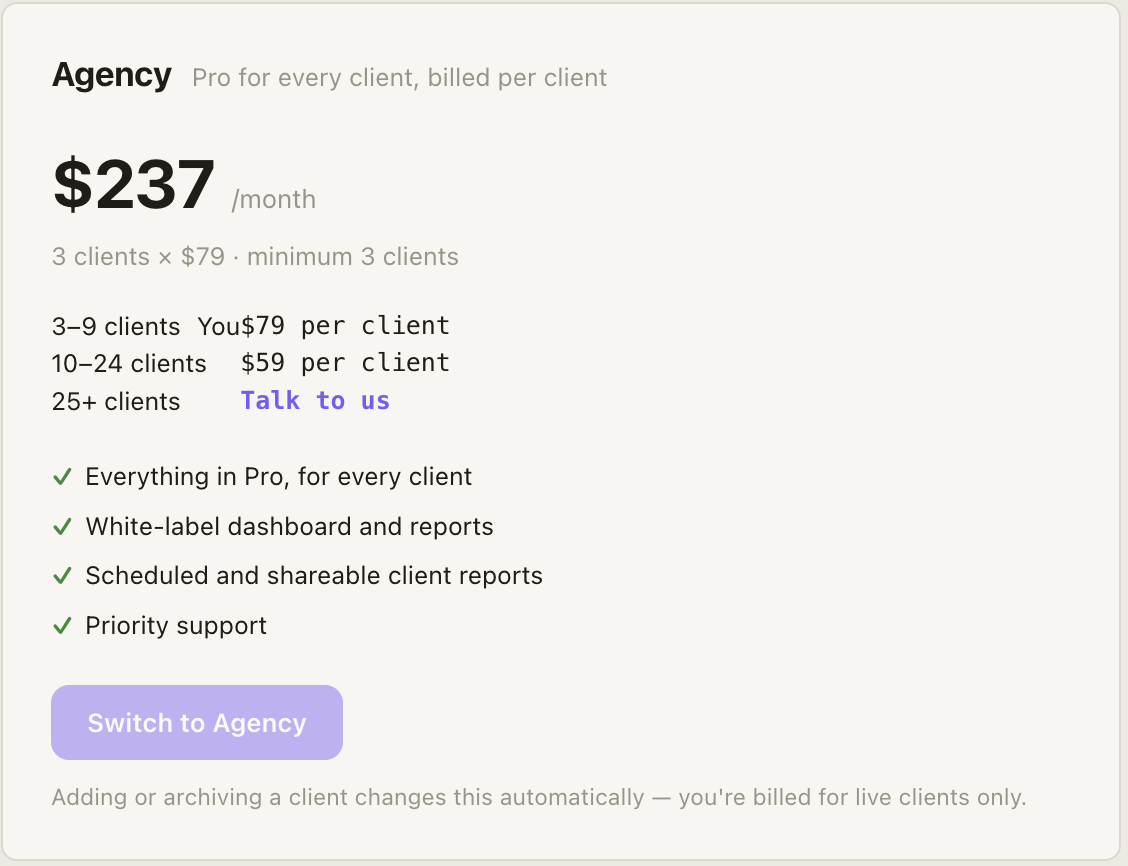
The rate applies to **every** client, not just the ones above the threshold. At 10 clients you pay 10 × $59, not 9 × $79 plus one at $59.
Note
That means the tenth client makes your bill go **down**: nine clients is $711, ten is $590.
## The minimum
[Section titled “The minimum”](#the-minimum)
Agency pricing starts at three clients. With one or two you’re still billed for three — so if you’re running a single brand, [Pro](/docs/account/plans/) is the cheaper plan.
## When the bill changes
[Section titled “When the bill changes”](#when-the-bill-changes)
* **Add a client** and it’s billed immediately, prorated for the rest of the month. The client starts being scanned at once, so it starts being paid for at once.
* **Archive a client** and it stops being billed at your next invoice. Its history stays readable; it just stops being scanned and stops counting.
* **Cross a tier** and every client moves to the new rate from that moment.
You can see all of this before it happens in **Settings → Clients**: your current count, the rate it earns, the monthly total, and what one more client would cost.
## Archiving a client
[Section titled “Archiving a client”](#archiving-a-client)
In **Settings → Clients**, choose **Archive** on that client and confirm.
* It stops being scanned and stops being billed.
* It disappears from the client switcher and from every page.
* Its data is kept, not deleted.
* You can’t archive your last remaining client.
## Above 24 clients
[Section titled “Above 24 clients”](#above-24-clients)
The app stops quoting above 24 and points you at a call instead. At that size the pricing is worth setting up with us directly rather than off a table.
## What’s included
[Section titled “What’s included”](#whats-included)
Every client on agency pricing gets everything in Pro — 60 buyer questions, four engines daily, topics, competitors, sources, tasks — plus:
* [White label](/docs/agencies/white-label/): your agency’s branding on the dashboard, and each client’s own branding on their reports
* Priority support
* Unlimited team seats
Pro already includes [client reports](/docs/features/reports/) in your branding, scheduled and shareable, for the single brand it covers. What agency pricing adds is the roster: every client you run, each at the per-client rate. [White label](/docs/agencies/white-label/) comes with any agency account, whatever the plan.
## Changing plans
[Section titled “Changing plans”](#changing-plans)
Moving from agency pricing back to Pro or Monitor is blocked while you have more clients than that plan allows: the self-serve plans hold one brand each. Archive down to the limit first; nothing is deleted.
# Client reporting
> How an agency reports AI visibility to a client: the monthly report, the shareable link, scheduling it so it sends itself, and how to keep the whole thing white label.
The month’s work has to arrive as something a client can read on their own and check. That’s what [Reports](/docs/features/reports/) is for — this page is the agency workflow around it.
## The monthly rhythm
[Section titled “The monthly rhythm”](#the-monthly-rhythm)
1. **Set a client’s report up once.** Open **Reports**, choose **Generate report → Scheduled**, pick monthly, choose the sections that client cares about, and send it to yourself.
2. **It builds itself** on the 1st, covering the month that just finished, and lands in your inbox with the PDF attached.
3. **Forward it to the client.** It leaves your mailbox, from your address — which is what keeps it white label.
4. **Or send them the link** instead, from the Reports page, if they’d rather read it in a browser than open an attachment.
## Why send it to yourself
[Section titled “Why send it to yourself”](#why-send-it-to-yourself)
The scheduled email can go straight to a client, but sending it to yourself first is the white-label route: forwarded from your own mailbox, it reaches them from your domain rather than ours.
The email body is written **to the client**, not to you, so forwarding takes no editing. It leads with the numbers in plain language and attaches the PDF.
## The link versus the PDF
[Section titled “The link versus the PDF”](#the-link-versus-the-pdf)
Both come from the same build and say the same things.
| | PDF | Link |
| ----------------------- | --------------------------------- | --------------------------------------------------- |
| Best for | Attaching, printing, filing | Reading on a phone, sending in a message |
| Sections | Every one you chose, one per page | The same, as a menu |
| AI answers | Quoted excerpts | **The full answer**, with every source it cited |
| Filtering | — | Search and filter the question set, sort the tables |
| Tells you it was opened | No | **Yes** |
The link is the one that answers “says who?” — a client can open any buyer question and read exactly what each engine said.
Note
A shared link is frozen. The page is stored when the report is built, so a link you sent in July still shows July’s numbers however long it sits in an inbox.
## Knowing whether it landed
[Section titled “Knowing whether it landed”](#knowing-whether-it-landed)
Shared reports show an open count and when they were last opened, or **“Link not opened yet”**. It’s a blunt signal, and a useful one: a client who never opens the report is a client who has stopped seeing the value of the retainer.
It tracks the **link**, not the email. Email open tracking is unreliable enough — mail clients pre-fetch images on the reader’s behalf — that we’d rather show you nothing than a number that isn’t real.
## Choosing sections per client
[Section titled “Choosing sections per client”](#choosing-sections-per-client)
A pitch and a monthly check-in aren’t the same document, so the section list is chosen per report and remembered per client.
* **A monthly**: where they stand, what changed, engine by engine, topics, the shortlist, receipts, what you fixed, what’s next.
* **A pitch or a first review**: add the full question set, the citation gap, and what to fix — the evidence-heavy sections that show the gap rather than the movement.
## Revoking a link
[Section titled “Revoking a link”](#revoking-a-link)
**Unshare** on any report kills the link, and every copy of it already sent, at once.
# Managing clients
> Add client brands, switch between them, and understand what is shared across your account and what stays separate per client.
One GetIntel account can hold several brands. For an [agency](/solutions/agencies/), each brand is a client with its own data, and everything in the app follows the brand you have selected.
## Add a client
[Section titled “Add a client”](#add-a-client)
1. Open the brand switcher in the header and choose **+ Add client**, or go to **Settings → Clients → + Add client**.
2. **Enter Your Website.** GetIntel reads the site to fill in the next steps.
3. **Your Product.** Check the product name and what it does.
4. **Target Audience.** Job title, industries, company size and geography.
5. **Pain Points & Messaging.** The problems the product solves and its key value propositions.
GetIntel then sets up the client’s competitors, buyer questions and topics, and runs its first scan.
## Switch between clients
[Section titled “Switch between clients”](#switch-between-clients)
Pick a client in the header switcher, or choose **Switch** next to it in **Settings → Clients**. The app reloads with every page scoped to that client.
[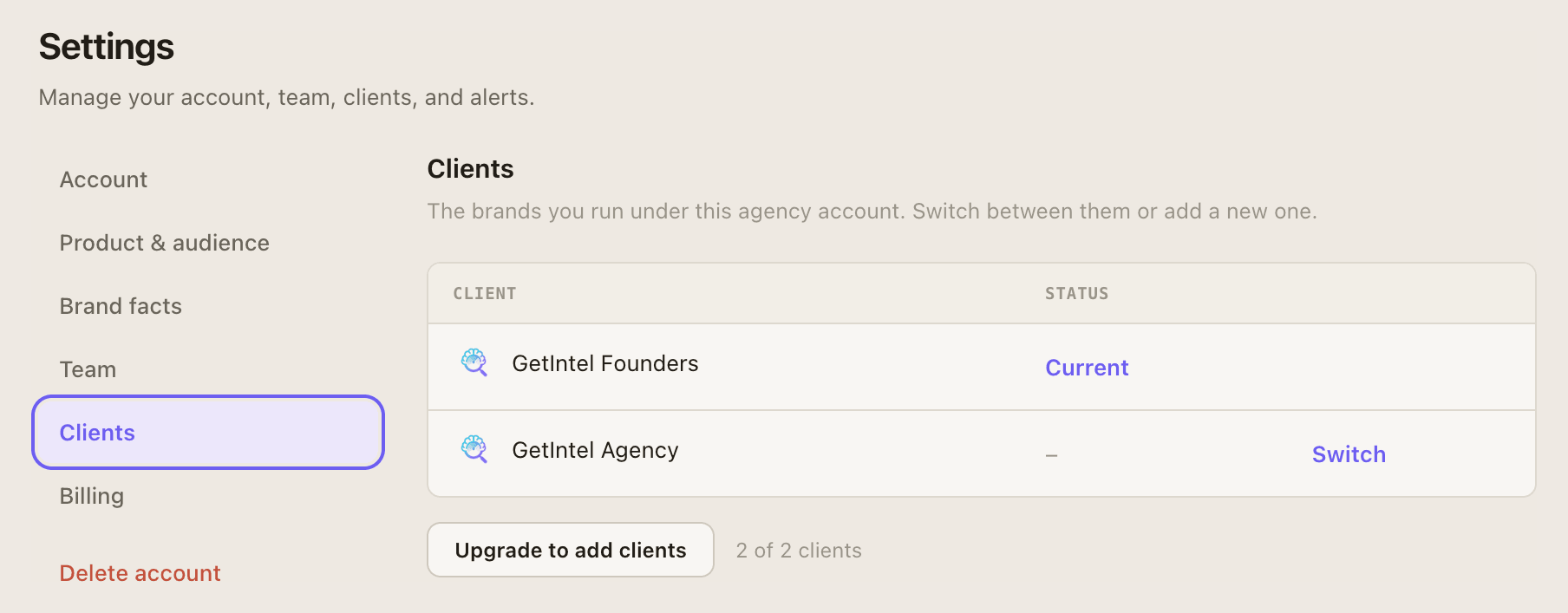](/product/clients.png)
The switcher shows how many clients your plan allows (“X of Y clients”). When you reach the limit, **Add client** becomes **Upgrade to add clients**.
## What is separate and what is shared
[Section titled “What is separate and what is shared”](#what-is-separate-and-what-is-shared)
| Separate per client | Shared across the account |
| --------------------------------------------------------------------------------- | ------------------------------------------------------------------------------------------------------------ |
| Website and product profile | Team members |
| Competitors, buyer questions and topics | Billing and plan |
| Scores, answers, sources and tasks | The [Looker Studio](/docs/looker-studio/) key: one key covers every client, and each report picks its client |
| [MCP tokens](/docs/mcp/connect/): a token only sees the client it was created for | |
Note
For a roster of client brands, agency pricing is set up with our team. [Book a call](/book-a-call/) and we will size it to your client count.
# Pitch reports
> Scan a company you don't work with yet and send them what AI says about them — the same report your clients get, before they're a client.
A pitch report is a prospect you scan to win the work. You point GetIntel at a company that isn’t a client, it runs one scan, and you get the same document your clients get — where AI names them, who it names instead, and what to fix.
It’s the pitch itself. Rather than telling a prospect that AI visibility matters, you show them their own number and the questions where AI recommends a competitor by name.
## Starting one
[Section titled “Starting one”](#starting-one)
1. **Open Pitch reports** in the sidebar and choose **New pitch**.
2. **Give us their website.** We read the site and work out what they sell, who they sell it to, and which market they’re in.
3. **Check what we found.** Four short steps — what they do, who they serve, what sets them apart. Correct anything that reads wrong: a wrong guess about the business makes a wrong pitch, and this is the step that stops it.
4. **Scan them.** It takes a few minutes. You can close the panel and keep working — it runs on our side either way, and the report is waiting on the list when it’s done.
[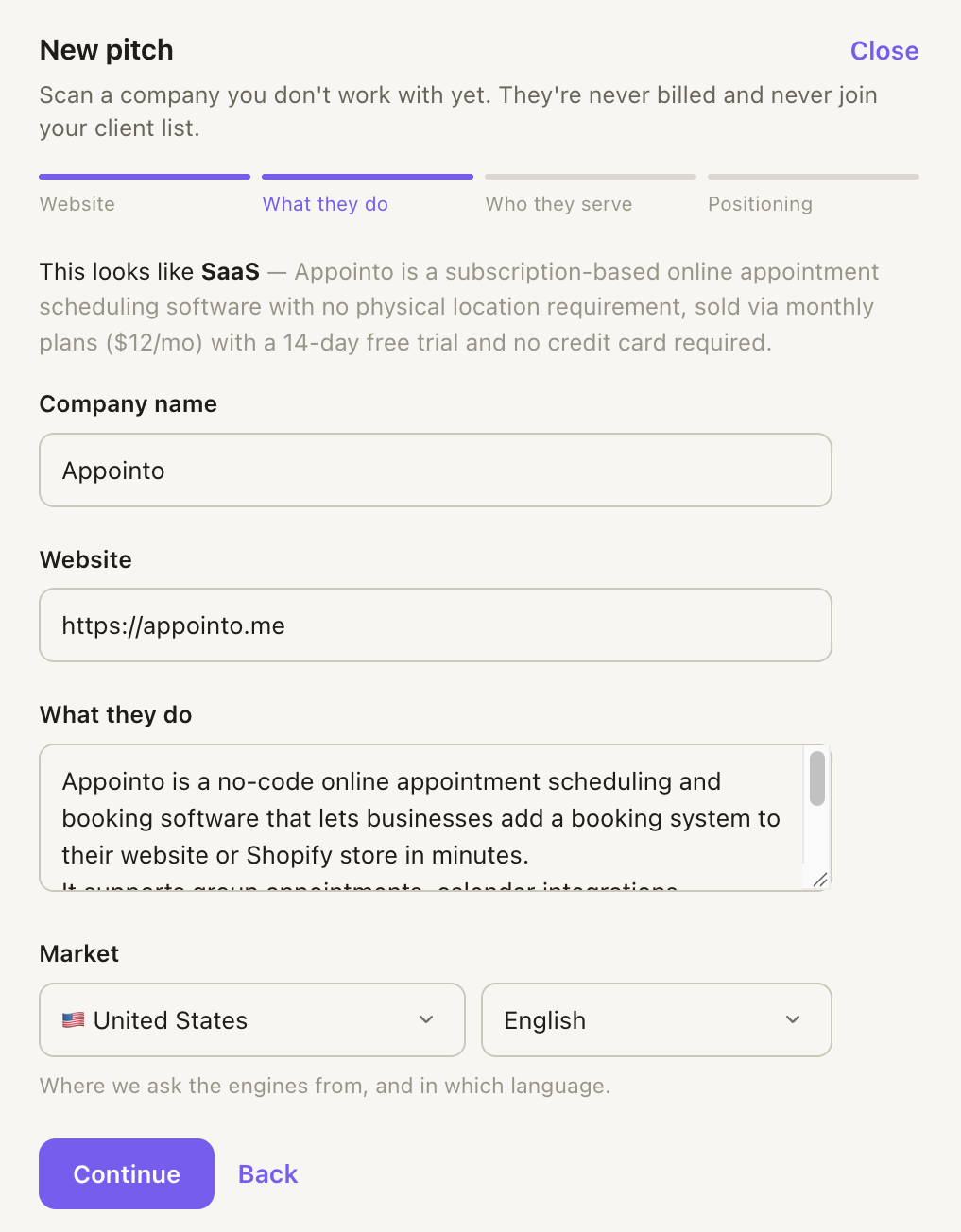](/product/pitch-reports-review-full.png)
Note
A pitch never touches the client you were working on. It isn’t in the brand switcher, it has no dashboard, and nothing about your own account changes while it scans.
## Sending it
[Section titled “Sending it”](#sending-it)
Each finished pitch gives you three ways to hand it over:
* **The report** opens in your browser.
* **The link** is a page anyone can read without logging in. It’s minted as soon as the report is built, it’s unguessable, it’s hidden from search engines, and you can revoke it. The numbers are frozen as the report was written — opening it next month shows what it said today.
* **The email** attaches the PDF. Like a client report, the note is written to *them* with none of our branding on it, so you send it to yourself and forward it from your own mailbox.
The link counts opens, so the list tells you whether a prospect actually read it.
[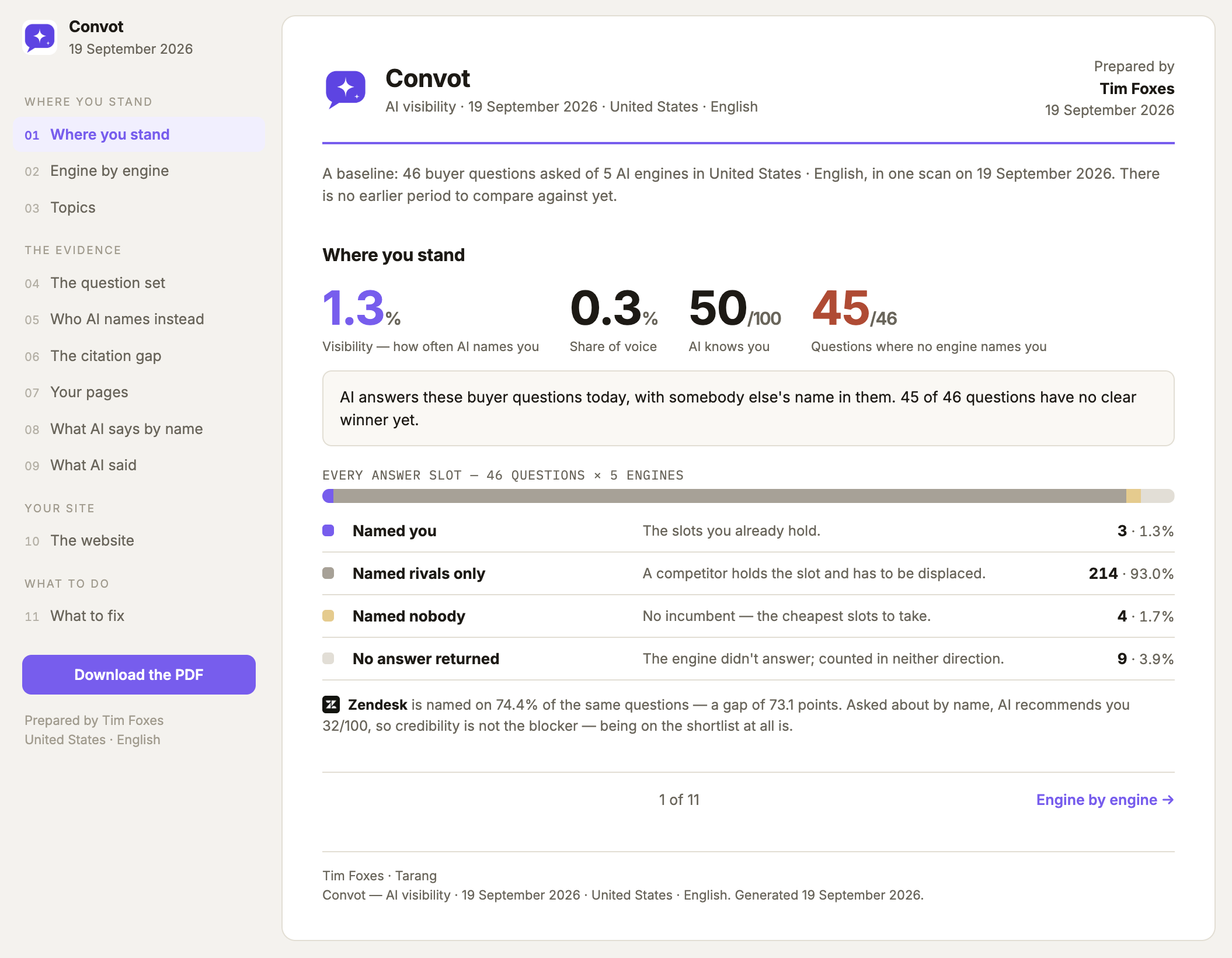](/product/pitch-reports-result-full.png)
## What a pitch is not
[Section titled “What a pitch is not”](#what-a-pitch-is-not)
A pitch is deliberately less than a client:
| | Pitch | Client |
| --------------------- | -------------------- | ------------------------------ |
| Scans | Once | Every day |
| Report | Built automatically | Whenever you ask, or scheduled |
| On your bill | No | Yes |
| In the brand switcher | No | Yes |
| Lifetime | Readable for 30 days | Ongoing |
After 30 days a pitch goes read-only. The report and its link keep working; it just stops being something you act on.
## Winning the work
[Section titled “Winning the work”](#winning-the-work)
When a prospect says yes, press **Convert to client** in the row’s menu. It joins your client roster, starts scanning daily, and is billed from that day — and it keeps the scan history from the pitch, so their first month already has a starting point to measure against.
That’s the reason to pitch through GetIntel rather than around it: the number you showed them in the meeting becomes the baseline you report against.
## How many you get
[Section titled “How many you get”](#how-many-you-get)
Pitch reports are an allowance per calendar month, and every plan includes some:
| Plan | Pitch reports a month |
| ------- | --------------------- |
| Trial | 3 |
| Monitor | 10 |
| Pro | 30 |
| Agency | 30 |
| Growth | 75 |
The allowance resets on the 1st. Unused pitches don’t carry over. The Pitch reports page shows what’s left.
[](/product/pitch-reports-list-full.png)
## Through Claude and the API
[Section titled “Through Claude and the API”](#through-claude-and-the-api)
Pitching works outside the app too, so you can research a prospect in the same place you’re writing the proposal.
* **[MCP](/docs/mcp/)**: `create_pitch` starts one from a URL, `list_pitches` shows the month’s prospects and what’s left of the allowance, and `get_pitch` returns one with its share link. Creating a pitch needs the *act* permission — a read-only connection can look but can’t spend.
* **[API](/docs/api/)**: `POST /v1/pitches` starts one, `GET /v1/pitches` lists them.
Both honour the same monthly allowance as the app, and answer plainly when it’s spent.
# Team members
> Invite teammates to your GetIntel account, what owners and members can do, and how many seats each plan includes.
Invite teammates from **Settings → Team → + Invite member**. Enter their email; they get a link to join.
* **Invites expire after 14 days.** Invite again if a link lapses.
* **Roles:** the account **owner** invites and removes members. Everyone else is a **member** with access to every brand on the account.
* **Billing follows the owner’s plan.** A member who joins uses the account’s plan.
## Seats
[Section titled “Seats”](#seats)
| Plan | Seats |
| ---------- | --------- |
| Free trial | 1 |
| Monitor | 2 |
| Pro | Unlimited |
| Growth | Unlimited |
Pending invites count toward seats. When the account is full, inviting shows how many seats are in use and a link to upgrade.
# White label
> Put your agency's logo and colour on the dashboard, and each client's own branding on their reports. What clients see, what they don't, and which plans include it.
White label puts **your** brand on the product your team uses, and **your client’s** brand on everything you send them. GetIntel appears in neither.
There are two halves, and they’re deliberately different.
## Your agency’s branding
[Section titled “Your agency’s branding”](#your-agencys-branding)
Applied to the dashboard your team works in: your logo in the sidebar and your accent colour throughout.
1. Open **Settings → Branding**.
2. **Upload your logo.** PNG, JPG or WebP, up to 2MB. It replaces the GetIntel mark in the sidebar.
3. **Set your accent colour.** Everything that was GetIntel purple becomes yours — buttons, links, charts, highlights.
[](/product/reports-branding-full.png)
## Each client’s branding
[Section titled “Each client’s branding”](#each-clients-branding)
Applied to what you send that client: their report, their PDF, their shareable link, and the email a scheduled report arrives in.
A client’s logo is found automatically from their website, so most clients need nothing set. Upload a different one or set their accent colour in **Settings → Branding**, under that client.
Note
Switch client in the top bar first — branding follows the client you have selected, the same as every other page.
## What a client sees
[Section titled “What a client sees”](#what-a-client-sees)
A [report](/docs/features/reports/) you send carries:
* **The client’s** logo and accent colour
* **Your agency** named as “Prepared by” in the footer
* No GetIntel logo, wordmark, footer or link anywhere in it
The same is true of scheduled report emails: they use the client’s branding and carry nothing of ours, so you can forward one to a client without editing it. See [Scheduled reports](/docs/features/reports/#scheduling) for why sending them to yourself first is the white-label route.
Shared report links live on a GetIntel domain (`getintel.ai/r/…`), but the page itself carries only the client’s branding and your agency’s name.
## What isn’t white-labelled
[Section titled “What isn’t white-labelled”](#what-isnt-white-labelled)
Being straight about the edges:
* **The app’s own login page and domain.** Your team signs in at GetIntel; a custom domain isn’t offered.
* **Anything a client reaches by logging in.** Clients don’t get logins — you send them a report or a link instead.
* **Billing emails and receipts**, which come from us to you, not to your clients.
## Plans
[Section titled “Plans”](#plans)
White label is on for **every agency account**, whatever plan it’s on. An account is an agency or a brand from the moment it signs up, and the **Settings → Branding** tab appears for agencies only.
A brand account (one company tracking itself) has nobody to white label for, so the tab isn’t there. Its reports still carry its own logo, found automatically from its website.
Agency pricing is per client. See [Per-client billing](/docs/agencies/billing/).
# GetIntel API
> Read your GetIntel AI visibility data from your own code with the REST API, including topics, AI answers, competitors, sources, tasks and AI traffic.
The GetIntel API gives you the same data as the app and the [MCP server](/docs/mcp/): topic scores, what each AI engine answered, competitors, cited sources, brand perception, the technical scan, AI traffic and your tasks. Use it to feed your own dashboards, data warehouse or client reports.
The API is **read-only** and returns JSON. Base URL:
```plaintext
https://app.getintel.ai/api/v1
```
## Quickstart
[Section titled “Quickstart”](#quickstart)
1. **Create a key.** In GetIntel, open **Integrations → Developers → GetIntel API** and click **Generate API key**. Copy it now: it’s shown once.
2. **Find your brand.** Call `GET /brands`. If your account has one brand you can skip `brand_id` from here on.
```sh
curl https://app.getintel.ai/api/v1/brands \
-H "Authorization: Bearer YOUR_API_KEY"
```
3. **Read your topics.**
```sh
curl "https://app.getintel.ai/api/v1/topics?brand_id=123&days=30" \
-H "Authorization: Bearer YOUR_API_KEY"
```
Every response has the same shape:
```json
{
"data": { "period": { "from": "2026-08-18", "to": "2026-09-17", "days": 30 }, "topics": [ … ] },
"meta": { "api_version": "v1", "brand": { "id": 123, "name": "Acme" }, "market": { "id": 7, "code": "US-en", "label": "🇺🇸 United States · English" } }
}
```
## Markets
[Section titled “Markets”](#markets)
On Pro and Growth a brand can be tracked in more than one market: a country plus a language, each with its own questions, answers, scores, competitors, sources and tasks. `GET /markets` lists them. Pass `market` (a code such as `IN-hi`, just `IN`, or the market’s id) on any other endpoint to read that market; without it you get the primary market. `meta.market` says which market answered. Brand perception and the technical scan are the same in every market.
```sh
curl "https://app.getintel.ai/api/v1/topics?brand_id=123&market=IN-hi" \
-H "Authorization: Bearer YOUR_API_KEY"
```
## What you can read
[Section titled “What you can read”](#what-you-can-read)
| Area | Endpoints |
| ---------------------------------------------- | ----------------------------------------------------------- |
| Account | `/brands`, `/markets`, `/usage` |
| Visibility | `/overview`, `/visibility` |
| Topics | `/topics`, `/topics/{id}` |
| AI answers | `/prompts`, `/answers`, `/answers/runs`, `/answers/history` |
| Competitors | `/competitors`, `/competitors/{name}` |
| Sources | `/sources`, `/pages`, `/content-gaps` |
| Brand perception | `/brand-perception`, `/brand-perception/transcript` |
| Reddit, Search Console | `/reddit`, `/search-console` |
| Technical and AI traffic | `/technical`, `/ai-crawlers`, `/ai-visitors` |
| Tasks | `/tasks`, `/tasks/{id}`, `/weekly-plan`, `/activity` |
| [Pitch reports](/docs/agencies/pitch-reports/) | `GET /pitches`, `GET /pitches/{id}`, `POST /pitches` |
`POST /pitches` is the one endpoint that isn’t a read: it scans a company that isn’t a client yet, and spends one of the month’s pitch reports. It answers `402` when the allowance is gone and `403` when the plan carries none.
Every endpoint’s parameters and responses are in the [API reference](/docs/api/reference/). The machine-readable OpenAPI document is at [`https://app.getintel.ai/api/v1/openapi.json`](https://app.getintel.ai/api/v1/openapi.json).
Note
Brand perception, Reddit, AI traffic and tasks are part of the Pro and Growth plans, the same as in the app. On Monitor those endpoints answer `403`.
[Authentication ](/docs/api/authentication/)API keys, brand\_id and keeping keys safe.
[Errors and limits ](/docs/api/errors-and-limits/)Error codes, the monthly read budget and rate limits.
[Examples ](/docs/api/examples/)curl, JavaScript and Python, plus a daily export.
[API reference ](/docs/api/reference/)Every endpoint, parameter and response.
# API authentication
> Create a GetIntel API key, send it as a Bearer token, choose the brand with brand_id, and revoke keys you no longer use.
## API keys
[Section titled “API keys”](#api-keys)
Send your key in the `Authorization` header on every request:
```sh
curl https://app.getintel.ai/api/v1/overview \
-H "Authorization: Bearer YOUR_API_KEY"
```
Create keys in **Integrations → Developers → GetIntel API**. The full key is shown once, when you create it. After that GetIntel only shows its last 4 characters, when it was created, who created it, and when it was last used.
* **Keys are read-only.** They can’t change anything in GetIntel.
* **Keys belong to the account,** not to one person or brand. Anyone on the account can see and revoke them, and a key keeps working if the person who made it leaves.
* **Keys don’t expire.** Revoke a key to stop it: it stops working immediately.
API keys only work with the API. They don’t work with the [MCP server](/docs/mcp/tokens-and-permissions/) or the [Looker Studio connector](/docs/looker-studio/), and those tokens don’t work here.
## Choosing the brand
[Section titled “Choosing the brand”](#choosing-the-brand)
One key reads every brand on the account. Pass `brand_id` to choose one:
```sh
curl "https://app.getintel.ai/api/v1/topics?brand_id=123" \
-H "Authorization: Bearer YOUR_API_KEY"
```
* Get brand ids from `GET /brands`.
* If the account has **one** brand, `brand_id` is optional.
* If it has **several**, leaving it out returns `400 brand_required`.
* A `brand_id` that isn’t on your account returns `404 brand_not_found`. The API never falls back to another brand.
Caution
Treat API keys like passwords. Keep them on your server or in a secrets manager, never in browser code, a public repository or a shared spreadsheet. If a key leaks, revoke it and create a new one.
# API errors and limits
> GetIntel API error codes, the monthly read budget shared with the MCP server, the per-minute rate limit, and how to handle each one.
## Errors
[Section titled “Errors”](#errors)
Errors return a status code and a JSON body with a machine-readable `code`:
```json
{ "error": { "code": "brand_required", "message": "This account has several brands: pass brand_id. See GET /brands." } }
```
| Status | Code | What to do |
| ------ | --------------------------- | --------------------------------------------------------------------------------------- |
| 400 | `invalid_parameter` | A parameter has the wrong type, is out of range, or is missing. The message says which. |
| 400 | `brand_required` | The account has several brands. Pass `brand_id`. |
| 401 | `invalid_api_key` | The key is missing, mistyped or revoked. |
| 403 | `feature_not_in_plan` | The data is part of the Pro and Growth plans. |
| 403 | `plan_inactive` | The account’s plan isn’t active. |
| 404 | `brand_not_found` | The `brand_id` isn’t on this account. |
| 404 | `market_not_found` | The `market` isn’t a live market of this brand. See `GET /markets`. |
| 404 | `not_found` | The topic, task or other item doesn’t exist. |
| 409 | `integration_not_connected` | The endpoint needs an integration, such as Search Console, that isn’t connected. |
| 429 | `quota_exceeded` | The monthly read budget is used up. |
| 429 | `rate_limited` | More than 60 requests a minute. Wait for `Retry-After` seconds. |
| 502 | `upstream_error` | A service GetIntel depends on failed. Retry later. |
## Monthly read budget
[Section titled “Monthly read budget”](#monthly-read-budget)
Each data request counts as one read. The budget is **shared with the MCP server**: reads from your API scripts and from your coding agents come out of the same monthly number.
| Plan | Reads a month |
| ------- | ------------- |
| Monitor | 10,000 |
| Pro | 50,000 |
| Growth | 200,000 |
`GET /usage` shows what’s used and left, and when it resets (the first of the month). `/usage` and `/brands` don’t count against the budget.
## Rate limit
[Section titled “Rate limit”](#rate-limit)
Up to **60 requests a minute per key**. Over that, the API answers `429 rate_limited` with a `Retry-After` header.
## Freshness
[Section titled “Freshness”](#freshness)
The API reads the same data as the app, so it’s as fresh as the app. AI answers update after the daily scan (9am IST), brand perception and the technical scan update weekly, and AI traffic every few minutes to every hour. See [Data freshness](/docs/academy/metrics/data-freshness/). There’s no need to poll more often than once an hour.
# API examples
> Call the GetIntel API from curl, JavaScript and Python, and export your topic scores to a CSV file every day.
## Read your topics
[Section titled “Read your topics”](#read-your-topics)
* curl
```sh
curl "https://app.getintel.ai/api/v1/topics?days=30" \
-H "Authorization: Bearer $GETINTEL_API_KEY"
```
* JavaScript
```js
const res = await fetch('https://app.getintel.ai/api/v1/topics?days=30', {
headers: { Authorization: `Bearer ${process.env.GETINTEL_API_KEY}` },
})
const body = await res.json()
if (!res.ok) throw new Error(`${body.error.code}: ${body.error.message}`)
for (const topic of body.data.topics) {
console.log(topic.name, topic.visibility)
}
```
* Python
```python
import os
import requests
res = requests.get(
"https://app.getintel.ai/api/v1/topics",
params={"days": 30},
headers={"Authorization": f"Bearer {os.environ['GETINTEL_API_KEY']}"},
timeout=30,
)
body = res.json()
if not res.ok:
raise RuntimeError(f"{body['error']['code']}: {body['error']['message']}")
for topic in body["data"]["topics"]:
print(topic["name"], topic["visibility"])
```
## Every brand on an agency account
[Section titled “Every brand on an agency account”](#every-brand-on-an-agency-account)
* JavaScript
```js
const api = (path) =>
fetch(`https://app.getintel.ai/api/v1/${path}`, {
headers: { Authorization: `Bearer ${process.env.GETINTEL_API_KEY}` },
}).then((r) => r.json())
const { data: brands } = await api('brands')
for (const brand of brands) {
const { data } = await api(`overview?brand_id=${brand.id}&days=7`)
console.log(brand.name, data.visibility)
}
```
* Python
```python
import os
import requests
session = requests.Session()
session.headers["Authorization"] = f"Bearer {os.environ['GETINTEL_API_KEY']}"
base = "https://app.getintel.ai/api/v1"
for brand in session.get(f"{base}/brands", timeout=30).json()["data"]:
overview = session.get(f"{base}/overview", params={"brand_id": brand["id"], "days": 7}, timeout=30).json()
print(brand["name"], overview["data"]["visibility"])
```
## Export topic scores to CSV every day
[Section titled “Export topic scores to CSV every day”](#export-topic-scores-to-csv-every-day)
Run this once a day (for example from cron after 10am IST, once the daily scan has finished) to keep a history in your own storage:
```python
import csv, datetime, os
import requests
res = requests.get(
"https://app.getintel.ai/api/v1/topics",
params={"days": 1},
headers={"Authorization": f"Bearer {os.environ['GETINTEL_API_KEY']}"},
timeout=30,
)
res.raise_for_status()
today = datetime.date.today().isoformat()
with open("topic_scores.csv", "a", newline="") as f:
writer = csv.writer(f)
for topic in res.json()["data"]["topics"]:
writer.writerow([today, topic["name"], topic["visibility"]])
```
## Handle limits
[Section titled “Handle limits”](#handle-limits)
Check the error code, and back off on `429`:
```js
async function getintel(path, tries = 3) {
const res = await fetch(`https://app.getintel.ai/api/v1/${path}`, {
headers: { Authorization: `Bearer ${process.env.GETINTEL_API_KEY}` },
})
if (res.status === 429 && tries > 0) {
const body = await res.json()
if (body.error.code === 'quota_exceeded') throw new Error(body.error.message) // wait for next month
const wait = Number(res.headers.get('Retry-After') || 30)
await new Promise((r) => setTimeout(r, wait * 1000))
return getintel(path, tries - 1)
}
return res.json()
}
```
# Frequently asked questions
> Short answers to the most common questions about GetIntel, from engines and pricing to data, agents and results, with links to the full pages.
## The product
[Section titled “The product”](#the-product)
**What does GetIntel do?** It asks the AI engines your buyers use the questions they ask, every day, shows where you are recommended or left out, scores each buyer topic, and turns the gaps into ranked tasks. See the [overview](/docs/).
**Which AI engines does it track?** [ChatGPT](/chatgpt-visibility-tracker/), Perplexity, Gemini and Google AI Overviews daily on every plan, and Claude weekly on Growth. See [How GetIntel collects data](/docs/academy/start-here/how-getintel-collects-data/).
**Does it read the real ChatGPT, or an API?** The real products for ChatGPT, Gemini and Perplexity, and real Google results pages for AI Overviews. Claude is read through Anthropic’s API with web search.
**Can I choose which country answers come from?** Yes. Each [market](/docs/features/markets/) is a country and a language, picked during setup. Pro and Growth can change it and track several markets.
**Can I track several countries or languages?** Yes, on Pro and Growth. Each market has its own questions in its language, answers, scores, competitors and tasks. See [Markets](/docs/features/markets/).
**Can I add my own questions?** Yes. **+ Add topic** adds a topic with questions written for it, and **Add prompt** adds a single question. See [Topics](/docs/features/topics/#adding-a-topic).
## Numbers
[Section titled “Numbers”](#numbers)
**Why does ChatGPT say something different when I ask it myself?** Your account history, location and plain run-to-run variation all change answers. See [How GetIntel collects data](/docs/academy/start-here/how-getintel-collects-data/#why-an-answer-can-differ-from-what-you-see).
**Why do Home and Topics show different visibility?** Different windows and different sets of questions. See [Why numbers differ](/docs/academy/metrics/why-numbers-differ/).
**How often does data update?** AI answers daily; brand perception, the technical scan and Claude weekly; AI crawlers hourly. See [Data freshness](/docs/academy/metrics/data-freshness/).
**My visibility is zero. Is something broken?** Usually not. See [Why is my visibility zero?](/docs/academy/troubleshooting/visibility-zero/).
## Results
[Section titled “Results”](#results)
**How long until I see results?** Mentions on sources AI already cites and helpful Reddit replies can show within days to a couple of weeks. New and updated pages usually take a few weeks to a month. See [Get recommended in AI search](/docs/academy/playbooks/get-recommended-in-ai-search/).
**What should I do first?** Follow [Your first week](/docs/academy/start-here/first-week/), then use the **Weekly plan**.
## Agents and integrations
[Section titled “Agents and integrations”](#agents-and-integrations)
**Can my coding agent use GetIntel?** Yes. [Claude Code](/blog/ai-visibility-tools-mcp-claude-code/), Cursor, Codex CLI, Claude Desktop, VS Code, Windsurf, Gemini CLI and any MCP client can connect. See [the MCP server](/docs/mcp/).
**Does GetIntel change my website?** No. It never touches your site. Your own coding agent can make changes you ask for, in your repository, for you to review.
**What can I connect?** Cloudflare, Google Search Console and Looker Studio. See [Integrations](/docs/integrations/).
## Plans and billing
[Section titled “Plans and billing”](#plans-and-billing)
**Is there a free trial?** Yes, 7 days of the full Pro experience on 25 buyer questions. A card is required and nothing is charged until day 8. See [Free trial](/docs/account/trial/).
**Do you have [agency pricing](/solutions/agencies/)?** Yes, priced per client. [Book a call](/book-a-call/) and we will set it up.
**Can I cancel any time?** Yes, and your data is kept. See [Cancelling and your data](/docs/account/cancelling/).
**Is my data safe?** Connections are read-only and credentials are encrypted. See [Security and data](/docs/account/security-and-data/).
# Actions and weekly plan
> How GetIntel turns gaps into ranked tasks across On-Page, Off-Page, UGC and Technical, and how the weekly plan picks what to do this week.
**Actions** turns what GetIntel finds into [ranked tasks](/features/tasks/). **Weekly plan** picks a handful of them for this week. Both are available on Pro and Growth.
[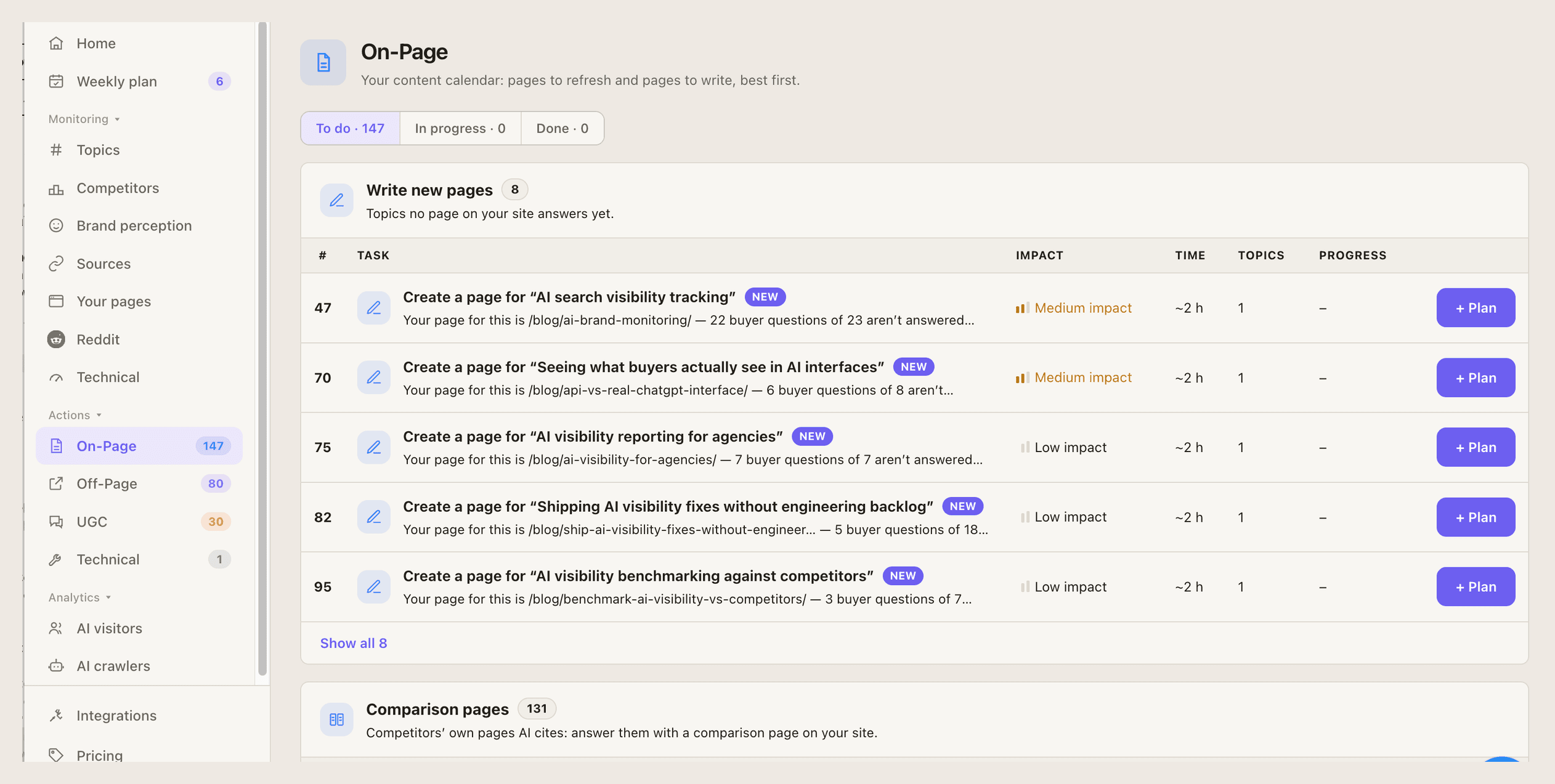](/product/tasks-buckets-full.png)
## The four layers
[Section titled “The four layers”](#the-four-layers)
| Layer | What it covers |
| ------------- | ------------------------------------------------------------------------------------------------------------------------------------ |
| **On-Page** | Your content calendar: pages to refresh and pages to write. |
| **Off-Page** | Your outreach list: the lists and articles AI reads that don’t mention you yet, review sites and marketplaces, and comparison pages. |
| **UGC** | Reddit, YouTube and LinkedIn: the community platforms AI cites most. |
| **Technical** | Connecting your data, then fixing what the weekly technical scan found. |
## How tasks are ranked
[Section titled “How tasks are ranked”](#how-tasks-are-ranked)
Tasks rebuild after every scoring run. Many findings collapse into fewer tasks, and a task that helps several topics ranks higher. The ranking weighs how many answers and questions a task touches, how many topics it helps, whether it fixes the topic’s actual bottleneck, and the effort involved.
A task appears once it is confirmed: seen on at least 2 days, or backed by at least 3 answers. A task GetIntel no longer finds is marked **Detected as done**.
[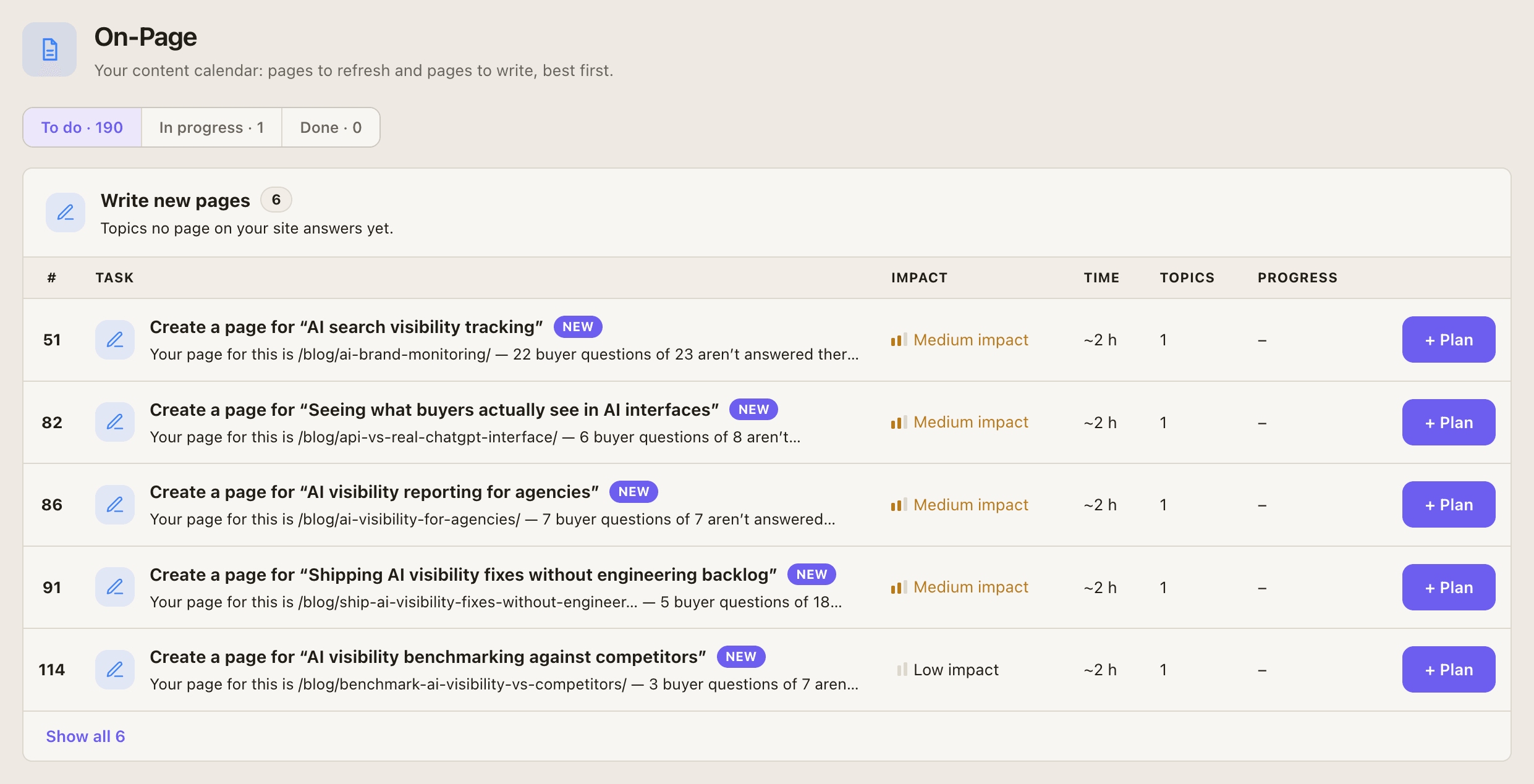](/product/onpage-tasks-full.png)
## Working a task
[Section titled “Working a task”](#working-a-task)
Open a task to see **Why this matters**, **What to do** as a checklist, and the topics it moves. Each layer has **To do**, **In progress** and **Done** tabs.
Where it can, the task also writes the work for you:
* **Refresh a page:** **Write it** produces each block to paste into the page, and says where it goes.
* **Get onto a list or article:** **Write the pitch** produces the outreach message.
* **Reddit thread:** **Write the reply** produces a reply to post.
* **New pages, comparison pages, videos and posts** come as briefs: the questions to answer, the facts to cover, and the formats AI cites.
You copy the result and publish or send it yourself, or hand it to your coding agent.
* **Start**, then tick off steps as you go.
* **Mark done**, or **Reopen**.
* **Not relevant** dismisses a task.
* **Snooze** hides it for 2 weeks.
[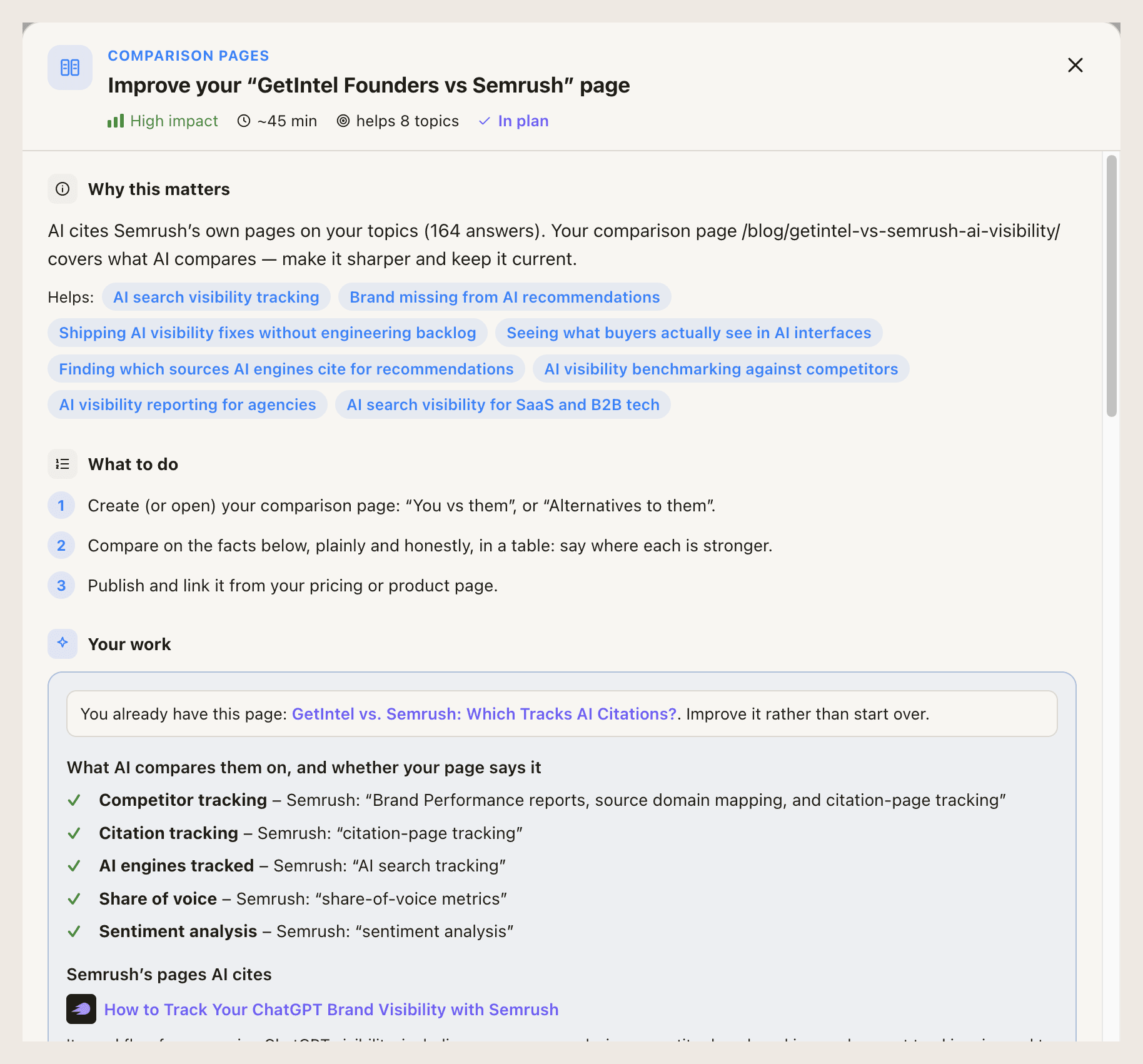](/product/task-detail-full.png)
## Weekly plan
[Section titled “Weekly plan”](#weekly-plan)
**Weekly plan** is a board with **To do**, **In progress** and **Done** columns for the current week.
[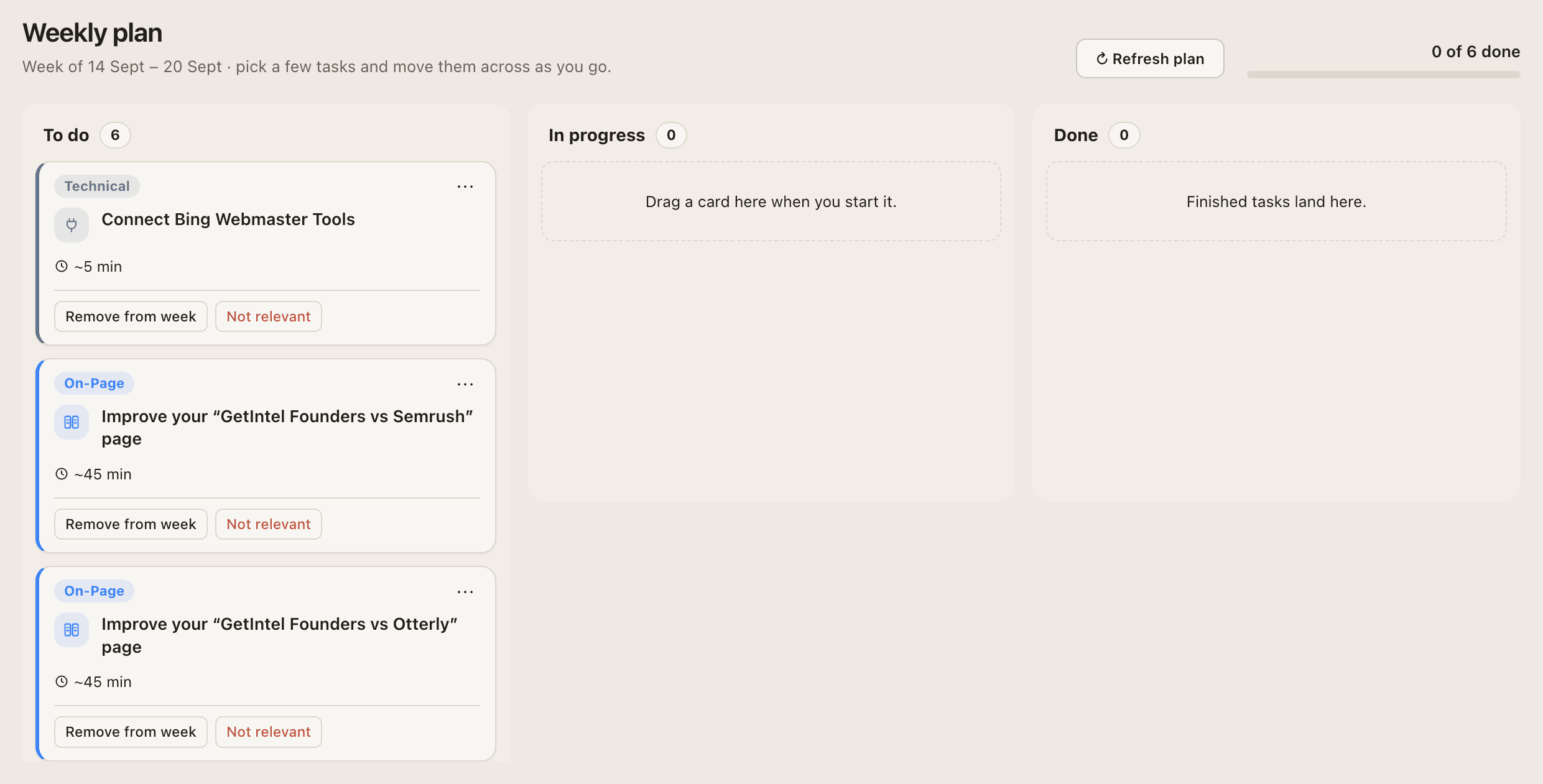](/product/weekly-plan-full.png)
* **Plan my week** fills an empty board with the top confirmed tasks: 2 On-Page, 2 Off-Page, 1 UGC and 1 Technical.
* **Refresh plan** swaps the tasks you haven’t started for the current top ones. In-progress and done tasks stay.
* **Up next** lists the most valuable tasks not on the plan, to add yourself.
* Unfinished tasks carry over into the next week.
Tip
Your coding agent can work the plan too: [`get_weekly_plan`, `plan_week` and `update_task`](/docs/mcp/tools/#tasks-and-weekly-plan) do the same things over MCP.
On Monitor, Actions and Weekly plan are locked, but GetIntel still builds your tasks and shows how many are waiting.
# AI crawlers and AI visitors
> How often ChatGPT, Perplexity, Claude and Gemini bots read your pages, and how many people arrive on your site from AI assistants.
Citations sit in the middle of the story. **[AI crawlers and AI visitors](/features/ai-traffic/)** show either side of it: engines reading your pages, and people clicking through from AI answers. Both are under **Analytics** and available on Pro and Growth.
## AI crawlers
[Section titled “AI crawlers”](#ai-crawlers)
Which of your pages ChatGPT, Perplexity, Claude and Gemini read, and whether they can find the rest. Data comes from [Cloudflare](/docs/integrations/cloudflare/), updated hourly, or from the [GetIntel server script](/docs/integrations/getintel-script/), updated every few minutes.
[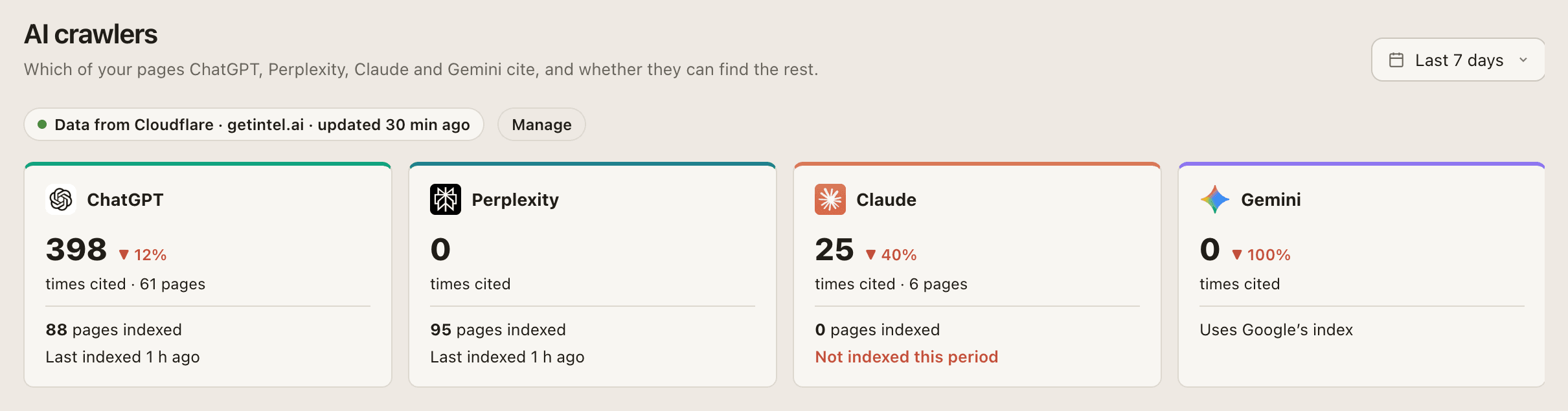](/product/ai-crawlers-full.png)
* **Per engine:** times cited, the trend, pages indexed and when a page was last indexed. Gemini uses Google’s index, so it is shown that way.
* **Times AI cited your pages** over the period.
* **Compared with the previous period:** **Newly cited**, **Cited more**, **Cited less** and **No longer cited**.
* **Pages** and **Bots** tables. Bots are labelled **Citing** (fetching a page live to answer someone) or **Indexing** (saving pages for later).
Only verified bots are counted: each hit is checked against the vendor’s published IP ranges. Training bots, Google and Bing search crawlers, and impostors are left out.
## AI visitors
[Section titled “AI visitors”](#ai-visitors)
People who arrive from ChatGPT, Perplexity, Gemini, Claude and Copilot, and where they land.
[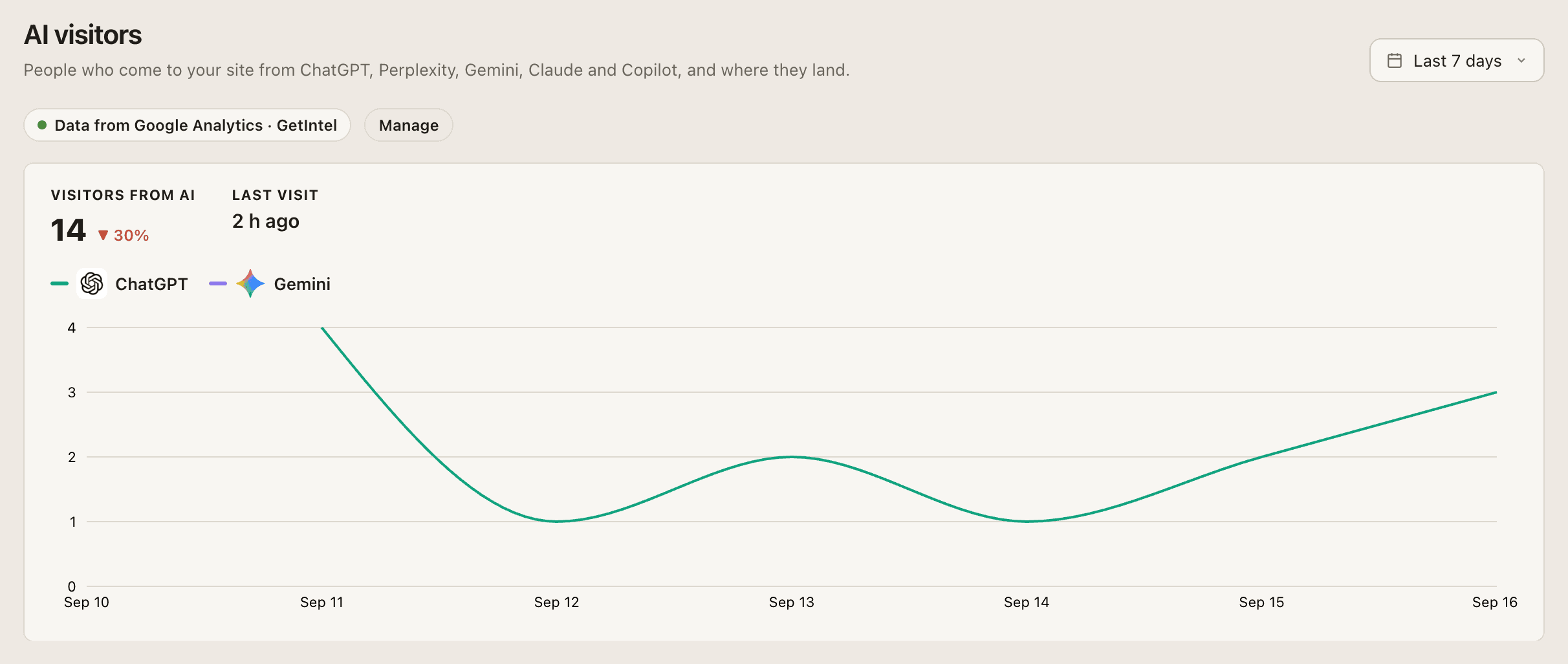](/product/ai-visitors-full.png)
* **Visitors from AI**, the trend and the last visit, charted per assistant.
* **Landing pages** and **By assistant** tables.
Caution
AI visitors reads from the [GetIntel visitor tag](/docs/integrations/getintel-script/) or Google Analytics 4. The Google Analytics connection is still rolling out; until it’s available for your account, use the visitor tag.
# Brand perception
> Whether AI engines know what your product is and whether they would recommend it, checked weekly across ChatGPT, Perplexity, Gemini and Google AI Overviews.
**Brand perception** answers two questions: does AI know your brand, and would it recommend you? It runs weekly on [ChatGPT](/chatgpt-visibility-tracker/), Perplexity, Gemini and Google AI Overviews. Available on Pro and Growth.
[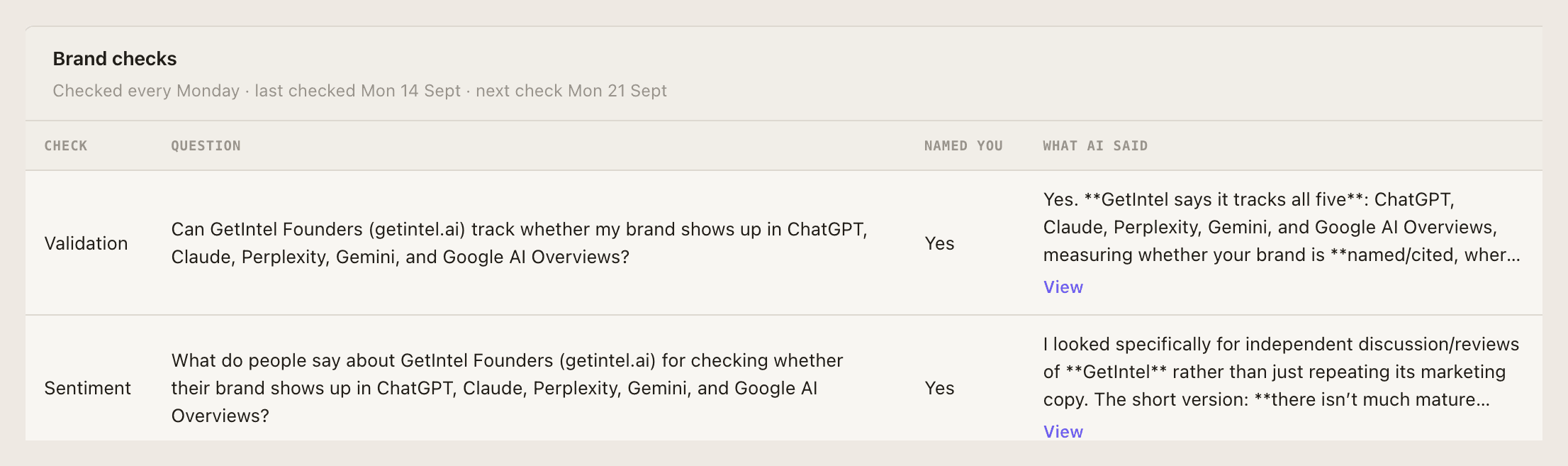](/product/brand-perception.png)
## Does AI know you?
[Section titled “Does AI know you?”](#does-ai-know-you)
What each engine says when asked directly what your product is:
| Result | Meaning |
| ---------------------------- | ---------------------------------------- |
| **Accurately describes you** | The description matches your product. |
| **Partially accurate** | Some of it is right. |
| **Describes you wrong** | The engine gets your product wrong. |
| **Vague / unsure** | The answer is noncommittal. |
| **Doesn’t know you** | The engine does not recognize the brand. |
## Would AI recommend you?
[Section titled “Would AI recommend you?”](#would-ai-recommend-you)
A two-turn conversation per engine:
* **Unprompted.** A category question that never mentions you: **Named nobody**, **Named competitors, not you**, **Named you**, or **Named you first**.
* **When asked.** A follow-up that names you: **Recommends you**, **Lists you as an option**, **Points to competitors**, **Speaks negatively**, or **No clear signal**.
## What’s good and what’s bad
[Section titled “What’s good and what’s bad”](#whats-good-and-whats-bad)
Two summaries drawn from every engine’s reasoning, so you can see what AI already believes about you and what to correct.
The page shows when the last run happened and when the next one is due. Runs happen on Mondays.
# Competitors
> Every brand AI names in your category, ranked by visibility, share of voice and position, and why AI picks each rival over you.
**[Competitors](/features/competitors/)** lists every brand AI names in your category, ranked by how often AI names them, including brands you never told GetIntel about.
[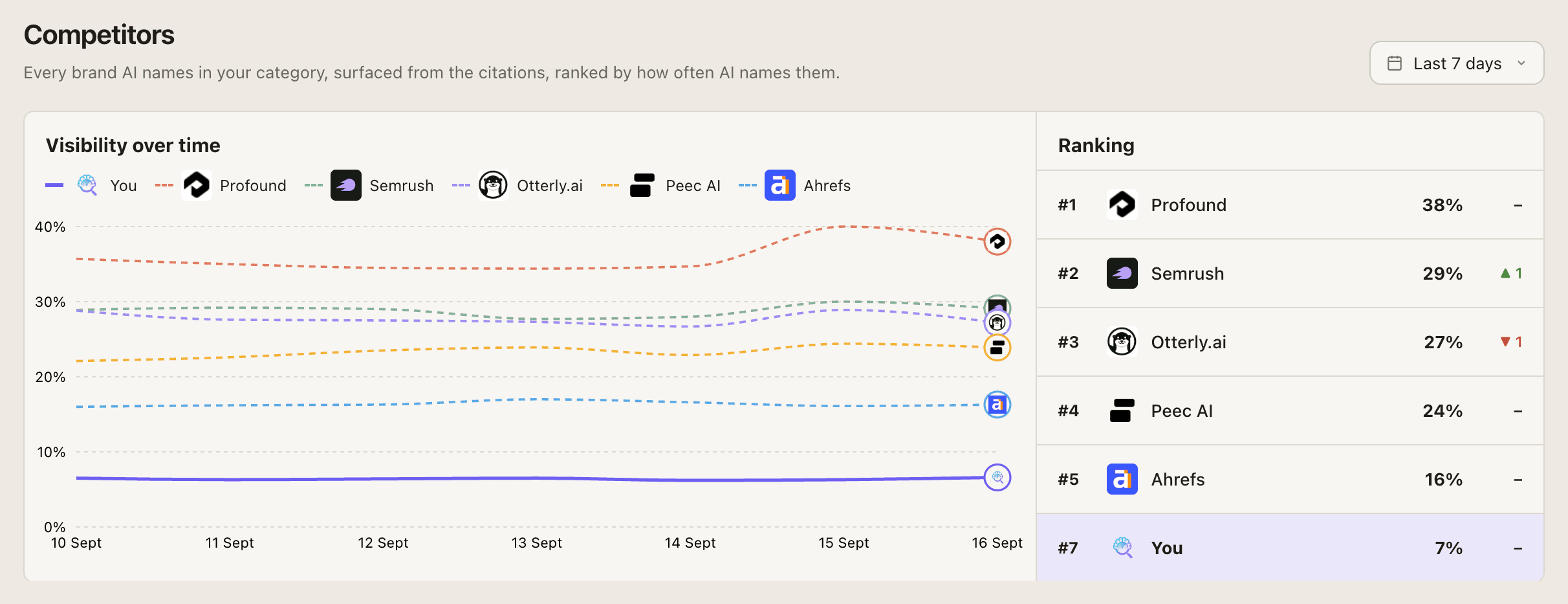](/product/competitors-overview-full.png)
## The table
[Section titled “The table”](#the-table)
| Column | What it shows |
| ---------------- | ------------------------------------------------ |
| **Visibility** | How often AI names the brand. |
| **SoV** | Its share of all brand mentions. |
| **Avg position** | Where it is named among the brands in an answer. |
| **Beats you in** | How many of your topics it scores higher in. |
A **You** row sits in the table so you can compare directly. Use the period selector to change the window.
## A rival in depth
[Section titled “A rival in depth”](#a-rival-in-depth)
Open **View details** on any brand:
* **Why AI picks them**, and **By topic**: where they beat you and by how much.
* **Prompts they win that you lose**, with what AI said.
* **Pages AI cites for them.**
## Tracking competitors
[Section titled “Tracking competitors”](#tracking-competitors)
GetIntel finds competitors for you during setup. You can **Add competitor** (name and website) or **Remove** one.
| Plan | Competitors tracked |
| ------- | ------------------- |
| Monitor | 5 |
| Pro | 10 |
| Growth | 20 |
Tracked competitors’ websites are re-analyzed weekly, and daily on Growth.
# Home
> What the GetIntel Home page shows: visibility against your top rivals, how AI describes you, your cited pages, topics weakest first, and what to work on next.
Home answers two questions: where your brand stands in AI answers, and what to work on next. Pick a period at the top; it defaults to the last 7 days.
[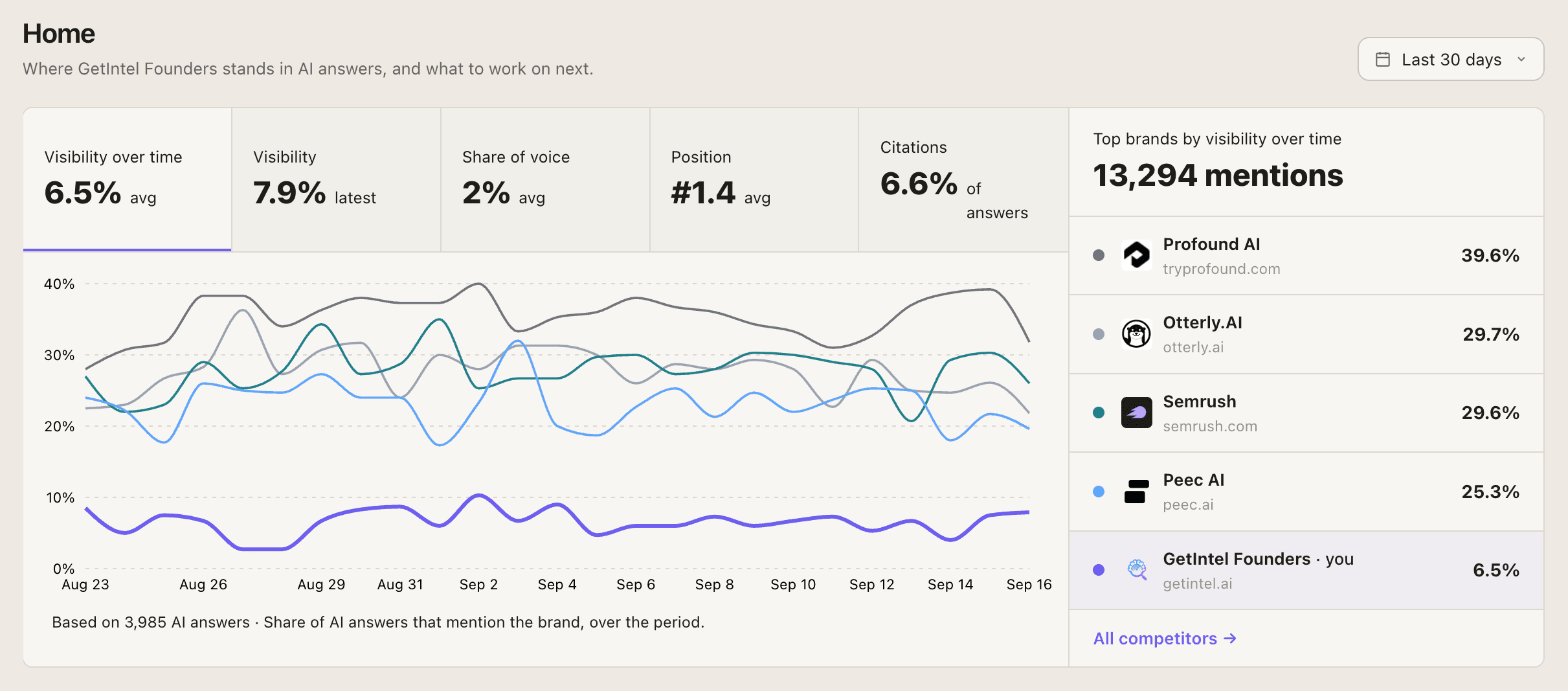](/product/visibility-trend-full.png)
## Sections
[Section titled “Sections”](#sections)
* **Visibility over time.** Switch between **Visibility**, **Share of voice**, **Position** and **Citations**. The chart compares you with the [top brands AI names](/features/competitors/); **All competitors →** opens the full list. See [how these are measured](/docs/features/how-measurement-works/). A ◆ marks a day you added, archived, reworded or moved topics or prompts, with a line under the chart saying what changed. Those changes move the numbers by themselves.
* **How AI describes you.** Knowledge and recommendation scores out of 100, what AI gets right, and any engine that describes you incorrectly. Opens [Brand perception](/docs/features/brand-perception/).
* **Your pages in AI answers.** How many of your pages were cited, the top ones, and pages losing citations. Opens [Your pages](/docs/features/your-pages/).
* **By topic.** Your topics weakest first, with your score, the change, and the leader in each. Opens [Topics](/docs/features/topics/).
* **AI crawlers, AI visitors, Technical.** Headline numbers from each, linking to the full pages.
* **What to do next.** Open tasks in each layer (On-Page, Off-Page, UGC, Technical). See [Actions](/docs/features/actions/).
On Monitor, How AI describes you, AI crawlers, AI visitors and What to do next show as locked and unlock on Pro.
# How GetIntel measures AI visibility
> Which AI engines GetIntel asks and how often, what recommended, mentioned, absent and open mean, and how position and visibility are calculated.
Every number in GetIntel comes from the same raw material: real answers from AI engines to the questions your buyers ask. This page explains how those answers become scores.
## Engines and cadence
[Section titled “Engines and cadence”](#engines-and-cadence)
| Engine | How often | Plans |
| --------------------------------------------- | ---------------- | --------- |
| [ChatGPT](/chatgpt-visibility-tracker/) | Daily | All plans |
| [Perplexity](/perplexity-visibility-tracker/) | Daily | All plans |
| [Gemini](/gemini-visibility-tracker/) | Daily | All plans |
| [Google AI Overviews](/ai-overview-tracker/) | Daily | All plans |
| [Claude](/claude-visibility-tracker/) | Weekly (Mondays) | Growth |
The daily scan starts at 9am IST and asks every engine your full set of tracked buyer questions, each one in a fresh, clean session. Brand perception and the technical scan run weekly on their own schedules.
## Answer states
[Section titled “Answer states”](#answer-states)
Each answer from each engine is classified into one state for your brand:
| State | Meaning |
| --------------- | --------------------------------------------------------------------------------------------------------------------- |
| **Recommended** | You are named, and named first among all the products in the answer. |
| **Mentioned** | You are named, but another product is named before you. |
| **Absent** | The answer names other products but not you. |
| **Open** | The answer names no product at all. A slot nobody holds yet. |
| **No answer** | The engine returned nothing to read: the call failed, or Google showed no AI Overview. It is never counted as absent. |
Note
“Recommended” is about order, not tone: the brand named first is the one a reader sees as the lead suggestion.
Your brand still counts when AI writes its name a little differently, such as a shortened name, different spacing or a different spelling.
## Position
[Section titled “Position”](#position)
When you are named, **position** is where you appear among every product the answer names, counting from 1. An average position of 1.4 means you are usually named first or second.
## Visibility
[Section titled “Visibility”](#visibility)
**Visibility** is how often AI names you. For each buyer question GetIntel works out the share of answers that named you (recommended or mentioned), then averages across questions, so a question asked many times does not outweigh the rest.
* **Topic scores** use a rolling 7-day window.
* **Home** shows the period you pick (7 days by default), and its daily chart plots each day’s own answers.
* **Share of voice** is your mentions divided by all brand mentions in the same answers.
* **Citations** is the share of answers that link to your own site.
## Head-to-heads and win rate
[Section titled “Head-to-heads and win rate”](#head-to-heads-and-win-rate)
Separately from buyer questions, GetIntel asks each engine daily to choose between you and a named rival. **Win rate** is how often it picks you. Answers that refuse to pick a side count for neither.
# Markets
> Track AI visibility by country and language. How GetIntel markets work, which engines scan from each country, adding a market, comparing markets and what counts against your question limit.
AI answers change by country. The same question asked from the United States and from India can name different brands and cite completely different pages. A **market** is a country and a language: GetIntel asks every engine from that country, writes your buyer questions in that language, and keeps each market’s results separate.
[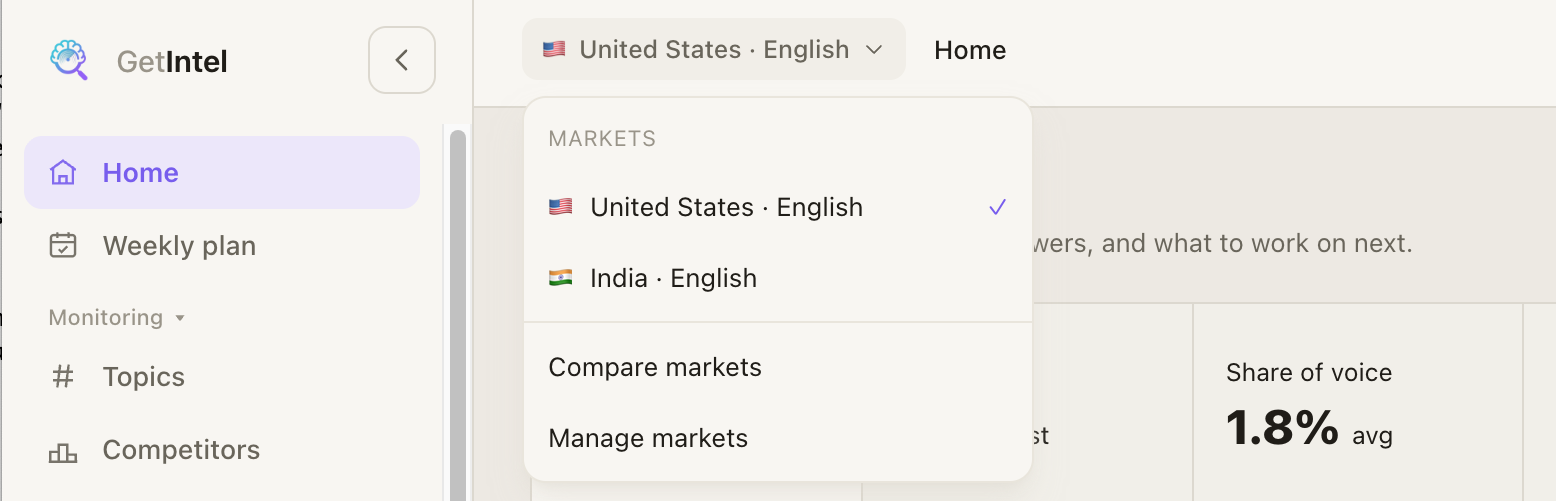](/product/markets-switcher-full.png)
## What a market includes
[Section titled “What a market includes”](#what-a-market-includes)
Each market has its own:
* **Buyer questions**, written in the market’s language.
* **AI answers and scores**, per topic and for the brand.
* **Competitors**, found for that country. The rivals AI names in Germany are often not the ones it names in the US.
* **Sources, content analysis and tasks.**
Some things describe your brand rather than a market, so they are the same in every market: [brand perception](/docs/features/brand-perception/) and the [technical scan](/docs/features/technical/).
## Which engines scan from the market
[Section titled “Which engines scan from the market”](#which-engines-scan-from-the-market)
| Engine | Asked from the market’s country |
| ------------------- | --------------------------------------------------------------------------------------------------------- |
| ChatGPT | Yes |
| Perplexity | Yes |
| Gemini | Yes |
| Google AI Overviews | Yes, in the market’s language |
| Claude (Growth) | Yes, except in countries Anthropic’s web search doesn’t support, where Claude searches without a location |
## Plans
[Section titled “Plans”](#plans)
| | Monitor | Pro | Growth |
| ------------------ | ------- | ------------------------------------- | ------------------------------------- |
| Markets | 1 | As many as your question limit covers | As many as your question limit covers |
| Change your market | | ✓ | ✓ |
On Monitor and during the [free trial](/docs/account/trial/), your market is the one you pick during setup. Pro and Growth can change it and add more markets.
## Your first market
[Section titled “Your first market”](#your-first-market)
During setup, GetIntel suggests a market from your website. Check the country and the language before you start the first scan; you can pick any supported country and language.
## Adding a market
[Section titled “Adding a market”](#adding-a-market)
1. Open **Settings → Markets** and choose **+ Add market**.
2. **Pick the country and language.** Both lists are searchable.
3. **Pick the topics to track there.** A market can track some or all of your [topics](/docs/features/topics/). You see how many questions the market needs and how many you have left.
4. **Review the questions.** GetIntel writes the questions in the market’s language and finds the competitors AI names there. This takes a minute or two. Edit or remove any question.
5. **Start scanning.** The market’s first scan runs straight away: every question on every engine, then topic scores, sources and tasks. It takes about 10 minutes.
[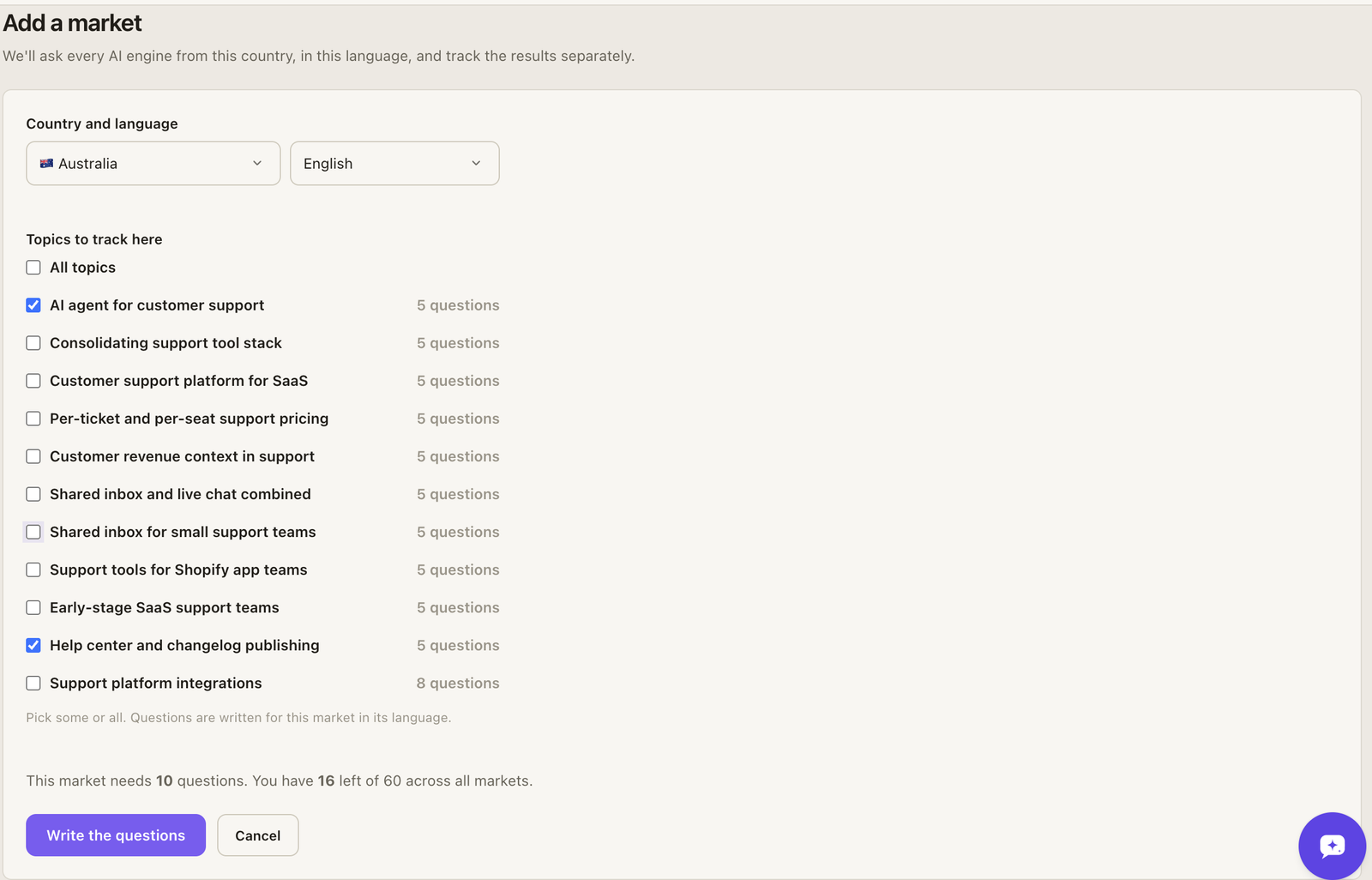](/product/add-market-full.png)
[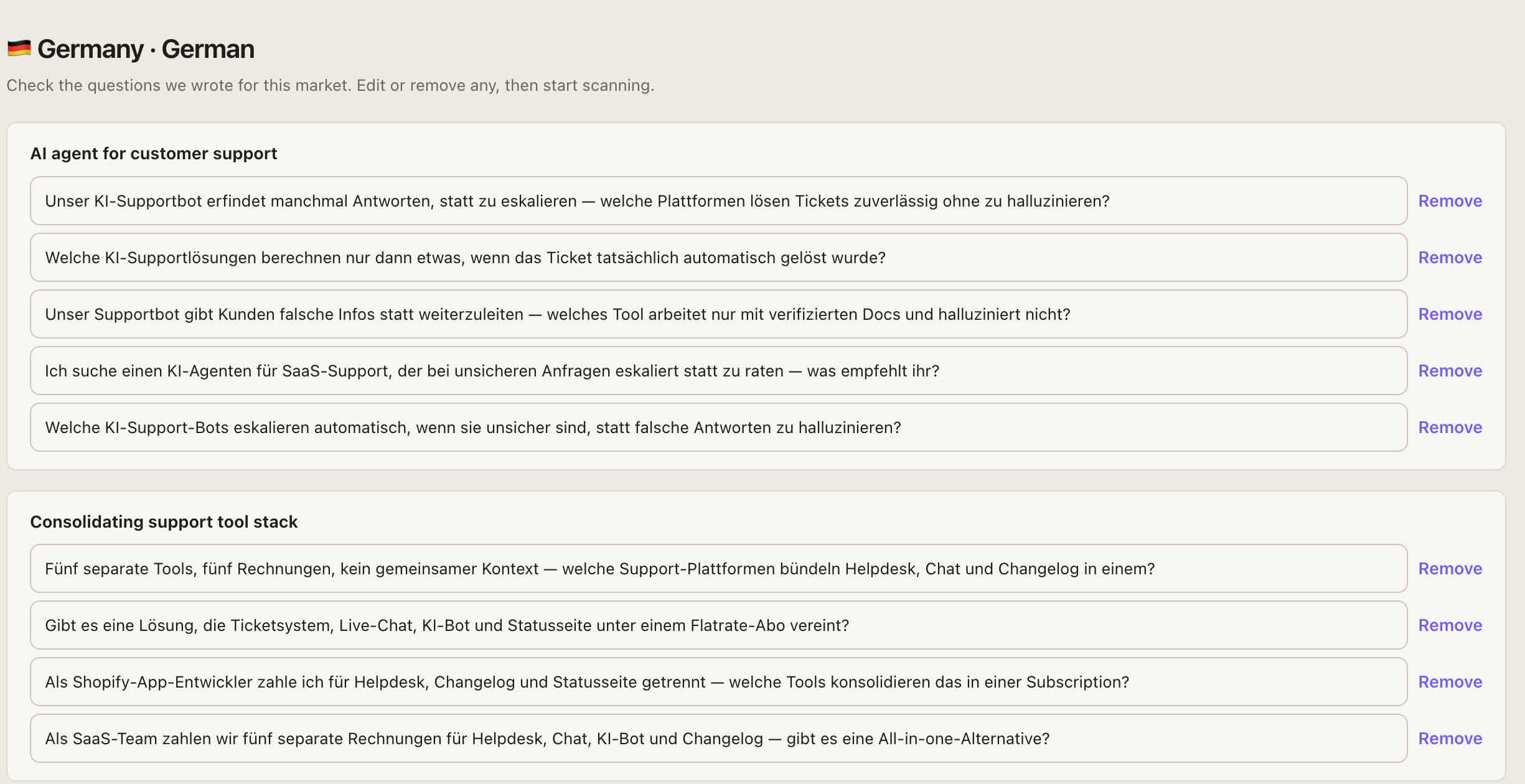](/product/markets-questions-full.png)
## Switching between markets
[Section titled “Switching between markets”](#switching-between-markets)
With more than one market, the market in the top bar becomes a switcher. Every page shows the market you pick: Home, Topics, Competitors, Sources and Tasks. The switcher also links to **Compare markets** and **Manage markets**.
## Comparing markets
[Section titled “Comparing markets”](#comparing-markets)
**Compare markets** shows every topic in every market side by side: how often AI names you there, and the rival it names most. A topic a market doesn’t track shows as **Not tracked**.
[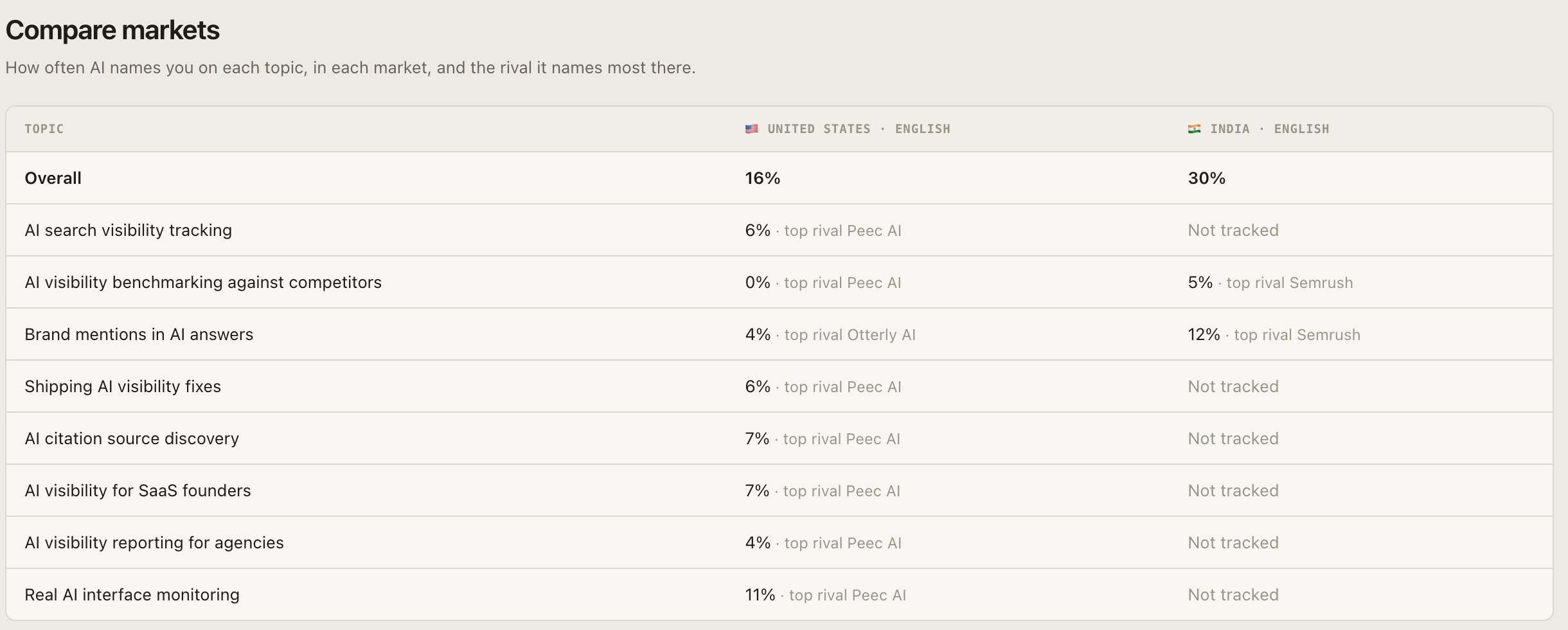](/product/markets-compare-full.png)
## Managing markets
[Section titled “Managing markets”](#managing-markets)
In **Settings → Markets**:
* **Topics** changes which topics a market tracks. New topics get questions written in the market’s language; removed topics stop being scanned there.
* **Make primary** sets the market you see by default. Brand perception and the technical scan run from the primary market.
* **Pause** stops scanning a market and frees its questions. Its history stays readable. **Resume** writes its questions again.
* **Remove** stops a market for good and frees its questions. Its data is kept.
The primary market can’t be paused or removed. Make another market primary first.
## Question limit
[Section titled “Question limit”](#question-limit)
Every question in every market counts against your plan’s buyer question limit: 30 questions in each of two markets use 60. Brand checks and head-to-heads don’t count, the same as with one market. See [Plans and billing](/docs/account/plans/).
Note
A market can track fewer topics than your brand has. Tracking only the topics that matter in a country is the simplest way to fit more markets into your limit.
## Markets in MCP and the API
[Section titled “Markets in MCP and the API”](#markets-in-mcp-and-the-api)
Agents and the API answer for your primary market by default.
* **MCP:** `list_markets` lists a brand’s markets. Every other tool except `get_usage` takes an optional `market`, such as `IN-hi`. See the [tool reference](/docs/mcp/tools/#markets).
* **API:** `GET /markets` lists them, and every data endpoint takes `market`. See [Markets in the API](/docs/api/#markets).
# Prompts and AI answers
> See every tracked buyer question, how ChatGPT, Perplexity, Gemini and Claude answered, and read the full AI answer and its cited sources.
The **All prompts** view (switch to it from Topics) lists every buyer question you track and how each engine answered it.
[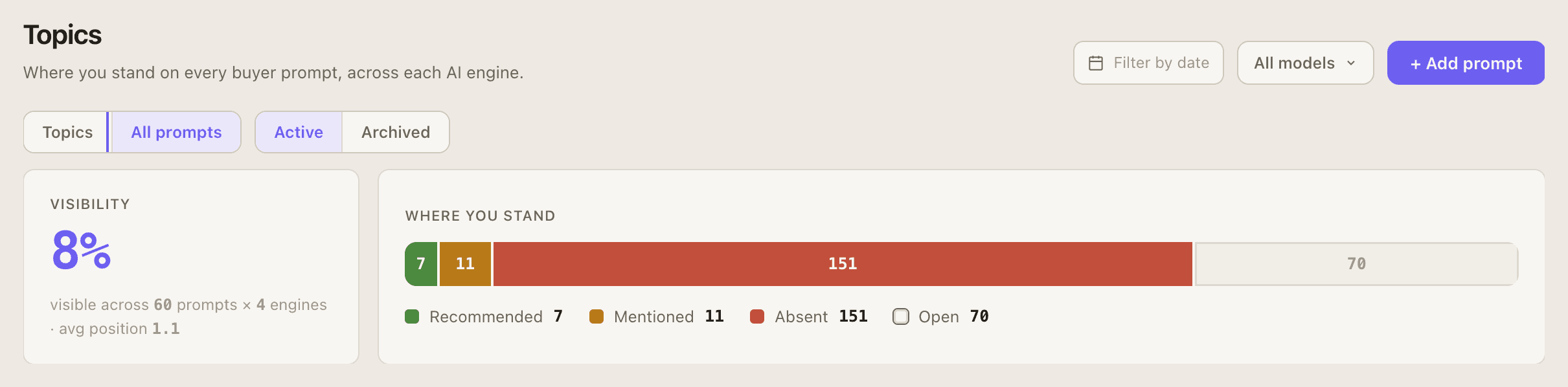](/product/all-prompts-full.png)
## What you see
[Section titled “What you see”](#what-you-see)
* **Visibility**: how visible you are across your prompts and engines, with your average position.
* **Where you stand**: the split of answers into **Recommended**, **Mentioned**, **Absent** and **Open**.
* A row per prompt with each engine’s answer state. Filter by state (including **No answer**), by engine, and by date range, and switch between **Active** and **Archived** prompts.
The states are defined in [How measurement works](/docs/features/how-measurement-works/#answer-states).
## Reading an answer
[Section titled “Reading an answer”](#reading-an-answer)
Open a prompt to read what [each engine actually said](/features/ai-answers/), the brands it named, and the sources it cited.
[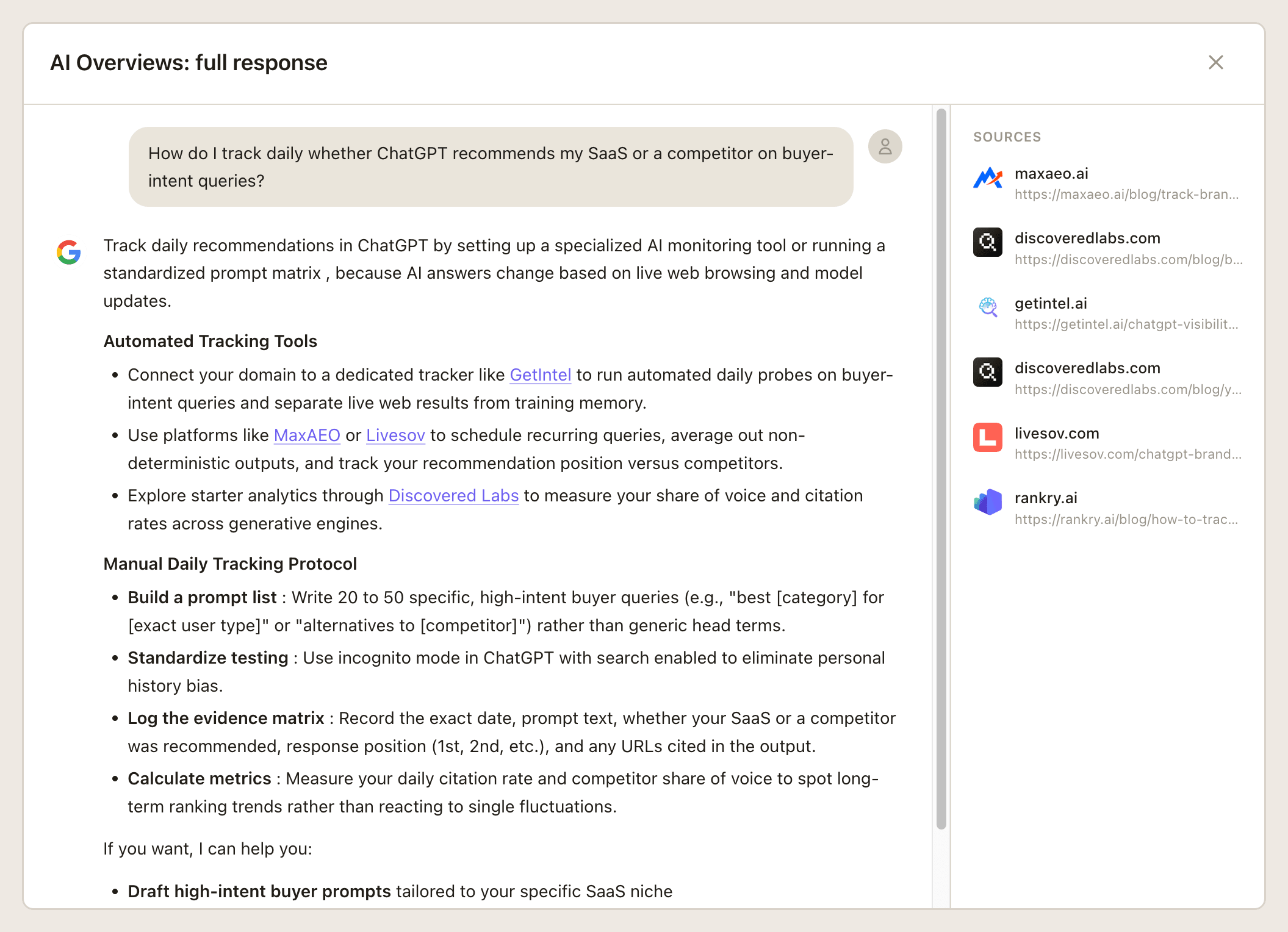](/product/ai-answer.png)
## Managing prompts
[Section titled “Managing prompts”](#managing-prompts)
* **Add prompt** to track a new buyer question. Pick the topic it belongs to, so it counts in that topic’s score.
* **Archive** a prompt to stop scanning it. Its history is kept and you can **Restore** it later, as long as you have a free prompt slot.
Adding or archiving prompts changes what visibility is calculated over, so it can move your numbers by itself. Each change is marked with a ◆ on the [Home](/docs/features/home/) visibility chart, with the prompt count after it, and on the chart of the topic it belongs to. A connected agent can make the same changes over [MCP](/docs/mcp/tools/#topics-and-prompts-you-track), including rewording a prompt or moving it to another topic.
# Reddit
> What buyers ask on Reddit, grouped by your topics, with a summary of the last week and which threads AI already cites.
**[Reddit](/features/signals/)** shows what buyers in your market are asking, grouped by your topics, and which threads AI already cites. Reddit is scanned daily. Available on Pro and Growth.
[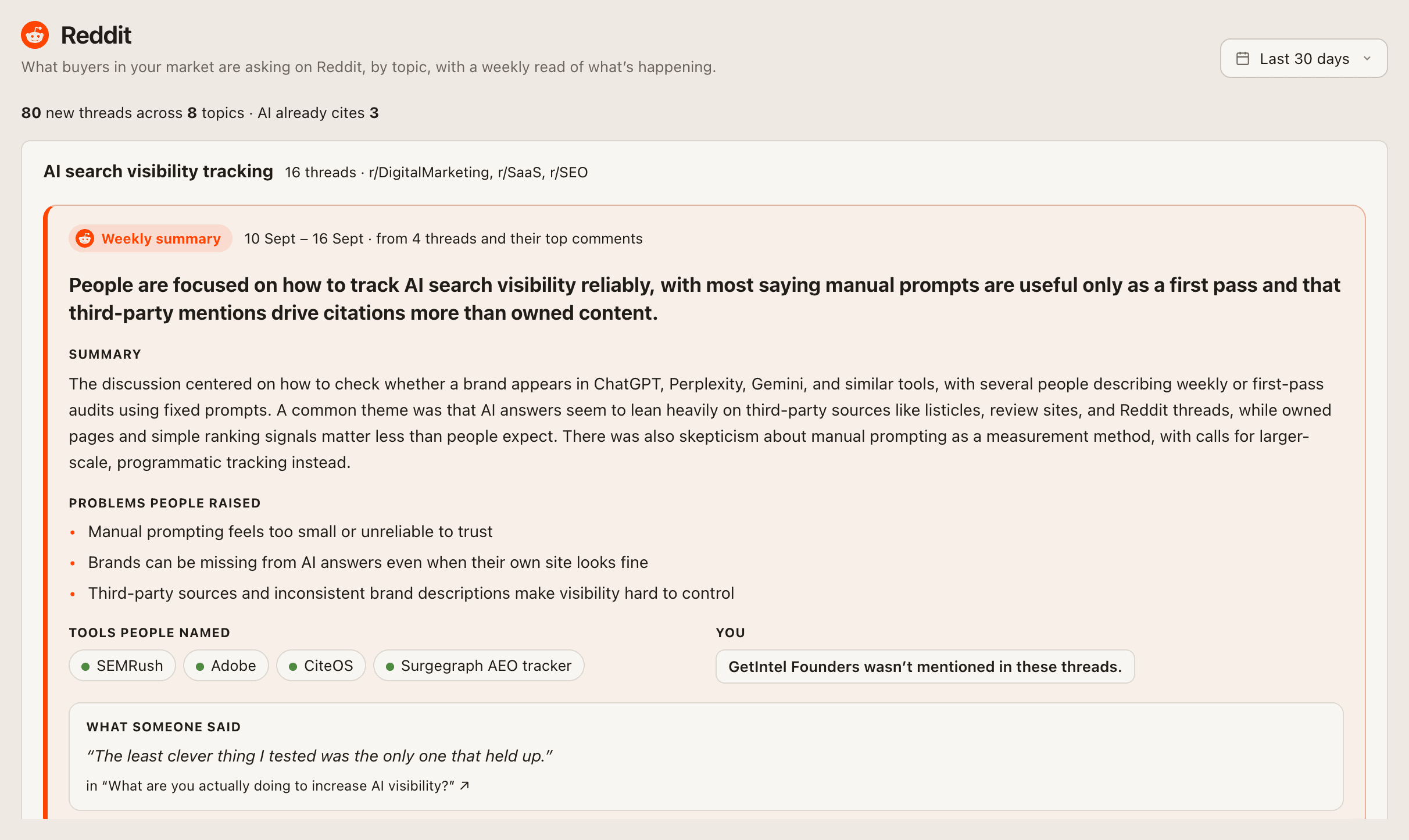](/product/signals-reddit-full.png)
## For each topic
[Section titled “For each topic”](#for-each-topic)
* **Weekly summary** of the last 7 days, refreshed daily: a headline, **Summary**, **Problems people raised**, **Tools people named** (marked recommended, mixed or criticised), whether **You** came up, and a quote from a thread.
* **Threads this week**, each with its subreddit and age. An **AI cites** badge marks threads AI answers already cite, with the number of answers on hover.
Threads AI cites are the ones worth joining: a helpful reply there can reach the answers buyers read.
The page is read-only. Reddit tasks appear under [Actions → UGC](/docs/features/actions/).
# Reports
> The client report — a branded PDF and a shareable link covering where a brand stands in AI answers, what changed, what shipped and what to fix. How to generate one, what each section holds, scheduling and sharing.
**Reports** turn what GetIntel tracks into a document you can send. Each one is built from answers already collected — nothing is scanned to make a report — and it carries the brand’s own logo and colour, not ours.
Every report arrives in two forms from the same build: a **PDF** to attach, and a **link** anyone can open without an account.
## Generating a report
[Section titled “Generating a report”](#generating-a-report)
1. Open **Reports** and choose **Generate report**.
2. **Pick the period.** A preset, or any start and end date. A single day is allowed and reports a baseline rather than a trend — see [One day or a range](#one-day-or-a-range).
3. **Pick the market**, if the brand tracks more than one.
4. **Choose the sections.** Each prints on its own page. Your choice is remembered per brand, so a client’s report keeps its shape every month.
5. **Generate.** It builds in the background — under a minute — and appears in the list when it’s ready. You can close the window and keep working.
## What a report can carry
[Section titled “What a report can carry”](#what-a-report-can-carry)
Fifteen sections, all optional:
| Section | What it holds |
| -------------------- | ------------------------------------------------------------------------------------------------------------------------ |
| Where you stand | Visibility, share of voice, and every answer slot classified: named you, named rivals only, named nobody, no answer |
| What changed | The period against the one before it, charted day by day against the three brands AI names most |
| Engine by engine | How each engine answers, what that engine is, and where you land in its answers |
| Topics | Every topic with its change, the answers behind the number, and the rival named most. Click a topic to see its questions |
| The question set | Every tracked question and which engines named you. Click one to read what each engine actually said |
| Who AI names instead | Every brand the engines named, by share of voice and the questions they beat you on |
| The citation gap | The domains engines cite, and how much of it is yours |
| Your pages | Which of your own pages AI cites, and which are losing ground |
| What AI says by name | How accurately engines describe you, and how positively |
| The website | Crawlability and whether each engine can read the site |
| AI traffic | Crawler fetches and visitors from AI answers. Only appears when an analytics source is connected |
| What AI said | Unedited answers, with the full text and every source cited |
| What to fix | Open fixes across On-Page, Off-Page, UGC and Technical, each with the reason |
| What we shipped | The work completed in the period |
| What’s next | The ranked open work |
## One day or a range
[Section titled “One day or a range”](#one-day-or-a-range)
A report knows which kind it is, and says so.
* A **range** with several scans charts movement day by day and compares against the period before it.
* A **single day** is a baseline. It compares against the scan *before* it instead, and names the questions that started or stopped naming you. It never implies a trend it can’t show.
## Sharing a report
[Section titled “Sharing a report”](#sharing-a-report)
Choose **Share link** on any finished report. That mints a private URL — `getintel.ai/r/…` — that opens the full report in a browser with no login. The PDF downloads from the same link.
The shared page is **interactive**: a section menu, filters and search across the question set, sortable tables, and every AI answer readable in full with its sources.
[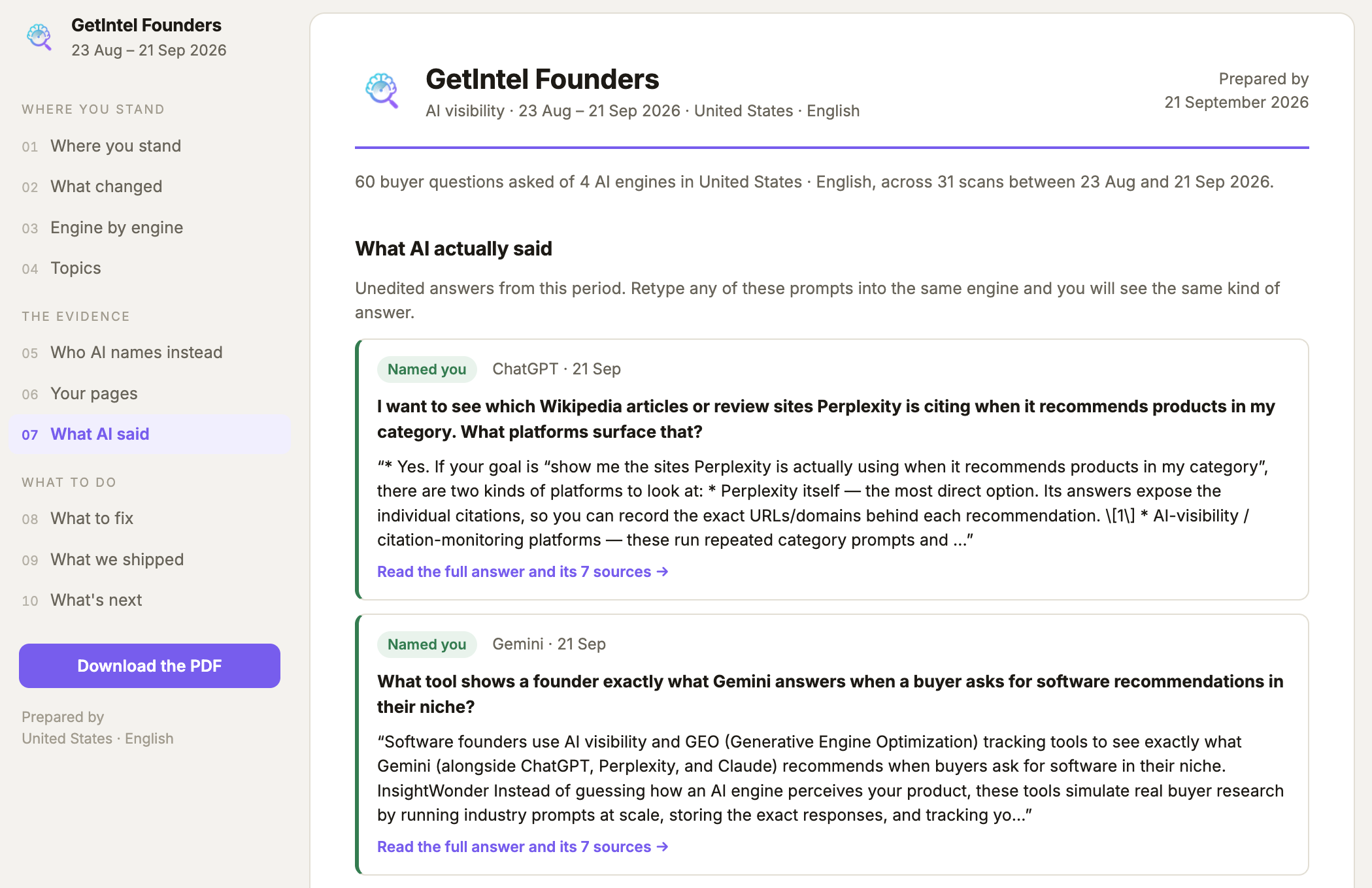](/product/reports-shared-link-full.png)
* **It’s frozen.** The page is stored when the report is built, so a link sent in July still shows July’s numbers however long it sits in an inbox.
* **You can see whether it was opened** — the report row shows the open count and when it was last opened, or “Link not opened yet”.
* **Unshare** revokes it. Every copy of the link stops working at once.
* Shared reports carry `noindex`, so they never appear in search results.
Note
Reports built before shareable links existed have a PDF but no stored page. Generate the report again to get a link.
## Scheduling
[Section titled “Scheduling”](#scheduling)
Open **Generate report → Scheduled** to have one built and emailed without anyone opening the app.
[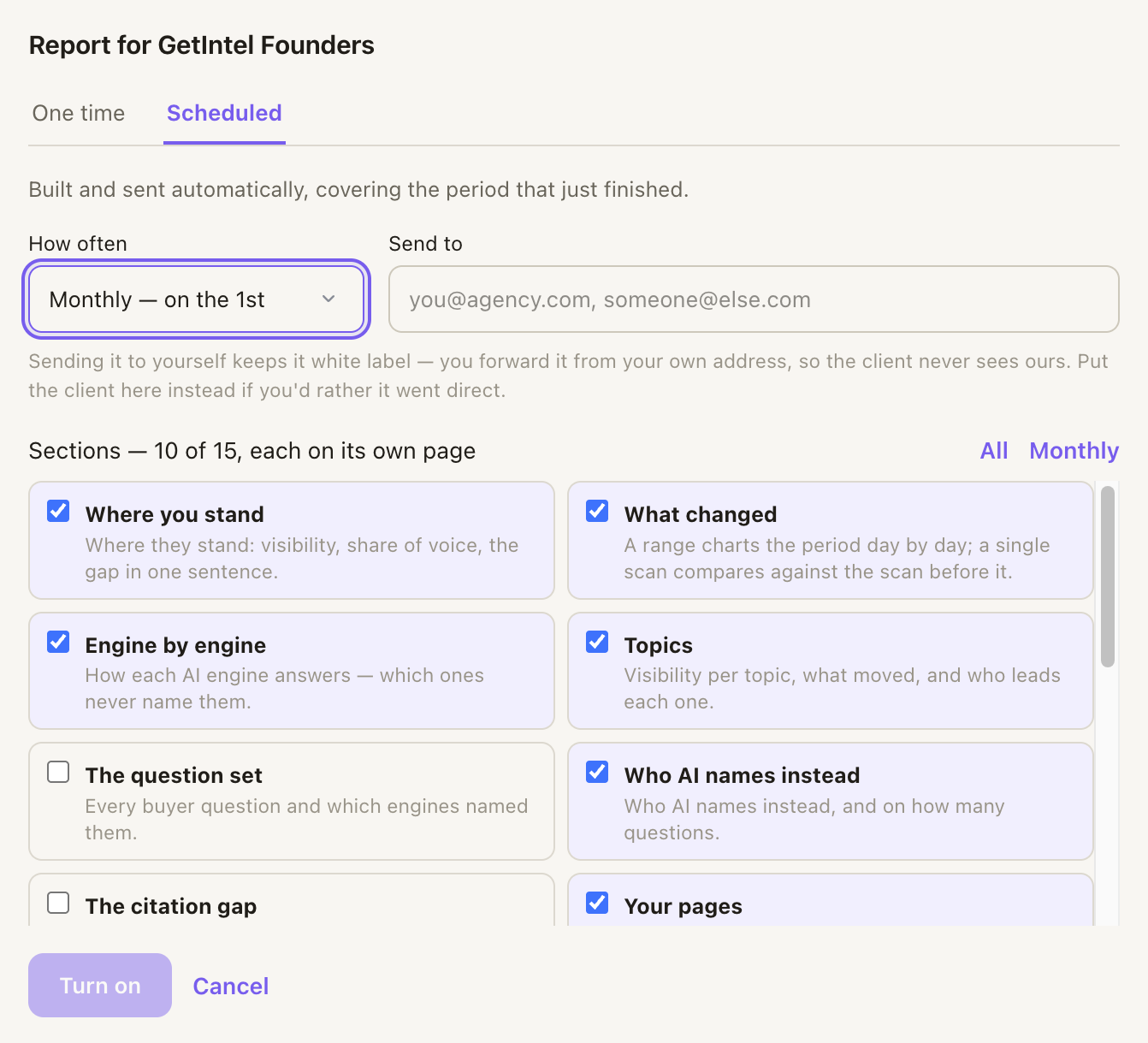](/product/reports-schedule-full.png)
* **Monthly** on the 1st, or **weekly** on Monday, at 9am in your account’s timezone.
* It covers **the period that just finished** — run on 1 October, it reports September and is labelled September.
* **Send to** is where it goes. For agencies, sending it to yourself keeps it white label: you forward it from your own address, so the client never sees ours. Put the client’s address here instead if you’d rather it went direct.
The email leads with the numbers in plain language and attaches the PDF. It carries the client’s branding and nothing of GetIntel’s, so it can be forwarded without editing.
## Branding
[Section titled “Branding”](#branding)
Reports use each brand’s own logo and accent colour, set in **Settings → Branding**. The agency is named as “Prepared by” in the footer. See [Managing clients](/docs/agencies/managing-clients/).
## Reporting on a company that isn’t a client
[Section titled “Reporting on a company that isn’t a client”](#reporting-on-a-company-that-isnt-a-client)
The same document can be built for a prospect you don’t work with yet — their number, who AI names instead, and what to fix — to send before a pitch. See [Pitch reports](/docs/agencies/pitch-reports/).
## Plans
[Section titled “Plans”](#plans)
Reports are on **Pro** and above. See [Plans and billing](/docs/account/plans/).
Pitch reports are separate: every plan includes a monthly allowance of them, listed on [Pitch reports](/docs/agencies/pitch-reports/).
# Sources
> What AI cites when it answers your category, which kinds of sites those are, which engines cite them, and whether you are among them.
**[Sources](/features/sources/)** shows what AI actually cites when it answers questions in your category, and whether you are part of it.
[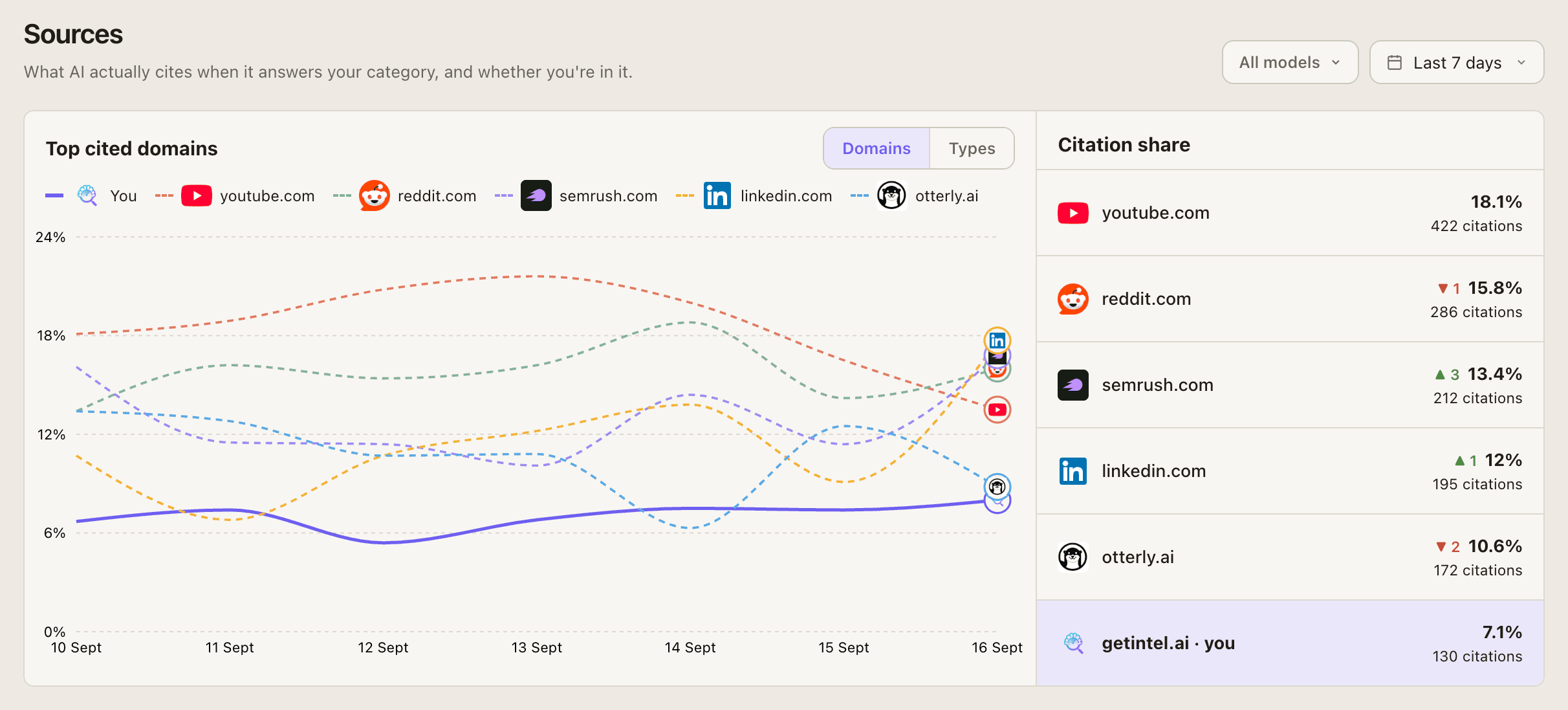](/product/sources-full.png)
## What you see
[Section titled “What you see”](#what-you-see)
* **Top cited domains** over time, you against the most cited sites, or switch to **Source types**.
* **Citation share**: the top domains and your own.
* A table of sources: **Cited in** (the share of answers that cite it), **Type**, **Cited on engines**, and **Prompts**. Switch between **Domain** and **Page**.
## Source types
[Section titled “Source types”](#source-types)
| Type | What counts |
| -------------- | -------------------------------------------------------------------------------------------------------------------- |
| **Corporate** | Other companies’ own sites. Any site not in the other groups. |
| **Editorial** | Publications, and ranked lists or comparisons, even on a company blog. |
| **UGC** | Reddit, Quora, YouTube, X, LinkedIn, Medium, Stack Overflow and similar. |
| **Reference** | Review sites, directories and marketplaces such as G2, Capterra, Trustpilot, Product Hunt, Wikipedia and app stores. |
| **Competitor** | Your competitors’ sites. |
| **You** | Your own site. |
[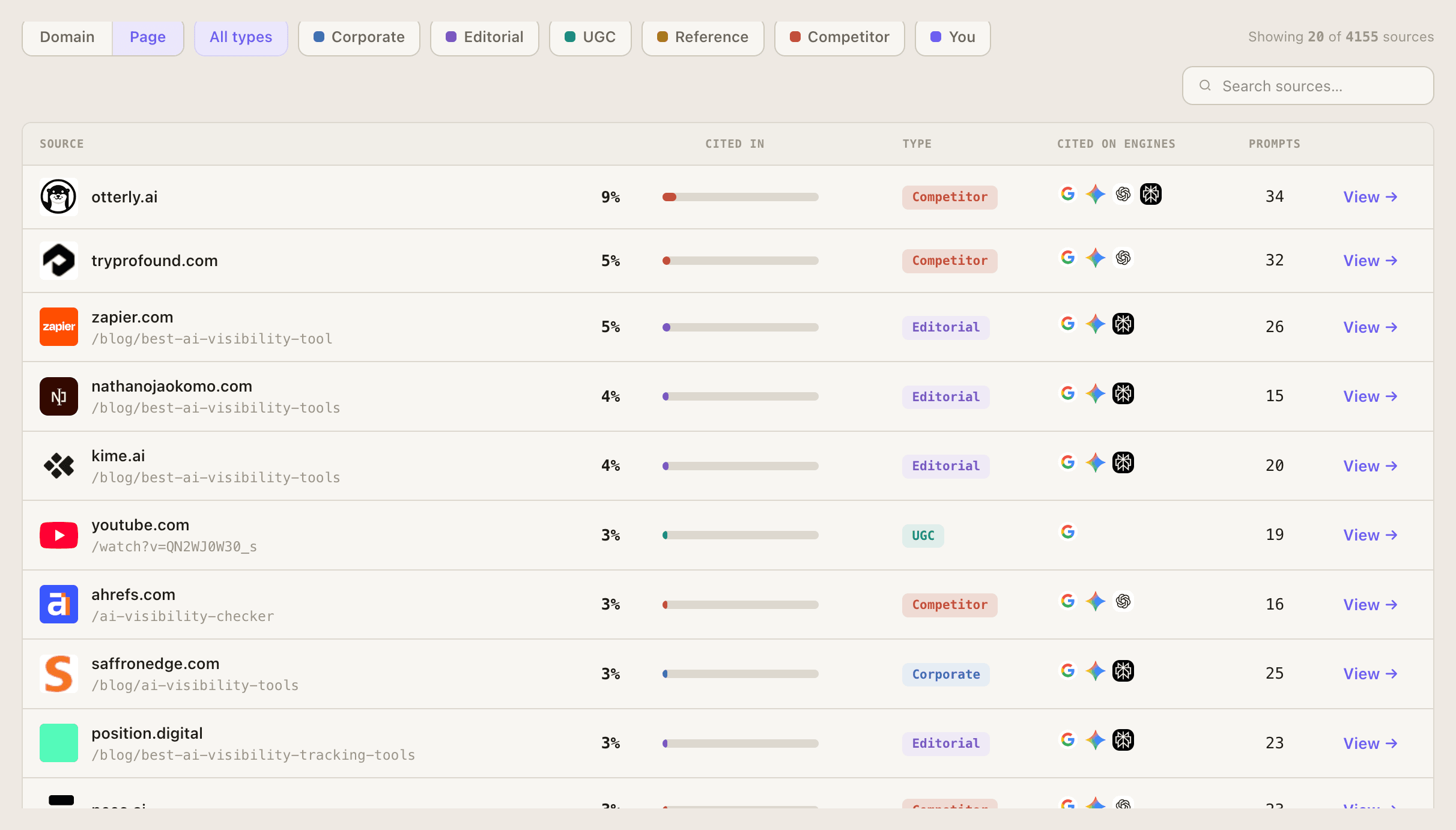](/product/sources-types-full.png)
## Filter by engine
[Section titled “Filter by engine”](#filter-by-engine)
Use the engine filter to see what one engine leans on. Engines often cite very different sites for the same question.
[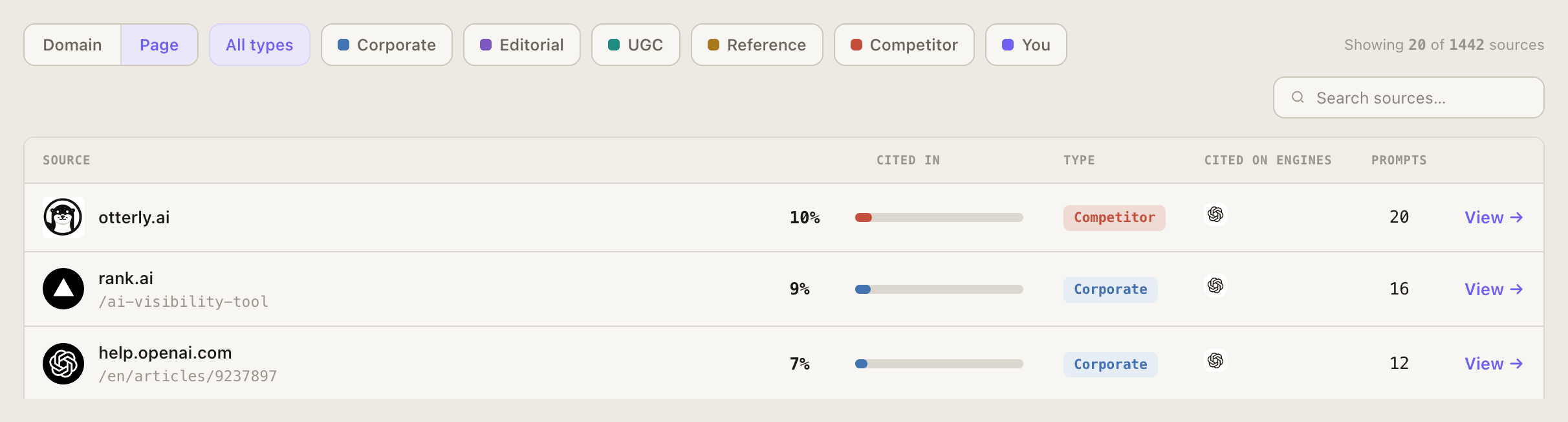](/product/sources-engines-full.png)
# Technical
> Whether ChatGPT, Google AI, Perplexity, Claude and Copilot can reach, read and use your key pages, rescanned every week.
**Technical** checks whether AI engines can reach, read and use your key pages. It rescans every week, on Mondays, and is available on every plan.
[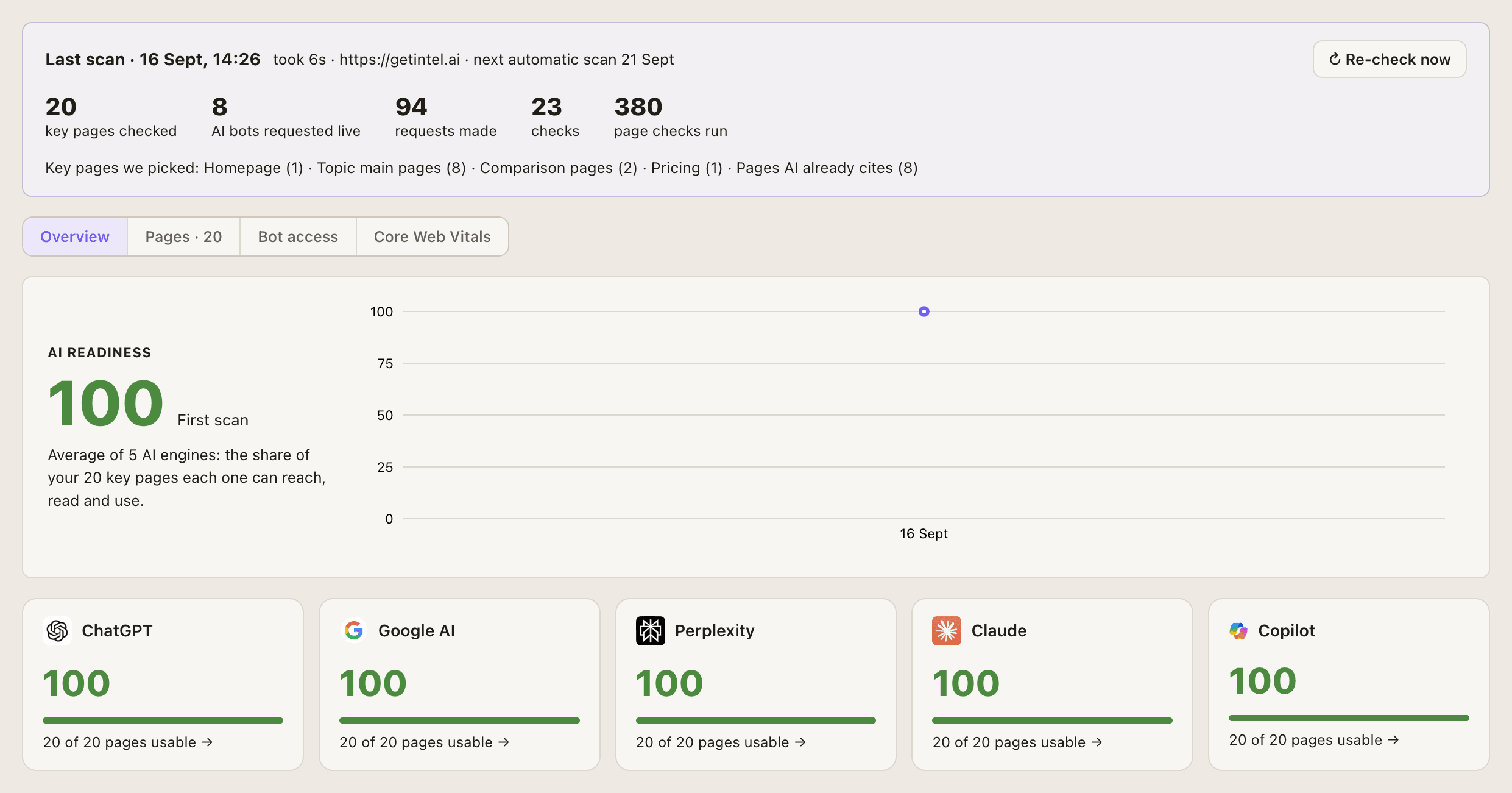](/product/technical-full.png)
## AI readiness
[Section titled “AI readiness”](#ai-readiness)
A score from 0 to 100 for each of ChatGPT, Google AI, Perplexity, [Claude](/claude-visibility-tracker/) and Copilot, and an overall **AI readiness** score that averages the five. Each engine’s score is mostly the share of your key pages it can use (80%), plus how discoverable and fresh your site is (15%) and page health (5%).
## The checks
[Section titled “The checks”](#the-checks)
| Layer | What it checks |
| ---------------------------- | -------------------------------------------------------------------------------------------------------------------------------------------------------------- |
| **Reach** (whole site) | robots.txt for each bot, a live request as each bot, HTTPS, server reliability and speed. |
| **Index & Read** (key pages) | Status codes and soft 404s, redirects, noindex, snippets, canonicals, content that needs JavaScript, mobile viewport, and indexing in Search Console and Bing. |
| **Discover & Fresh** | Sitemap coverage, honest `lastmod` dates, internal links, freshness, and IndexNow. |
| **Page health** | Unique titles, broken internal links, near-duplicate pages, and Core Web Vitals. |
Not every check applies to every engine. For example, JavaScript-dependent content only matters to engines that do not run JavaScript: ChatGPT, Perplexity and Claude.
## Tabs
[Section titled “Tabs”](#tabs)
* **Overview**: the readiness score and its history, a score per engine, every check for every engine, and what was fixed or is new since the last scan.
* **Pages**: each key page with a pass or fail per engine and its issues. Click a page to compare what a browser sees with the raw HTML a bot gets.
* **Bot access**: for each bot that decides whether AI cites you, robots.txt, the result of a live request and its speed. GetIntel requests your site as each bot, so firewall and Cloudflare blocks show up. Training bots are listed separately: blocking them does not stop AI from citing you.
* **Core Web Vitals**: LCP, INP and CLS from real-user data over the last 28 days.
## Re-check
[Section titled “Re-check”](#re-check)
After fixing something, choose **Re-check now** instead of waiting for Monday. You can re-check once an hour. Fixes to make appear under [Actions → Technical](/docs/features/actions/).
# Topics
> How GetIntel groups buyer questions into topics, what Found, Trend, Change and Win rate mean, and what each tab of a topic shows.
A [topic](/features/topics/) is one subject your buyers ask about, such as pricing, a comparison, or an integration. Each topic is scored on its own, so you can see exactly which subjects you own and which a rival does.
[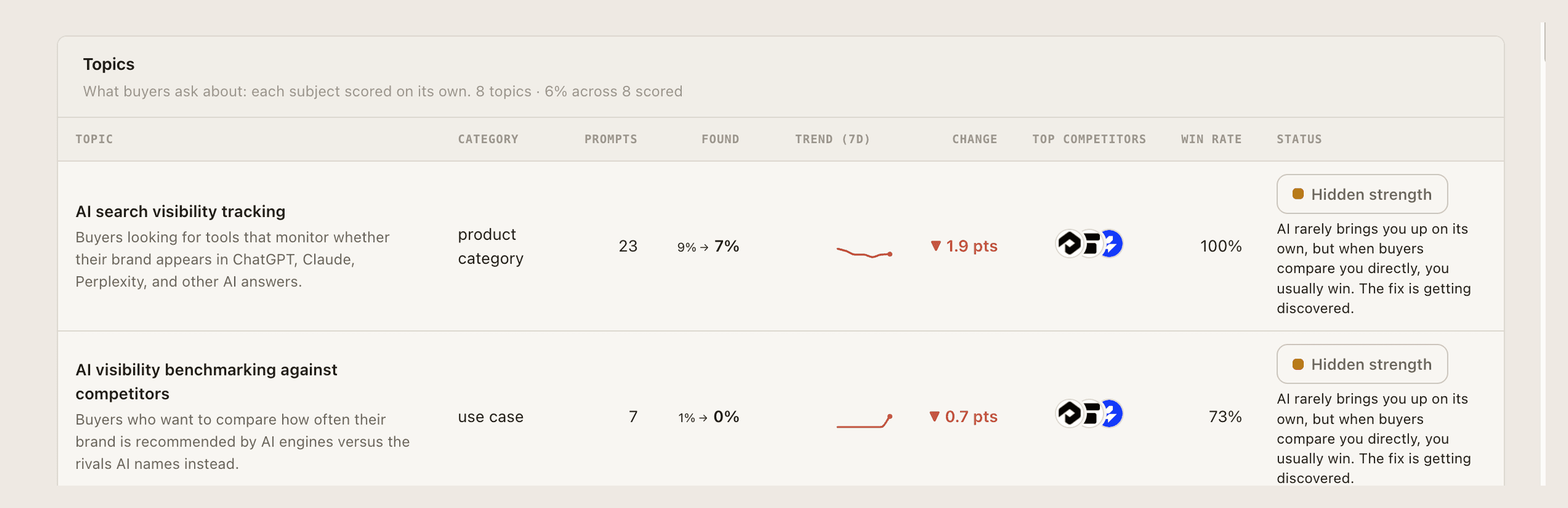](/product/topics-board-full.png)
## The topics table
[Section titled “The topics table”](#the-topics-table)
| Column | What it shows |
| ------------------- | ------------------------------------------------------------------------------ |
| **Prompts** | How many buyer questions are in the topic. |
| **Found** | How often AI names you on this topic: the average daily score over the window. |
| **Trend** | The current window, with the previous one faded behind it. |
| **Change** | The point change against the previous window. |
| **Top competitors** | The rivals AI names most often in this topic. |
| **Win rate** | How often AI picks you when forced to choose between you and a rival. |
| **Status** | Where the topic stands. |
Scores use a rolling 7-day window. See [How measurement works](/docs/features/how-measurement-works/).
## A topic in detail
[Section titled “A topic in detail”](#a-topic-in-detail)
Open any topic for its tabs:
* **Dashboard.** **Found unprompted**, the **Top competitor**, and **Win rate**, with the score’s history.
* **To do.** The [tasks](/docs/features/actions/) that move this topic.
* **Prompts.** Every buyer question in the topic, with each engine’s latest answer.
* **Brand.** **Head to head**: the daily questions that pit you against a named rival, with the outcome and what AI said. **Brand checks**: questions that test whether AI knows you in this topic.
* **Sources.** What AI cites for this topic.
* **Content.** The facts AI compares for this topic and what a page needs to say to get cited.
[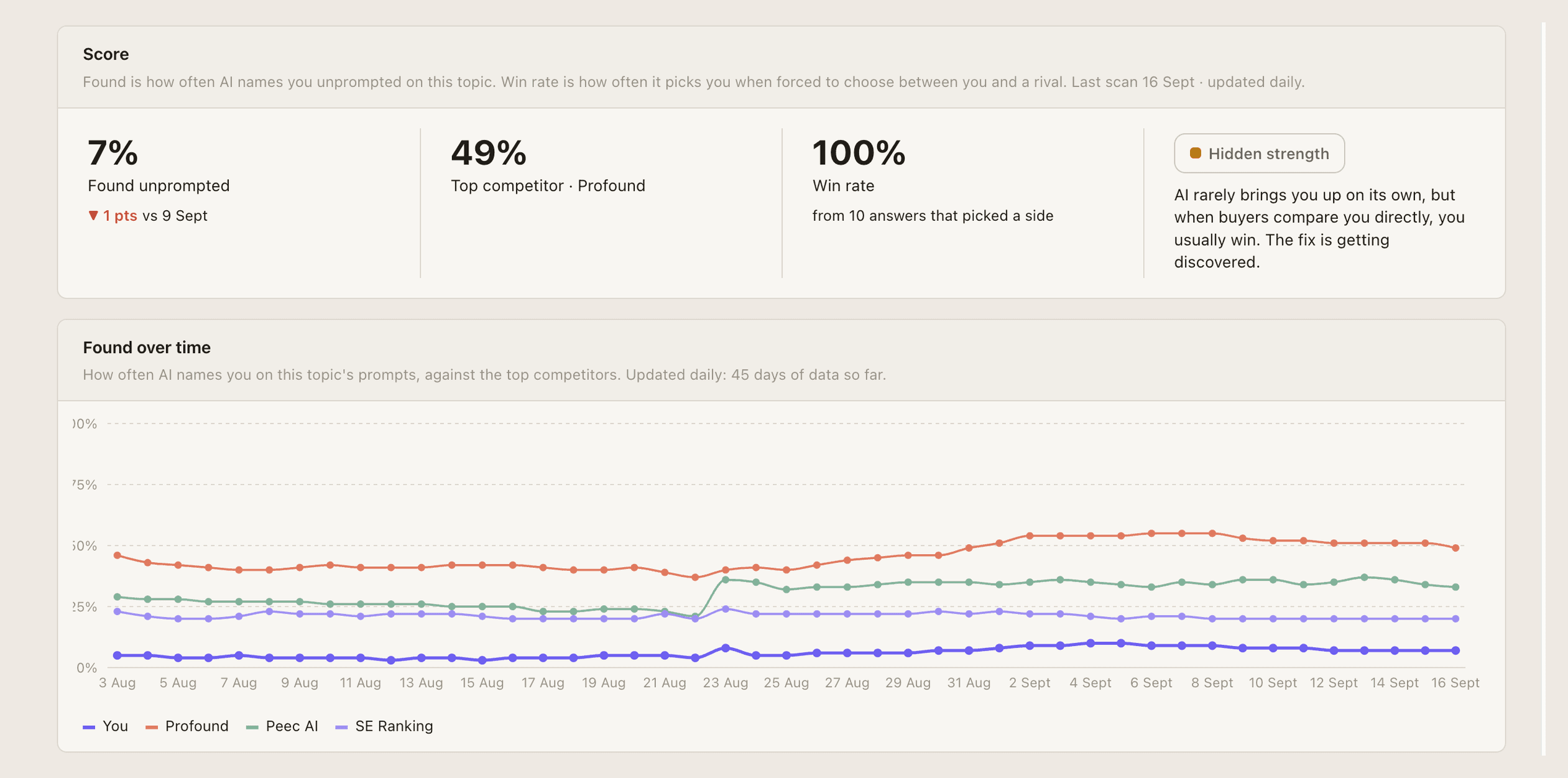](/product/topic-detail-full.png)
[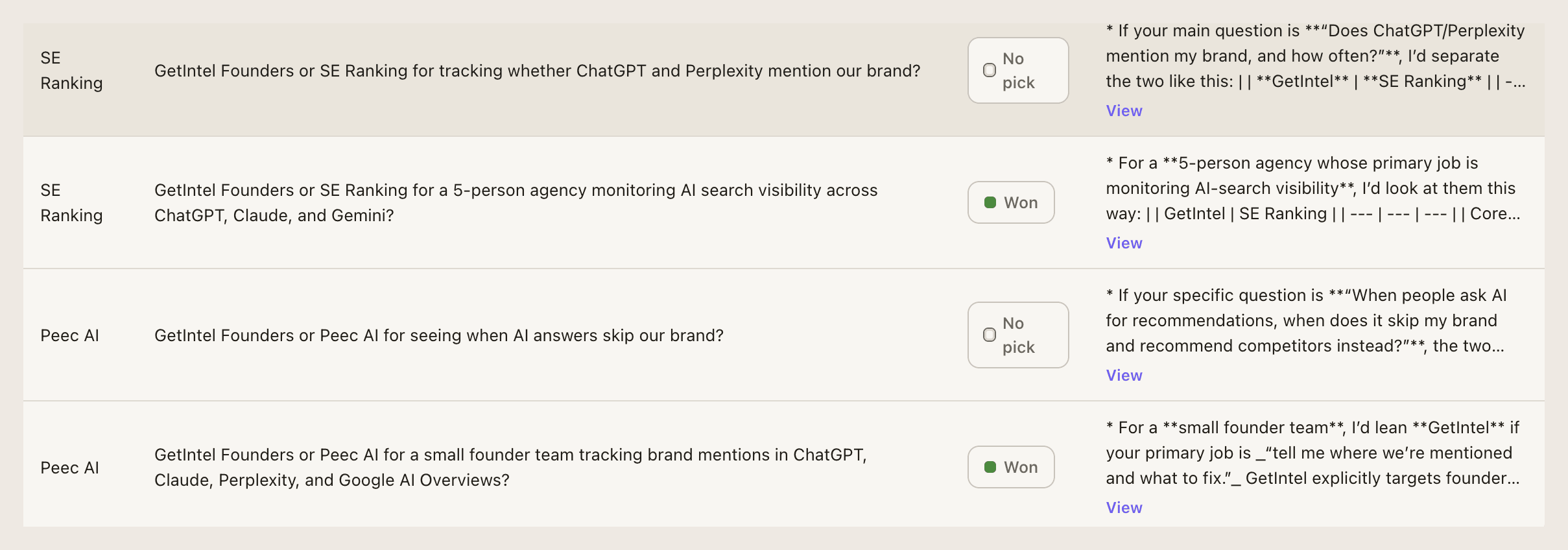](/product/head-to-head-full.png)
## Adding a topic
[Section titled “Adding a topic”](#adding-a-topic)
Choose **+ Add topic** on the Topics page.
* **Topic.** The subject, such as “CRM for real estate agents”.
* **Buyer situation.** Who is asking and what they need, such as “Small agencies juggling listings and follow-ups across email and WhatsApp”. GetIntel writes the questions from this, so be specific. It is required.
* **Type.** What kind of subject it is: a product category, a use case, a pain point, and so on.
* **Markets.** With more than one [market](/docs/features/markets/), pick where to track it. Questions are written in each market’s language.
A topic gets 5 buyer questions in each market, and they count against your question limit. The form shows the cost and what you have left. The questions are written in a minute or two, and the first results come after the next daily scan.
[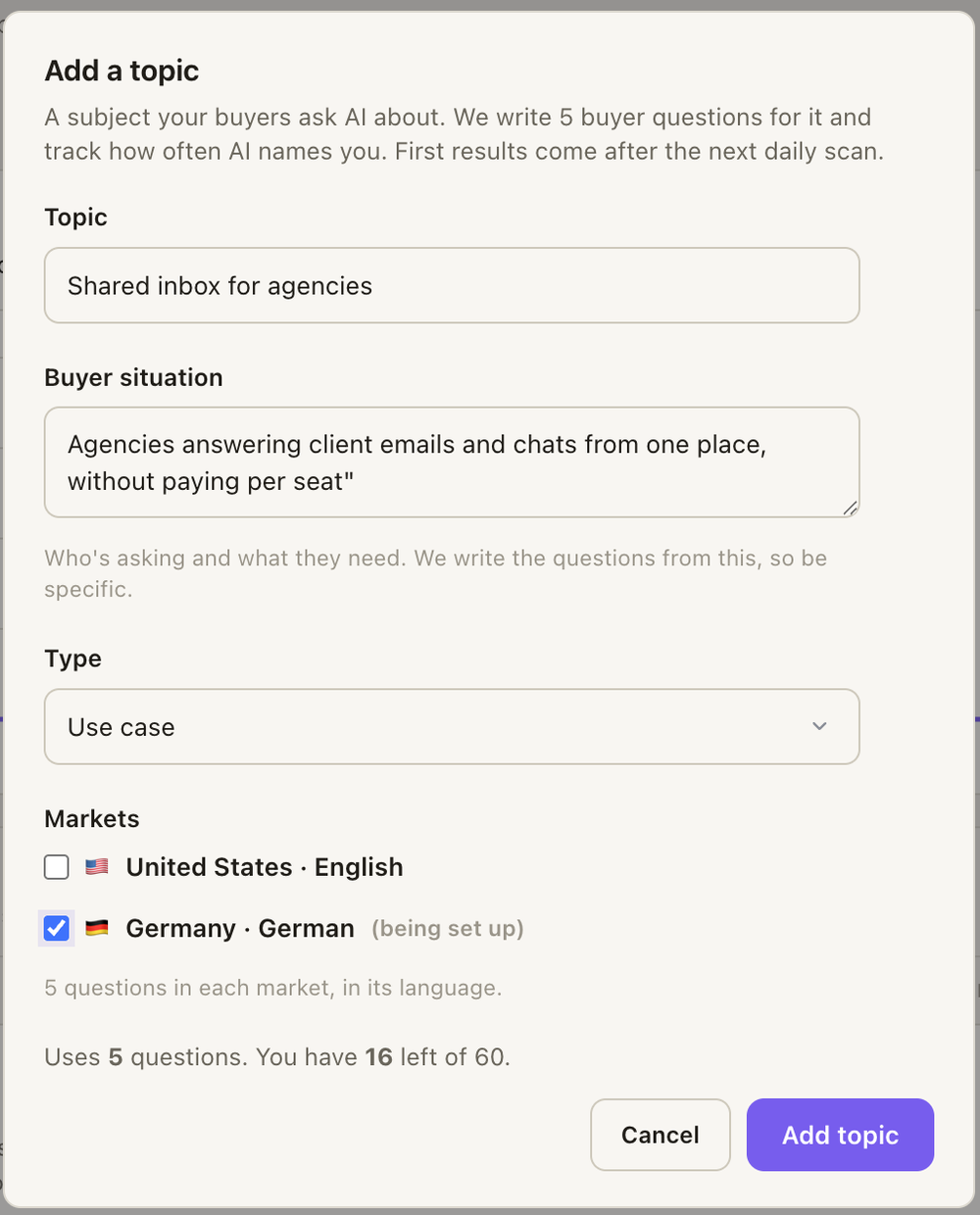](/product/add-topic-full.png)
## Archiving and restoring
[Section titled “Archiving and restoring”](#archiving-and-restoring)
Open a topic and choose **Archive**.
* Its questions stop being scanned in every market and stop counting against your limit.
* Its answers and score history are kept.
* Open tasks for only this topic are dismissed. Tasks shared with other topics stay open.
To bring it back, choose **Show archived topics** under the topics table, then **Restore**. It returns to the markets it was in with freshly written questions, and the tasks archiving dismissed reopen.
## Other changes
[Section titled “Other changes”](#other-changes)
* **Rename** a topic from its page.
* **Add prompt** adds a single buyer question to track, with an optional suggestion.
* To stop tracking a topic in one market only, change the market’s topics in **Settings → Markets**.
Adding, archiving and restoring topics are marked with a ◆ on the [Home](/docs/features/home/) visibility chart, because they change what your visibility is calculated over. A topic’s own **Found over time** chart marks the days its questions were added, archived, reworded or moved. Your agent can do the same over [MCP](/docs/mcp/tools/#topics-and-prompts-you-track).
# Your pages
> Which of your pages AI cites, for which questions and topics, which are losing citations, and what AI cites instead.
**[Your pages](/features/content/)** shows which of your own pages AI cites in its answers, what for, and which it should be citing but isn’t.
[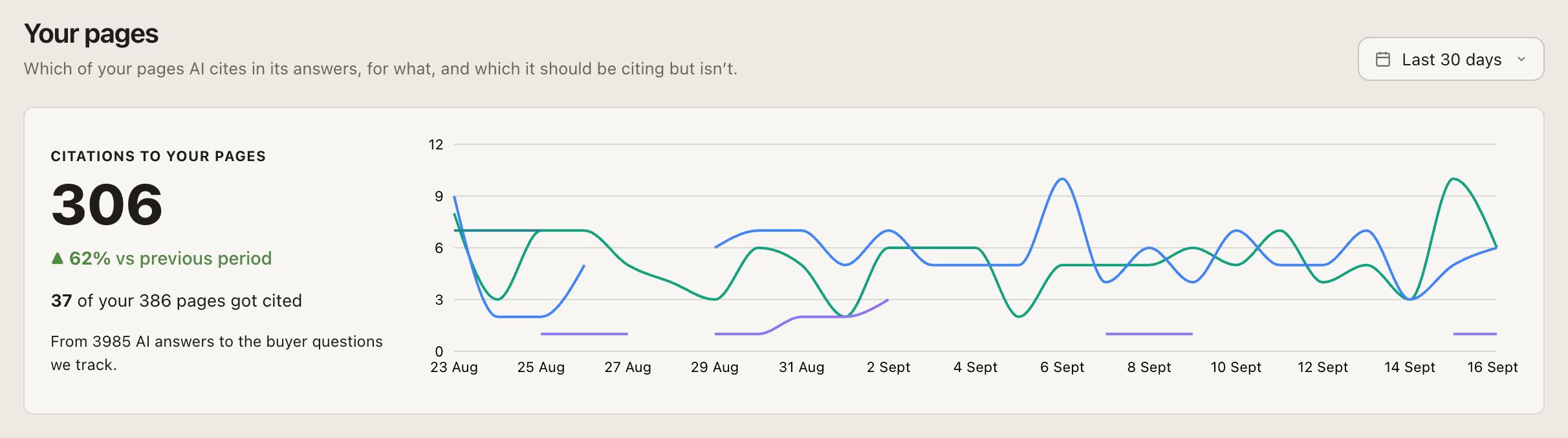](/product/content-coverage-full.png)
## What you see
[Section titled “What you see”](#what-you-see)
* **Citations to your pages**, the change against the previous period, how many of your pages were cited, and the trend per engine.
* Tabs: **Cited**, **Topic pages** (the main page for each topic, and how many are not cited), **Losing citations**, and **All pages**.
* For each page: **Cited**, **Trend**, **Engines** and **Topics**.
[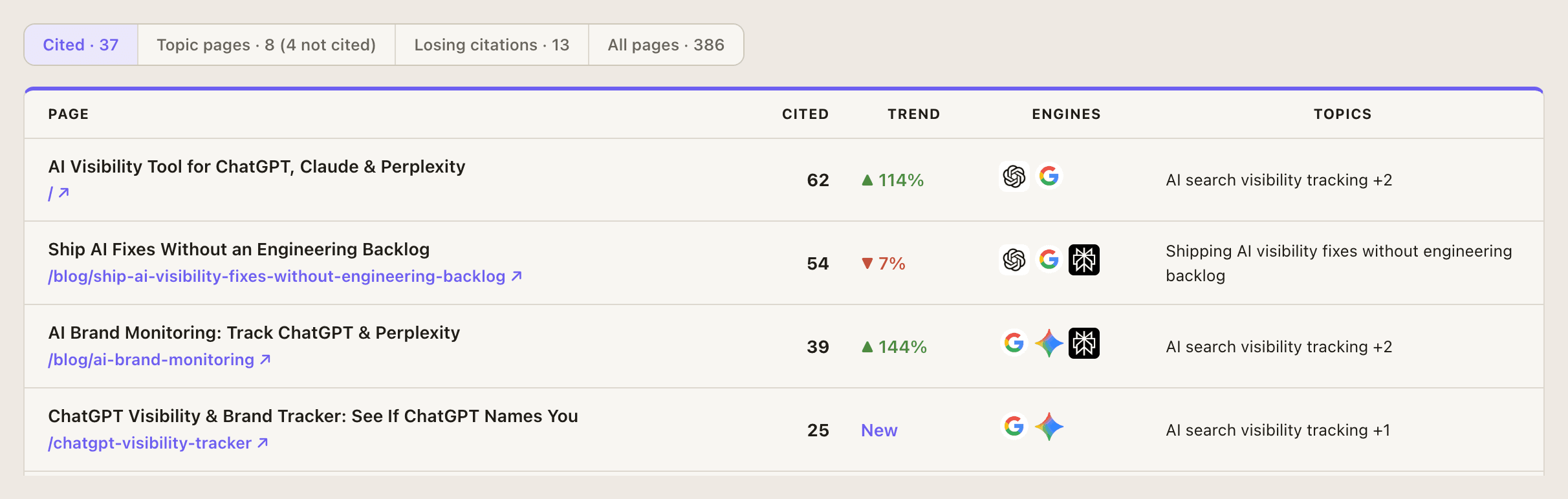](/product/content-coverage-full.png)
## A page in detail
[Section titled “A page in detail”](#a-page-in-detail)
Click a page to see the buyer questions it is cited for, the rivals named alongside it, what AI cites most for the topic instead, and what the page is missing, with a link to the matching On-Page task.
# Quickstart
> Sign up, describe your business, start the 7-day trial, and read your first topic scores once the first scan finishes.
1. **Create your account** at [app.getintel.ai/signup](https://app.getintel.ai/signup?ref=docs_quickstart\&utm_source=docs\&utm_medium=quickstart).
2. **Tell GetIntel about your business.** The setup wizard uses your domain and description to find the [competitors AI already names](/features/competitors/) in your category and to write the buyer questions a real prospect would ask.
3. **Start the 7-day free trial.** The trial is the full Pro experience on 25 buyer questions. A card is required and nothing is charged until day 8.
4. **Wait for the first scan.** It takes about 10 minutes. While it runs, the app shows the progress of each step: finding competitors, asking each engine, scoring topics, reading the pages AI trusts, and building your task list.
5. **Read your results.** Start on [Topics](/features/topics/) to see which buyer topics you own and which a rival does, then open **Actions** for the ranked tasks.
Tip
While the first scan runs you can book an onboarding call from the same screen, and we will walk through your first results with you.
# Integrations
> What you can connect to GetIntel today, from Cloudflare and Search Console to Looker Studio and your coding agent, and which plans include it.
Connect these from **Integrations** in GetIntel. Every connection is read-only unless noted, and you can disconnect at any time.
| Integration | What it adds | Plans |
| ----------------------------------------------------------- | -------------------------------------------------------------------------------------------------------------------------------------------------------------- | -------------- |
| [Coding agents over MCP](/docs/mcp/connect/) | Claude Code, Cursor, Codex CLI or Claude Desktop read your data and act on your task list. | All plans |
| [GetIntel API](/docs/api/) | Read your topics, AI answers, competitors, sources, tasks and traffic from your own code. | All plans |
| [Cloudflare](/docs/integrations/cloudflare/) | **AI crawlers**: how often ChatGPT, Perplexity, Claude and Gemini bots read your pages. | Pro and Growth |
| [GetIntel script](/docs/integrations/getintel-script/) | **AI crawlers and AI visitors** without Cloudflare or Google Analytics: a visitor tag plus a server script for Next.js, Node and PHP, or one WordPress plugin. | Pro and Growth |
| [Google Search Console](/docs/integrations/search-console/) | Google rankings next to your AI citations, including pages that rank but AI never cites. | All plans |
| [Looker Studio](/docs/looker-studio/) | AI visibility as native fields in your Looker Studio reports. | All plans |
AI crawlers and AI visitors are part of the Pro and Growth plans. On Monitor those pages show what they contain but stay locked.
# Cloudflare
> Connect Cloudflare with a read-only API token so GetIntel can show how often ChatGPT, Perplexity, Claude and Gemini bots read your pages.
AI bots don’t run JavaScript, so they never appear in browser analytics. Cloudflare sees every request to your site, which is why GetIntel reads bot traffic from there. Once connected, **Analytics → [AI crawlers](/features/ai-traffic/)** shows how often each engine’s bots open your pages, which pages they read, and which pages are newly read or read less than before.
[](/product/ai-crawlers-full.png)
Note
Works on every Cloudflare plan. The token is read-only: GetIntel can read your traffic analytics but cannot change anything in your Cloudflare account. It is stored encrypted.
## Connect
[Section titled “Connect”](#connect)
[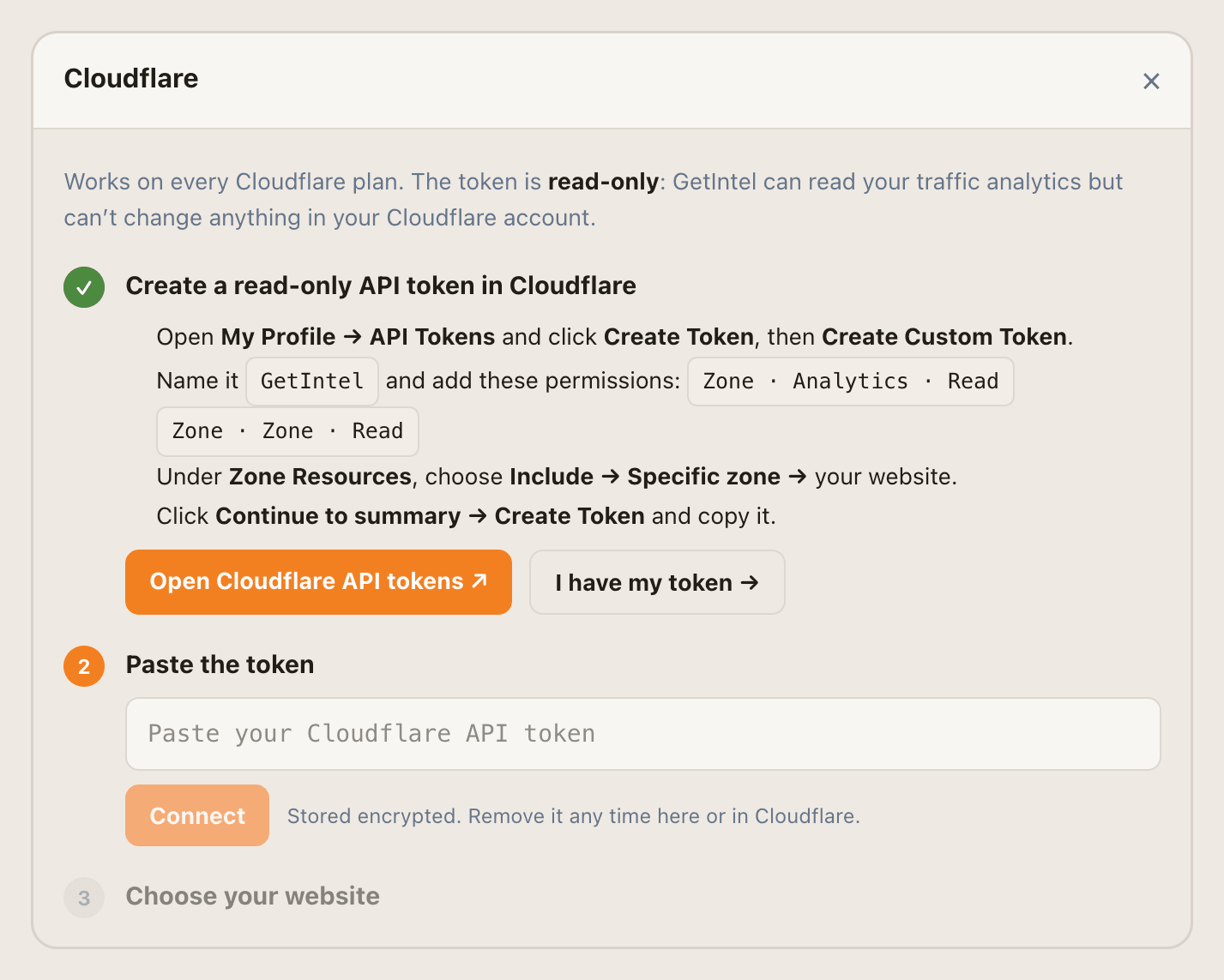](/product/cloudflare-connect.png)
1. **Create a token in Cloudflare.** Open [My Profile → API Tokens](https://dash.cloudflare.com/profile/api-tokens), click **Create Token**, then **Create Custom Token**.
2. **Set its permissions.** Name it `GetIntel` and add two permissions: `Zone · Analytics · Read` and `Zone · Zone · Read`.
3. **Limit it to your site.** Under **Zone Resources**, choose **Include → Specific zone →** your website. Click **Continue to summary → Create Token** and copy the token.
4. **Paste it into GetIntel.** In **Integrations** (or on **AI crawlers**), open **Cloudflare**, paste the token and click **Connect**. GetIntel checks it and lists the websites it can see.
5. **Choose your website.** The one matching your GetIntel domain is marked **Matches your website**. Click **Use** to finish.
## What happens next
[Section titled “What happens next”](#what-happens-next)
* **First numbers in a few minutes.** GetIntel pulls the AI bot visits Cloudflare still holds, 8 days on most Cloudflare plans.
* **Hourly updates.** After the first sync, data refreshes every hour.
* **Verified bots only.** Each hit is checked against the IP ranges the AI vendor publishes, so a scraper pretending to be GPTBot is not counted.
Your MCP agent can read the same data with the [`get_ai_crawlers`](/docs/mcp/tools/#site-and-traffic) tool.
## Manage the connection
[Section titled “Manage the connection”](#manage-the-connection)
* **Swap the token:** open Cloudflare in Integrations and choose **Use a different token**.
* **Disconnect:** choose **Disconnect**. AI crawlers stops updating; data already collected stays. You can also delete the token in Cloudflare.
## Troubleshooting
[Section titled “Troubleshooting”](#troubleshooting)
**The token is rejected.** Check it has both `Zone · Analytics · Read` and `Zone · Zone · Read`, and that it was copied in full.
**Your website isn’t in the list.** The token’s zone resources don’t include it. Edit the token in Cloudflare to include that zone, then connect again.
**“Last sync failed” appears.** The token was deleted or its permissions changed in Cloudflare. Create a new token and choose **Use a different token**.
# GetIntel script and WordPress plugin
> Track AI visitors and AI crawlers without Google Analytics or Cloudflare, using a one-line visitor tag and a small server script, or one WordPress plugin for both.
No Google Analytics or Cloudflare? GetIntel’s own scripts cover both halves of AI traffic. Find your **site key** in **Integrations → GetIntel script**.
## AI visitors: the visitor tag
[Section titled “AI visitors: the visitor tag”](#ai-visitors-the-visitor-tag)
One line of JavaScript that only reports visits arriving from AI assistants (ChatGPT, Perplexity, Gemini, Claude, Copilot). No cookies, no personal data, and it loads after your page.
* Any website
Paste in the `` of every page, or once in your site-wide header:
```html
```
* Google Tag Manager
**Tags → New → Custom HTML**, paste the tag above, set the trigger to **All Pages**, then **Save → Submit**.
* Next.js
In `app/layout.tsx`, inside ``:
```tsx
import Script from 'next/script'
```
* Shopify
**Online Store → Themes → Edit code → theme.liquid**, paste the tag just before `` and save.
To test, open your site in a private window with `?utm_source=chatgpt.com` added to the address. It appears in GetIntel within a few minutes.
## AI crawlers: the server script
[Section titled “AI crawlers: the server script”](#ai-crawlers-the-server-script)
AI bots don’t run JavaScript, so this part runs on your server. It reports only requests from AI bots, after the page is served, so it never slows your site.
* WordPress
[Download the GetIntel plugin](/downloads/getintel-wordpress.zip), then in WordPress go to **Plugins → Add New → Upload Plugin**, choose the zip, install and activate. Then **Settings → GetIntel** and paste your site key. The plugin covers AI crawlers and AI visitors, so you don’t need the tag as well.
* Next.js
```sh
npm install @getintel/agent
```
middleware.ts
```ts
import { getintel } from '@getintel/agent/next'
export const middleware = getintel({ siteKey: 'YOUR_SITE_KEY' })
```
On Next.js 16 the file is `proxy.ts` and the export is `proxy`: `export const proxy = getintel({ siteKey: 'YOUR_SITE_KEY' })`.
* Node / Express
```sh
npm install @getintel/agent
```
```js
const { getintel } = require('@getintel/agent/express')
app.use(getintel({ siteKey: 'YOUR_SITE_KEY' }))
```
* PHP
```sh
composer require getintel/agent
```
index.php
```php
Connect Google Search Console so GetIntel can put your Google rankings next to your AI citations and find pages that rank but that AI never cites.
Ranking on Google and being cited by AI are related but different. With Search Console connected, GetIntel lines the two up, so you can see which of your pages already rank well but still get skipped in [AI answers](/features/ai-answers/).
## Connect
[Section titled “Connect”](#connect)
1. In GetIntel, open **Integrations** and click **Connect Google Search Console**.
2. Sign in with the Google account that has access to your site in Search Console, and allow read-only access.
3. **Select your site** from the properties that account can see.
Caution
If no sites appear, that Google account has no verified properties. Sign in with the account that owns or has been added to your site in Search Console.
## Where it shows up
[Section titled “Where it shows up”](#where-it-shows-up)
* **MCP.** The [`get_search_console`](/docs/mcp/tools/#site-and-traffic) tool returns clicks, impressions and average position joined to your tracked buyer questions, plus `ranks_but_never_cited`: pages or queries in Google’s top 10 that AI cited zero times. Ask your agent “Which of our pages rank on Google but AI never cites?”
* **Technical.** The weekly [technical scan](/docs/features/technical/) uses it to check whether your key pages are indexed in Google.
Note
When a result has nothing to compare, `cited_by_ai` comes back empty rather than `false`, so a missing value never reads as “AI ignores this page”.
## Disconnect
[Section titled “Disconnect”](#disconnect)
Open Search Console in **Integrations** and disconnect, or remove GetIntel’s access from your Google account permissions.
# Looker Studio
> Connect GetIntel to Looker Studio and report AI visibility, share of voice, citations and the AI answers themselves as native Looker Studio fields.
Put AI visibility into the client reports you already send with the [Looker Studio connector](/features/looker-studio/). Every field arrives as a native Looker Studio dimension or metric, refreshed each time the report loads.
[Open the connector ](https://lookerstudio.google.com/datasources/create?connectorId=AKfycbzyBIjZBI-jx95ckKuUzAR01QLWn_WYWrwe-lPO-Cs)[Get your API key ](https://app.getintel.ai/integrations)[Copy the template report](https://lookerstudio.google.com/reporting/create?c.reportId=b883a4f4-af98-43fb-9752-a1eb2d552589\&r.reportName=GetIntel%20AI%20Visibility\&ds.ds0.connector=community\&ds.ds0.connectorId=AKfycbzyBIjZBI-jx95ckKuUzAR01QLWn_WYWrwe-lPO-Cs)
## Set it up
[Section titled “Set it up”](#set-it-up)
[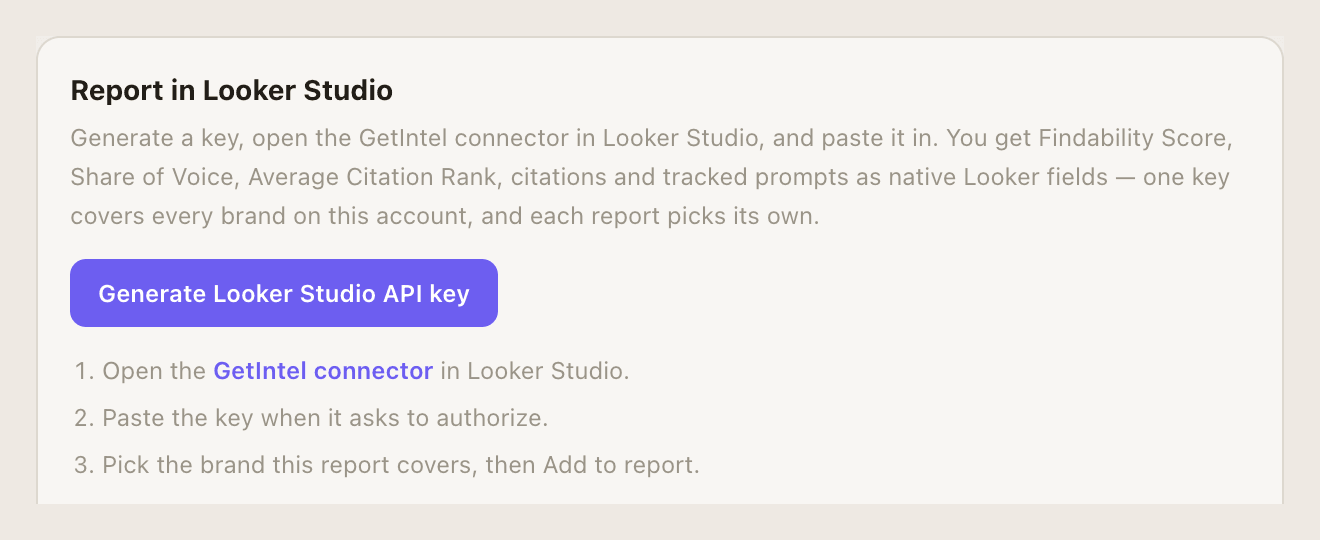](/product/looker-connect.png)
1. **Generate a key.** In GetIntel, open **Integrations**, find **Looker Studio** under Reporting, and click **Generate Looker Studio API key**. Copy it now: it is shown once.
2. **Open the connector.** Open the [GetIntel connector](https://lookerstudio.google.com/datasources/create?connectorId=AKfycbzyBIjZBI-jx95ckKuUzAR01QLWn_WYWrwe-lPO-Cs) in Looker Studio, click **Authorize**, and paste the key. Looker Studio checks it against GetIntel straight away.
3. **Pick the brand and add it.** Choose which brand this report covers, then **Add to report**. Every field below is now available to chart and filter.
Note
One key covers every brand on your account, so an agency generates it once, not per client. Keys are read-only: the connector can never change anything in GetIntel.
## Start from the template
[Section titled “Start from the template”](#start-from-the-template)
Rather not build the report yourself? Start from ours. It includes an overview a client can read on its own (visibility, share of voice and the per-engine breakdown), a prompt table sorted worst-first so you can see what to fix, the cited sources and competitors named instead of you, and what the AI actually said.
* **From GetIntel:** the Looker Studio panel in **Integrations** lists each of your brands with a **Create report** button that opens the template with that brand already selected.
* **From here:** [copy the template report](https://lookerstudio.google.com/reporting/create?c.reportId=b883a4f4-af98-43fb-9752-a1eb2d552589\&r.reportName=GetIntel%20AI%20Visibility\&ds.ds0.connector=community\&ds.ds0.connectorId=AKfycbzyBIjZBI-jx95ckKuUzAR01QLWn_WYWrwe-lPO-Cs) and pick the brand when Looker Studio asks.
The copy is yours. It authorizes with your own key, asks which brand it covers on first open, and you can rebrand and rearrange it freely.
## Fields
[Section titled “Fields”](#fields)
Data comes as one row per day, per tracked prompt, per engine, so you can roll up to one headline number or drill into a single question on a single engine.
### Dimensions
[Section titled “Dimensions”](#dimensions)
| Field | What it is |
| -------------------- | --------------------------------------------------------------------------------------------------------------------- |
| **Date** | The day the engines were asked. |
| **Brand** | The brand the row is about. For an agency, the client picked in the Brand dropdown. |
| **Tracked Prompt** | The buyer question, in the words a buyer would use. |
| **AI Engine** | Which engine answered. Only engines your plan tracks have data. |
| **Source Domain** | A domain the engine cited for this answer. Empty when it cited nothing. |
| **Competitor Named** | A competitor the engine named. Empty when it named none. |
| **Result** | `recommended`, `mentioned` (named without a recommendation), `absent`, or `open` (the answer named no vendor at all). |
| **AI Answer** | The answer the engine gave, truncated to 2,000 characters. Use it in a table, not a chart. |
### Metrics
[Section titled “Metrics”](#metrics)
| Field | What it is |
| ------------------------- | -------------------------------------------------------------------------------------------------------------------------------------------------------------------------------------- |
| **Visibility** | The share of AI answers that name you across the tracked prompts, 0 to 100. Averages across whatever you group by. Older versions of the connector label this field Findability Score. |
| **Share of Voice** | Your share of all vendor mentions in these answers. |
| **Average Citation Rank** | Where you sit among the brands an answer names. Lower is better. |
| **Citations** | How many sources the answers cited, across all domains. Broken out by Source Domain, it counts that domain’s citations only. |
| **AI Responses Analyzed** | How many answers the row is based on. Use it as the denominator for your own rates. |
| **Times Recommended** | Answers that recommended you outright, not just mentioned you. |
## Reading the numbers
[Section titled “Reading the numbers”](#reading-the-numbers)
**Blank is not zero.** A blank Visibility value means nothing was measured that day. A zero means the engines answered and named you nowhere.
**Failed runs are excluded.** When an engine errors or returns no answer, the run is dropped rather than counted as an absence. AI Responses Analyzed counts the answers GetIntel actually received.
**Source Domain and Competitor Named multiply rows.** One answer citing five domains contributes to five rows, because the useful number there is “answers that cited this domain”. Keep those two dimensions off your headline totals.
## Limits
[Section titled “Limits”](#limits)
* A single request covers at most **180 days**. Narrow the report’s date control for longer histories.
* A response returns at most **50,000 rows**, or **5,000** when the table includes **AI Answer**. Larger requests are truncated.
## Troubleshooting
[Section titled “Troubleshooting”](#troubleshooting)
**The brand dropdown is empty.** The key was rejected, most often because it was cut short when copied or has since been revoked. Generate a new one in Integrations and paste it again.
**A long date range returns nothing.** Reports are capped at 180 days per request.
**A recent day is empty.** Data appears once that day’s scan has run. A brand added today has no history yet.
**Turning off access.** Revoke the key in Integrations. Every report built on it stops fetching immediately.
# GetIntel MCP server
> What GetIntel's MCP server is, what your coding agent can do with it, how access and brands work, and where to start.
GetIntel runs a remote **MCP (Model Context Protocol) server**. Connect it to [Claude Code](/blog/ai-visibility-tools-mcp-claude-code/), Cursor, Codex CLI, Claude Desktop or any MCP client, and your agent can read everything GetIntel knows about your AI visibility, then act on it: in your task list, and in your real codebase.
**Endpoint:** `https://app.getintel.ai/mcp`
## What your agent can do
[Section titled “What your agent can do”](#what-your-agent-can-do)
* **Read your data** with 30 read tools: your overview, topics, AI answers, competitors, sources, pages, brand perception, Reddit, technical scan, AI traffic, Search Console and tasks.
* **Act** with 12 action tools: update tasks, plan the week, re-run the technical scan, create pitch reports, and add, archive, reword or move the topics and prompts you track. Action tools need a token with action access.
* **Change your site.** Coding agents like Claude Code, Cursor and Codex CLI combine GetIntel’s findings with your repository: read a task, edit the page, open a pull request.
## How it works
[Section titled “How it works”](#how-it-works)
| | |
| ------------------ | ----------------------------------------------------------------------------------------------------------------------------- |
| **Transport** | Streamable HTTP, JSON-RPC 2.0 |
| **Authentication** | Sign-in over OAuth for clients that support it, or an `Authorization: Bearer ` header with a token created in GetIntel |
| **Scope** | Each token sees one brand: the brand selected when it was created |
| **Permissions** | Read-only by default; action access is opt-in per token |
| **Time ranges** | Last 7 days by default; up to 90 days where a tool supports periods |
| **Limits** | A monthly read quota per plan; see [Usage and limits](/docs/mcp/usage-and-limits/) |
Note
The MCP server is included on every plan. It reads the same data as the app, so an agent’s numbers match what you see on screen.
## Start here
[Section titled “Start here”](#start-here)
[Connect your agent ](/docs/mcp/connect/)Create a token and add GetIntel to your client.
[Tool reference ](/docs/mcp/tools/)All 42 tools, their inputs and what they return.
[Recipes ](/docs/mcp/recipes/)Ready-made workflows: weekly brief, topic root cause, fix a task.
[Example prompts ](/docs/mcp/example-prompts/)What to ask, from checking your standing to shipping a fix.
# Claude.ai and ChatGPT
> Connect GetIntel's MCP server to claude.ai or ChatGPT by URL, with sign-in and no token to copy.
Claude.ai and ChatGPT both support remote MCP with sign-in, so you add GetIntel with just the URL. No token to create or paste.
`https://app.getintel.ai/mcp`
## Claude.ai
[Section titled “Claude.ai”](#claudeai)
1. Open **Settings → Connectors**.
2. Click **Add custom connector**.
3. Paste `https://app.getintel.ai/mcp` and save.
4. Claude sends you to GetIntel to sign in, then to an approval page. Pick a brand if you have more than one, tick **Also allow actions** if Claude should update tasks and plan your week, then click **Connect**.
5. Start a chat and ask: *“Using GetIntel, what are my weakest topics this week?”*
Claude Desktop uses the same **Settings → Connectors** flow.
## ChatGPT
[Section titled “ChatGPT”](#chatgpt)
Connecting a custom MCP server needs developer mode.
1. Open **Settings → Connectors**.
2. Turn on developer mode if you haven’t already.
3. Click **Create**, name it GetIntel, and paste `https://app.getintel.ai/mcp`.
4. Sign in to GetIntel when prompted, pick a brand if you have more than one, tick **Also allow actions** if needed, then click **Connect**.
5. Enable the GetIntel connector in a chat and ask: *“Using GetIntel, give me this week’s visibility brief.”*
Note
Access tokens from this connection last 2 hours and refresh automatically while it’s connected, on the same brand. To change brand or permissions, disconnect and connect again.
## Editing code
[Section titled “Editing code”](#editing-code)
Claude.ai and ChatGPT can read and discuss your GetIntel data, but neither edits files in a repository. For that, connect a coding agent instead: [Claude Code](/docs/mcp/clients/claude-code/), [Cursor](/docs/mcp/clients/cursor/) or [Codex CLI](/docs/mcp/clients/codex-cli/).
Tip
Neither client here supports sign-in yet? Use a token instead — see [Connect your agent](/docs/mcp/connect/#2-or-use-a-token).
# Claude Code
> Connect GetIntel's MCP server to Claude Code with one command, confirm the connection, and replace or remove the token.
[Claude Code](/blog/ai-visibility-tools-mcp-claude-code/) connects to GetIntel over its native HTTP transport. Once connected, it can read your GetIntel data and edit your website’s code in the same session.
1. **Create a token** in GetIntel under **Integrations**. Tick action access if Claude Code should update tasks, plan your week, or change the topics and prompts you track. See [Tokens and permissions](/docs/mcp/tokens-and-permissions/).
2. **Add the server.** In your project’s directory, run:
```sh
claude mcp add --transport http getintel https://app.getintel.ai/mcp \
--header "Authorization: Bearer YOUR_TOKEN"
```
3. **Confirm.** Start Claude Code and run `/mcp`. **getintel** should show as connected.
4. **Try it.** Ask: *“Using GetIntel, what are my weakest topics this week?”*
## Replace or remove the token
[Section titled “Replace or remove the token”](#replace-or-remove-the-token)
```sh
claude mcp remove getintel
```
Then run the add command again with the new token.
## Or connect without a token
[Section titled “Or connect without a token”](#or-connect-without-a-token)
Claude Code also supports sign-in. Add the server with no `--header`:
```sh
claude mcp add --transport http getintel https://app.getintel.ai/mcp
```
Claude Code opens GetIntel’s sign-in page, then an approval page where you pick a brand and choose whether to allow actions. The access token it gets lasts 2 hours and refreshes itself automatically.
Tip
Open Claude Code in your website’s repository. Then it can read a task with `get_task` and make the change in the same conversation. See [Ship fixes with your coding agent](/docs/academy/playbooks/ship-fixes-with-your-coding-agent/).
# Claude Desktop
> Connect GetIntel's MCP server to the Claude Desktop app with sign-in, or with a token through mcp-remote, so you can ask Claude about your AI visibility data.
Claude Desktop is good for exploring your data in conversation. It can read and act on GetIntel, but it can’t edit your code; use a coding agent for that.
## Connect with sign-in (recommended)
[Section titled “Connect with sign-in (recommended)”](#connect-with-sign-in-recommended)
1. Open **Settings → Connectors**.
2. Click **Add custom connector**.
3. Paste `https://app.getintel.ai/mcp` and save.
4. Claude sends you to GetIntel to sign in, then to an approval page. Pick a brand if you have more than one, tick **Also allow actions** if Claude should update tasks and plan your week, then click **Connect**.
5. Ask: *“Using GetIntel, what are my weakest topics this week?”*
Note
The access token this creates lasts 2 hours and refreshes itself automatically, on the same brand, for as long as the connector stays added.
## Use a token instead
[Section titled “Use a token instead”](#use-a-token-instead)
For an older Claude Desktop without Connectors, bridge through `mcp-remote`:
1. **Create a token** in GetIntel under **Integrations**.
2. **Open the config.** In Claude Desktop, go to **Settings → Developer → Edit Config**.
3. **Add GetIntel:**
claude\_desktop\_config.json
```json
{
"mcpServers": {
"getintel": {
"command": "npx",
"args": ["-y", "mcp-remote", "https://app.getintel.ai/mcp",
"--header", "Authorization: Bearer YOUR_TOKEN"]
}
}
}
```
4. **Restart Claude Desktop.** GetIntel’s tools appear in the tools menu.
Note
This bridges through `mcp-remote` with `npx`, so Node.js must be installed.
# Codex CLI
> Connect GetIntel's MCP server to OpenAI's Codex CLI through mcp-remote in config.toml, so your coding agent can read your AI visibility data.
Codex CLI speaks stdio, so it connects to GetIntel’s remote server through `mcp-remote`.
1. **Create a token** in GetIntel under **Integrations**.
2. **Add GetIntel** to `~/.codex/config.toml`:
\~/.codex/config.toml
```toml
[mcp_servers.getintel]
command = "npx"
args = ["-y", "mcp-remote", "https://app.getintel.ai/mcp", "--header", "Authorization: Bearer YOUR_TOKEN"]
```
3. **Restart Codex** and ask: *“Using GetIntel, give me this week’s visibility brief.”*
Note
`mcp-remote` runs through `npx`, so Node.js must be installed.
# Cursor
> Connect GetIntel's MCP server to Cursor with a remote HTTP entry in mcp.json, then enable it in Cursor's settings.
1. **Create a token** in GetIntel under **Integrations**.
2. **Add GetIntel to Cursor.** Edit `~/.cursor/mcp.json` for every project, or `.cursor/mcp.json` in one project:
\~/.cursor/mcp.json
```json
{
"mcpServers": {
"getintel": {
"url": "https://app.getintel.ai/mcp",
"headers": { "Authorization": "Bearer YOUR_TOKEN" }
}
}
}
```
3. **Enable it.** Open **Settings → MCP** and switch **getintel** on. A green status means the tools loaded.
4. **Try it** in Agent mode: *“Using GetIntel, list my top On-Page tasks.”*
If the server shows an error, check the token was pasted in full after `Bearer `. See [MCP troubleshooting](/docs/mcp/troubleshooting/).
## Or connect without a token
[Section titled “Or connect without a token”](#or-connect-without-a-token)
Cursor also supports sign-in. Add the URL with no `headers`:
\~/.cursor/mcp.json
```json
{
"mcpServers": {
"getintel": {
"url": "https://app.getintel.ai/mcp"
}
}
}
```
Enable **getintel** under **Settings → MCP** and Cursor opens GetIntel’s sign-in page, then an approval page where you pick a brand and choose whether to allow actions. The access token it gets lasts 2 hours and refreshes itself automatically.
# Gemini CLI
> Connect GetIntel's MCP server to Google's Gemini CLI with a streamable HTTP entry in settings.json, so Gemini can read your AI visibility data.
1. **Create a token** in GetIntel under **Integrations**.
2. **Add GetIntel** to `~/.gemini/settings.json`:
\~/.gemini/settings.json
```json
{
"mcpServers": {
"getintel": {
"httpUrl": "https://app.getintel.ai/mcp",
"headers": { "Authorization": "Bearer YOUR_TOKEN" }
}
}
}
```
3. **Start Gemini CLI** and run `/mcp` to confirm GetIntel’s tools loaded.
# Other clients
> Connect any MCP client or your own code to GetIntel's MCP server, directly over HTTP or through mcp-remote for stdio-only clients.
Any MCP client can connect. Use whichever of these your client supports.
## Clients that support sign-in
[Section titled “Clients that support sign-in”](#clients-that-support-sign-in)
If your client supports remote MCP with OAuth, point it at `https://app.getintel.ai/mcp` with no token. It discovers GetIntel’s OAuth server from `/.well-known/oauth-protected-resource` and `/.well-known/oauth-authorization-server`, registers itself, and sends you to sign in and approve. See the [protocol reference](/docs/mcp/protocol/#discovery) for the endpoints.
## Clients with remote HTTP support
[Section titled “Clients with remote HTTP support”](#clients-with-remote-http-support)
Point the client at the endpoint and send the token as a header:
* **URL:** `https://app.getintel.ai/mcp`
* **Header:** `Authorization: Bearer YOUR_TOKEN`
* **Transport:** Streamable HTTP
## Stdio-only clients
[Section titled “Stdio-only clients”](#stdio-only-clients)
Bridge through `mcp-remote` (requires Node.js):
```json
{
"command": "npx",
"args": ["-y", "mcp-remote", "https://app.getintel.ai/mcp",
"--header", "Authorization: Bearer YOUR_TOKEN"]
}
```
## Your own code
[Section titled “Your own code”](#your-own-code)
Call the server directly with JSON-RPC 2.0. List the tools:
```sh
curl -s https://app.getintel.ai/mcp \
-H "Authorization: Bearer YOUR_TOKEN" \
-H "Content-Type: application/json" \
-d '{"jsonrpc":"2.0","id":1,"method":"tools/list"}'
```
Call one:
```sh
curl -s https://app.getintel.ai/mcp \
-H "Authorization: Bearer YOUR_TOKEN" \
-H "Content-Type: application/json" \
-d '{"jsonrpc":"2.0","id":2,"method":"tools/call","params":{"name":"get_topics","arguments":{"days":30}}}'
```
See the [protocol reference](/docs/mcp/protocol/) for every method and error.
Note
Client config formats change between versions. If your client’s file looks different from these examples, check its own MCP documentation and use the URL and header above.
# VS Code
> Connect GetIntel's MCP server to VS Code's agent mode with a remote HTTP server in mcp.json, so Copilot Chat can read your AI visibility data.
1. **Create a token** in GetIntel under **Integrations**.
2. **Add GetIntel** to `.vscode/mcp.json` in your workspace:
.vscode/mcp.json
```json
{
"servers": {
"getintel": {
"type": "http",
"url": "https://app.getintel.ai/mcp",
"headers": { "Authorization": "Bearer YOUR_TOKEN" }
}
}
}
```
3. **Start the server** from the **Start** link above the entry, then open Chat in **Agent** mode. GetIntel’s tools appear in the tools picker.
Caution
Don’t commit a real token. Keep `.vscode/mcp.json` out of version control, or use VS Code’s input variables so the token is prompted for instead of stored.
## Or connect without a token
[Section titled “Or connect without a token”](#or-connect-without-a-token)
VS Code also supports sign-in. Add the server with no `headers`:
.vscode/mcp.json
```json
{
"servers": {
"getintel": {
"type": "http",
"url": "https://app.getintel.ai/mcp"
}
}
}
```
Start the server and VS Code opens GetIntel’s sign-in page, then an approval page where you pick a brand and choose whether to allow actions. The access token it gets lasts 2 hours and refreshes itself automatically.
# Windsurf
> Connect GetIntel's MCP server to Windsurf's Cascade agent through mcp-remote, so Cascade can read and act on your AI visibility data.
1. **Create a token** in GetIntel under **Integrations**.
2. **Add GetIntel** to `~/.codeium/windsurf/mcp_config.json` (or open it from Windsurf’s MCP settings):
mcp\_config.json
```json
{
"mcpServers": {
"getintel": {
"command": "npx",
"args": ["-y", "mcp-remote", "https://app.getintel.ai/mcp",
"--header", "Authorization: Bearer YOUR_TOKEN"]
}
}
}
```
3. **Refresh** the MCP servers in Windsurf’s settings, then ask Cascade: *“Using GetIntel, what changed in my topics this week?”*
This bridges through `mcp-remote` with `npx`, so Node.js must be installed.
# Connect your agent over MCP
> Connect Claude, ChatGPT, Claude Code, Cursor, Codex CLI or any MCP client to your brand's AI visibility data, by URL with sign-in or with a token.
GetIntel runs a remote MCP server, so the coding agent you already use can read your topics, AI answers, competitors, sources and tasks, and act on them in your real codebase.
There are two ways to connect: by URL, with sign-in, for clients that support it; or with a token, for clients that don’t, or for scripts.
## 1. Connect by URL (recommended)
[Section titled “1. Connect by URL (recommended)”](#1-connect-by-url-recommended)
If your client supports remote MCP with sign-in (Claude, ChatGPT, Cursor, VS Code, Claude Code), add the server URL with no token:
`https://app.getintel.ai/mcp`
The client sends you to GetIntel to sign in, then to an approval page:
1. **Brand.** If your account has one brand, GetIntel picks it automatically. With several, you choose which one this connection can see.
2. **What can it do?** Reading is always allowed. Tick **Also allow actions** if this agent should update tasks, plan your week and re-run the technical scan.
3. Click **Connect**.
The client gets an access token that lasts 2 hours and refreshes itself automatically, on the same brand, for as long as it’s connected. One connection sees one brand; connect again for another client.
Note
In GetIntel, the **Agent** page shows the **Claude.ai / ChatGPT (URL)** tab first. Client-specific steps are on [each client’s page](#step-by-step-guides-per-client), starting with [Claude.ai and ChatGPT](/docs/mcp/clients/claude-ai-and-chatgpt/).
## 2. Or use a token
[Section titled “2. Or use a token”](#2-or-use-a-token)
Use a token for a client without MCP sign-in support, or for a script calling the API directly.
1. In GetIntel, open the **Agent** page (or **Integrations**, then the agent card).
2. Choose whether this agent may **take actions** as well as read. Leave it off for a read-only token.
3. Click generate and **copy the token now**. It is shown once.
Note
A token is bound to the brand you had selected when you created it. Agencies create one token per client brand.
### Add GetIntel to your client with a token
[Section titled “Add GetIntel to your client with a token”](#add-getintel-to-your-client-with-a-token)
GetIntel shows the setup for each client under **Connect your agent**, ready to copy:
[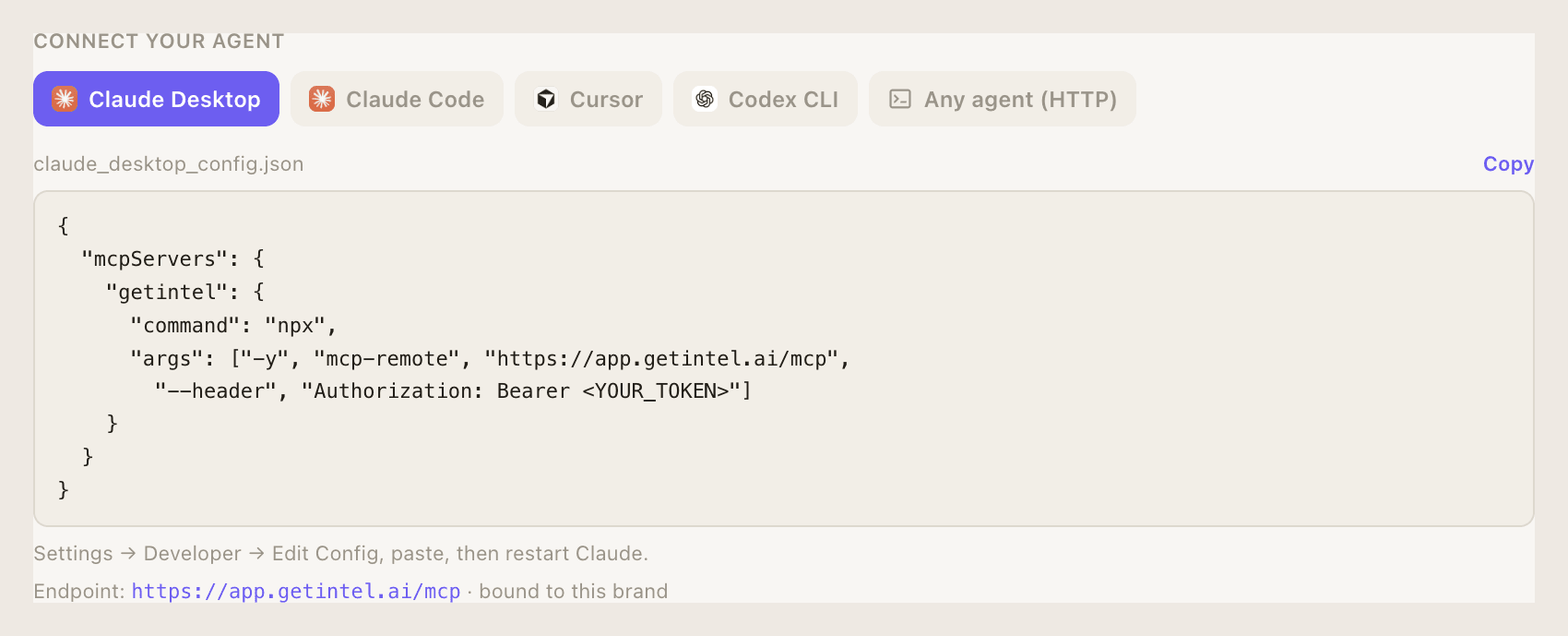](/product/agent-connect.png)
Replace `YOUR_TOKEN` with the token you copied. Every client talks to the same endpoint:
`https://app.getintel.ai/mcp`
* **Claude Code** uses its native HTTP transport. Run the command in your project, then run `/mcp` to confirm.
* **Cursor** reads `~/.cursor/mcp.json`. Enable **getintel** under Settings → MCP afterwards.
* **Codex CLI** reads `~/.codex/config.toml` and bridges through `mcp-remote`, because Codex speaks stdio.
* **Claude Desktop**: open Settings → Developer → Edit Config, paste, then restart Claude. It can read your data but cannot open pull requests.
* **Any other client** can call the endpoint directly: Streamable HTTP with JSON-RPC 2.0.
- Claude Code
```sh
claude mcp add --transport http getintel https://app.getintel.ai/mcp \
--header "Authorization: Bearer YOUR_TOKEN"
```
- Cursor
\~/.cursor/mcp.json
```json
{
"mcpServers": {
"getintel": {
"url": "https://app.getintel.ai/mcp",
"headers": { "Authorization": "Bearer YOUR_TOKEN" }
}
}
}
```
- Codex CLI
\~/.codex/config.toml
```toml
[mcp_servers.getintel]
command = "npx"
args = ["-y", "mcp-remote", "https://app.getintel.ai/mcp", "--header", "Authorization: Bearer YOUR_TOKEN"]
```
- Claude Desktop
claude\_desktop\_config.json
```json
{
"mcpServers": {
"getintel": {
"command": "npx",
"args": ["-y", "mcp-remote", "https://app.getintel.ai/mcp",
"--header", "Authorization: Bearer YOUR_TOKEN"]
}
}
}
```
- HTTP
```sh
curl -s https://app.getintel.ai/mcp \
-H "Authorization: Bearer YOUR_TOKEN" \
-H "Content-Type: application/json" \
-d '{"jsonrpc":"2.0","id":1,"method":"tools/list"}'
```
## Step-by-step guides per client
[Section titled “Step-by-step guides per client”](#step-by-step-guides-per-client)
Setup pages with every detail: [Claude.ai and ChatGPT](/docs/mcp/clients/claude-ai-and-chatgpt/) · [Claude Code](/docs/mcp/clients/claude-code/) · [Cursor](/docs/mcp/clients/cursor/) · [Codex CLI](/docs/mcp/clients/codex-cli/) · [Claude Desktop](/docs/mcp/clients/claude-desktop/) · [VS Code](/docs/mcp/clients/vs-code/) · [Windsurf](/docs/mcp/clients/windsurf/) · [Gemini CLI](/docs/mcp/clients/gemini-cli/) · [Other clients](/docs/mcp/clients/other-clients/)
## Limits
[Section titled “Limits”](#limits)
MCP reads count against a monthly quota on your plan: 10,000 on Monitor, 50,000 on Pro and 200,000 on Growth. A read-only connection only lists the read tools; the action tools appear only once you’ve ticked action access, at approval for a URL connection or when generating a token.
# What to ask your agent
> Example prompts for Claude Code, Cursor or Codex CLI once GetIntel is connected over MCP, from checking where you stand to shipping the fix in your codebase.
Once GetIntel is [connected](/docs/mcp/connect/), talk to your agent in plain language. It picks the right tools; the names in brackets show which ones it will usually call.
## Where do I stand?
[Section titled “Where do I stand?”](#where-do-i-stand)
* “Give me this week’s AI visibility summary and what changed.” (`get_overview`)
* “Which of my topics are weakest, and who leads each one?” (`get_topics`)
* “Which buyer questions did I lose since last week?” (`get_prompt_history`)
* “How many MCP reads have I used this month?” (`get_usage`)
## Why is it happening?
[Section titled “Why is it happening?”](#why-is-it-happening)
* “Open the pricing topic. Which questions am I missing and what does ChatGPT say instead?” (`get_topic`, `get_receipts`)
* “Why does AI pick Competitor X over us? Show the topics they win.” (`get_competitor`)
* “Which domains does AI cite in our category that never mention us?” (`get_sources`)
* “Which of our pages rank on Google but AI never cites?” (`get_search_console`)
* “Does AI describe our product accurately on every engine?” (`get_brand`)
## Fix it in the codebase
[Section titled “Fix it in the codebase”](#fix-it-in-the-codebase)
This is where a coding agent earns its keep: GetIntel says what is missing, and the agent edits the real site.
* “Take the top on-page task, read its brief, and make the change in this repo. Open a pull request when it’s done.” (`list_tasks`, `get_task`)
* “For the comparison topic, check the content analysis and update our comparison page so it covers every fact AI compares.” (`get_topic`)
* “Look at the latest technical scan and fix the issues on our key pages.” (`get_technical`)
Tip
Claude Code, Cursor and Codex CLI can edit files and open pull requests in your repository. Claude Desktop can read your GetIntel data but cannot change your code.
## Manage the plan
[Section titled “Manage the plan”](#manage-the-plan)
These need a token with action access.
* “Plan my week.” (`plan_week`)
* “Mark the Reddit task as in progress and add it to this week’s plan.” (`update_task`)
* “I’ve fixed the robots.txt issue. Re-run the technical scan.” (`recheck_technical`)
## Change what you track
[Section titled “Change what you track”](#change-what-you-track)
These need a token with action access. Archiving and rewording show you what would change first.
* “Which of our prompts are near-duplicates? Suggest one to archive from each pair, and archive them once I agree.” (`get_ai_answers`, `archive_prompt`)
* “Add three prompts about switching from our biggest competitor to the Switching topic.” (`get_topics`, `add_prompt`)
* “Reword the pricing prompt so it reads like a buyer would ask it.” (`edit_prompt`)
* “This prompt is really about integrations. Move it to the Integrations topic.” (`move_prompt`)
* “Start tracking a topic for Shopify app developers.” (`add_topic`)
* “Did our visibility change because of AI answers, or because we changed prompts?” (`get_visibility`)
# Example responses
> Real example responses from GetIntel's MCP tools, shortened and with brand names replaced, so you can see the shape of the data your agent receives.
Each tool returns JSON. These examples come from real responses, shortened to one or two items per list, with brand names and URLs replaced.
## get\_overview
[Section titled “get\_overview”](#get_overview)
The Home page for a period: visibility against rivals, topics, perception, pages, AI traffic, technical and actions.
```json
{
"period": { "from": "2026-09-11", "to": "2026-09-17", "days": 7 },
"you": { "name": "YourBrand" },
"visibility": {
"brands": [
{ "key": "you", "name": "YourBrand", "domain": "yourbrand.com", "you": true,
"vis": 5.4, "sov": 1, "cit": 5.3, "pos": 5.1, "latest_vis": 5.4 },
{ "key": "acme", "name": "Acme", "domain": "acme.com",
"vis": 50.6, "sov": 9.8, "cit": 13.5, "pos": 2.8, "latest_vis": 50.6 }
],
"series": [
{ "d": "2026-09-11",
"vis": { "you": 5.4, "acme": 50.6 },
"sov": { "you": 1, "acme": 9.8 },
"cit": { "you": 5.3, "acme": 13.5 },
"pos": { "you": 5.1, "acme": 2.8 } }
],
"answers": 207, "mentions": 1074, "citations": 148
},
"topics": [
{ "id": 31, "name": "AI citation gaps", "you": 0, "prev": 6.7, "leader": "Beta", "leader_share": 38.9 }
],
"perception": null,
"pages": {
"cited": 6, "prev": 0, "new": 6,
"top": [ { "path": "/solutions/agencies", "title": "AI Visibility for Agencies", "url": "https://yourbrand.com/solutions/agencies/", "n": 4 } ],
"losing": null
},
"crawlers": { "connected": false },
"visitors": { "connected": false },
"technical": { "score": 100, "scanned_at": "2026-09-12T18:44:54+05:30",
"engines": [ { "key": "chatgpt", "score": 100, "ok": true } ] },
"actions": [ { "layer": "on_page", "open": 19, "next": "Improve your “YourBrand vs Acme” page" } ]
}
```
`vis`, `sov` and `cit` are percentages; `pos` is average position (lower is better). `perception` is `null` on plans without brand perception.
## get\_topics
[Section titled “get\_topics”](#get_topics)
```json
{
"period": { "from": "2026-09-11", "to": "2026-09-17", "days": 7 },
"topics": [
{
"id": 31, "name": "AI citation gaps", "category": "pain_point", "priority": 1,
"visibility": 0, "previous": 6.7, "change": -6.7, "rank": 7,
"top_rival": "Beta", "top_rival_share": 38.9,
"top_rivals": [
{ "name": "Beta", "rate": 0.3889, "sov": 0.4706, "position": 1.14 },
{ "name": "Gamma", "rate": 0.1806, "sov": 0.2353, "position": 1.5 }
],
"answers": 20, "as_of": "2026-09-11"
}
]
}
```
`visibility` is null for a topic not scored yet. In `top_rivals`, `rate` and `sov` are fractions from 0 to 1.
## get\_ai\_answers
[Section titled “get\_ai\_answers”](#get_ai_answers)
```json
{
"run_date": "2026-09-11 00:20:14 +0530",
"as_of": "2026-09-11",
"window_days": 7,
"named_count": 10,
"total_count": 57,
"questions": [
{
"probe_id": 1797,
"prompt": "Which tool shows why ChatGPT recommends my competitors instead of me?",
"mentioned_us": false,
"rate": 0,
"runs_counted": 1,
"engines": { "openai": "absent", "perplexity": "absent", "gemini_direct": "absent", "google_aio": "error" }
}
]
}
```
Engine keys: `openai` (ChatGPT), `perplexity`, `gemini_direct` (Gemini), `google_aio` (Google AI Overviews). Per engine, the state is `recommended`, `mentioned`, `absent`, `open`, `no_answer` or `error` (the run failed).
## list\_tasks
[Section titled “list\_tasks”](#list_tasks)
```json
{
"open_by_layer": { "on_page": 20, "off_page": 26, "ugc": 26, "technical": 3 },
"tasks": [
{
"id": 211, "key": "connect:gsc", "layer": "technical", "kind": "connect",
"title": "Connect Google Search Console", "status": "open",
"score": 26.769, "effort_min": 5, "confirmed": true, "days_seen": 1,
"planned": false, "week_of": null, "snoozed": false, "snoozed_until": null,
"topics": [], "first_seen_at": "2026-09-12T18:35:00+05:30",
"done_at": null, "resolved_at": null
}
]
}
```
## get\_task
[Section titled “get\_task”](#get_task)
The same fields as a `list_tasks` row, plus `data`, the brief:
```json
{
"id": 211,
"title": "Connect Google Search Console",
"layer": "technical",
"status": "open",
"effort_min": 5,
"data": {
"why": "Google’s AI Overviews and AI Mode only use pages Google has indexed. Connecting Search Console shows which of your key pages are in — and Google’s reason when one isn’t.",
"reach": 20,
"fit": 5.0,
"confidence": "proven",
"integration": "Search Console"
}
}
```
`data` varies by task kind: content tasks carry the facts to cover, off-page tasks the source to get onto.
## get\_usage
[Section titled “get\_usage”](#get_usage)
```json
{
"period": "month",
"resets_on": "2026-10-01",
"reads": { "used": 8, "limit": 50000, "remaining": 49992 },
"drafts": { "used": 0, "limit": 999, "remaining": 999 }
}
```
# Protocol reference
> The JSON-RPC methods, request and response formats, OAuth discovery and error codes of GetIntel's MCP server, for building your own client or debugging one.
GetIntel’s MCP server speaks **JSON-RPC 2.0 over HTTP** at a single endpoint. Most people never need this page: MCP clients handle it for you. It’s here for building your own client or debugging one.
| | |
| --------------------- | ----------------------------------------------------------- |
| **Endpoint** | `POST https://app.getintel.ai/mcp` |
| **Protocol versions** | `2025-06-18` (newest), `2025-03-26`, `2024-11-05` |
| **Server** | `getintel` 1.1.0 |
| **Auth** | OAuth sign-in, or an `Authorization: Bearer ` header |
| **Content type** | `application/json` |
`GET` and `DELETE` on `/mcp` both return `405`: the server doesn’t open an SSE stream.
## Methods
[Section titled “Methods”](#methods)
### initialize
[Section titled “initialize”](#initialize)
Send the protocol version your client speaks. The server echoes it back if it supports it, otherwise replies with `2025-06-18`.
```json
{
"jsonrpc": "2.0", "id": 1, "method": "initialize",
"params": { "protocolVersion": "2025-06-18" }
}
```
```json
{
"jsonrpc": "2.0", "id": 1,
"result": {
"protocolVersion": "2025-06-18",
"capabilities": { "tools": { "listChanged": false } },
"serverInfo": { "name": "getintel", "title": "GetIntel", "version": "1.1.0" },
"instructions": "GetIntel tracks your AI visibility across ChatGPT, Perplexity, Gemini and Google AI Overviews…"
}
}
```
`capabilities.tools.listChanged` is `false`: the tool list for a connection doesn’t change without a reconnect.
### notifications/initialized
[Section titled “notifications/initialized”](#notificationsinitialized)
Notifications get HTTP `202` with no body, not a JSON-RPC response.
### ping
[Section titled “ping”](#ping)
A liveness check with an empty result. Useful for confirming a connection is still good.
```json
{ "jsonrpc": "2.0", "id": 2, "method": "ping" }
```
```json
{ "jsonrpc": "2.0", "id": 2, "result": {} }
```
### tools/list
[Section titled “tools/list”](#toolslist)
Returns the tools the connection may use: all 42 with action access, the 30 read tools otherwise. Each tool has a `name`, `title`, `description`, `inputSchema` (JSON Schema) and `annotations`.
```json
{ "jsonrpc": "2.0", "id": 3, "method": "tools/list" }
```
`annotations` tells a client what a tool is safe to call without confirming: read tools carry `{ "readOnlyHint": true, "openWorldHint": false }`, action tools carry `{ "readOnlyHint": false, "destructiveHint": false }`, except `archive_topic`, `archive_prompt` and `edit_prompt`, which carry `"destructiveHint": true` so clients ask before running them.
### tools/call
[Section titled “tools/call”](#toolscall)
```json
{
"jsonrpc": "2.0", "id": 4, "method": "tools/call",
"params": { "name": "get_topics", "arguments": { "days": 30 } }
}
```
A successful call returns the tool’s data as **JSON text** in a single content item, and, when the result is an object, the same object again as `structuredContent`:
```json
{
"jsonrpc": "2.0", "id": 4,
"result": {
"content": [ { "type": "text", "text": "{\"period\":{\"from\":\"2026-08-18\",\"to\":\"2026-09-16\",\"days\":30},\"topics\":[…]}" } ],
"structuredContent": { "period": { "from": "2026-08-18", "to": "2026-09-16", "days": 30 }, "topics": ["…"] }
}
}
```
Read `structuredContent` directly if your client supports it; otherwise parse `content[0].text`.
See [Example responses](/docs/mcp/example-responses/) for what each tool returns.
## Discovery
[Section titled “Discovery”](#discovery)
For a client building its own OAuth flow. Clients that already support MCP sign-in do this automatically.
| Endpoint | Returns |
| --------------------------------------------------------------------------------------------- | ------------------------------------------------------------------------------------------------------------------------------------ |
| `/.well-known/oauth-protected-resource` (also at `/.well-known/oauth-protected-resource/mcp`) | Which authorization server protects `/mcp` |
| `/.well-known/oauth-authorization-server` | Grant types (`authorization_code`, `refresh_token`), PKCE (`S256`), scopes (`read`, `act`), and the token and registration endpoints |
| `POST /oauth/register` | Dynamic client registration |
## Errors
[Section titled “Errors”](#errors)
### Tool errors
[Section titled “Tool errors”](#tool-errors)
Problems an agent can act on come back as a normal result with `isError: true` and a readable message, never as an empty success:
```json
{
"jsonrpc": "2.0", "id": 4,
"result": {
"content": [ { "type": "text", "text": "Monthly MCP read limit reached (10000). Resets 2026-10-01. Upgrade for a higher limit." } ],
"isError": true
}
}
```
These cover a missing plan, the read limit, missing action access, an unknown id, an integration that isn’t connected, and a failed third-party call. See [MCP troubleshooting](/docs/mcp/troubleshooting/) for every message.
### JSON-RPC errors
[Section titled “JSON-RPC errors”](#json-rpc-errors)
| Code | Message | When |
| -------- | -------------------------------- | --------------------------------------------------------------------- |
| `-32700` | Parse error | The body isn’t valid JSON (HTTP 400). |
| `-32601` | Method not found | An unsupported method. |
| `-32602` | Unknown tool / Invalid arguments | A tool name that doesn’t exist, or arguments the tool doesn’t accept. |
### HTTP errors
[Section titled “HTTP errors”](#http-errors)
| Status | When |
| ------ | ------------------------------------------------------------------------------------------------------------------------------------------------------------------------------------------------------------------------------------------------------------------------------------------------------------------------ |
| `401` | Missing or invalid token, revoked token or connection, or a token whose brand no longer exists. Carries `WWW-Authenticate: Bearer realm="GetIntel", resource_metadata="https://app.getintel.ai/.well-known/oauth-protected-resource", error="invalid_token"`, which is how an OAuth-aware client knows to start sign-in. |
| `405` | `GET` or `DELETE` on `/mcp`. The server has no SSE stream; use `POST`. |
# MCP recipes
> Ready-to-use workflows for your coding agent with GetIntel's MCP server, from a weekly brief to root-causing a topic drop and fixing the top task.
Recipes are prompts that chain several GetIntel tools into one useful workflow. Paste them into Claude Code, Cursor or Codex CLI.
## Weekly brief
[Section titled “Weekly brief”](#weekly-brief)
> Give me this week’s AI visibility brief: overall numbers against our top rivals, the three topics that moved most, pages losing citations, and the top task in each layer.
**Tools:** `get_overview`, `get_topics`, `get_your_pages`, `get_weekly_plan` **What to look for:** a topic that dropped more than a few points, and any page losing citations.
## Why did a topic drop?
[Section titled “Why did a topic drop?”](#why-did-a-topic-drop)
> The pricing topic dropped this week. Find out why: which engines changed, which rival gained, which sources changed, and read the answers that lost us.
**Tools:** `get_topics`, `get_topic`, `get_receipts`, `get_competitor`, `get_sources` **What to look for:** a single engine or a single lost source often explains the whole drop.
## Competitor radar
[Section titled “Competitor radar”](#competitor-radar)
> Which competitor is gaining on us? For the top one, show the topics they beat us on, the questions they win that we lose, and the pages AI cites for them.
**Tools:** `get_competitors`, `get_competitor`
## Fix the top On-Page task
[Section titled “Fix the top On-Page task”](#fix-the-top-on-page-task)
> Take our top On-Page task, read its brief and the topic it moves, find the page in this repo, and update it to cover what’s missing. Show me the diff before committing.
**Tools:** `list_tasks`, `get_task`, `get_topic` **Needs:** your agent open in your website’s repository.
## Technical fix and re-scan
[Section titled “Technical fix and re-scan”](#technical-fix-and-re-scan)
> Read the latest technical scan, fix what we can in this repo, and after I deploy, re-run the scan and tell me what changed.
**Tools:** `get_technical`, `recheck_technical` (action access, once an hour)
## Plan the week
[Section titled “Plan the week”](#plan-the-week)
> Plan this week, then list the plan with one line on why each task matters.
**Tools:** `plan_week` (action access), `get_weekly_plan`
## Clean up what you track
[Section titled “Clean up what you track”](#clean-up-what-you-track)
> Go through our tracked prompts. Flag near-duplicates and prompts that no buyer would ask, and suggest better wording or a better topic for each. Show me the list, then make the changes I approve.
**Tools:** `get_topics`, `get_ai_answers`, `archive_prompt`, `edit_prompt`, `move_prompt`, `add_prompt` (action access) **What to look for:** the slots left after each change, and the marker it leaves on the Home chart. Visibility is calculated over the new set from the next scan, so compare before and after with that in mind.
## Rank on Google, missing from AI
[Section titled “Rank on Google, missing from AI”](#rank-on-google-missing-from-ai)
> Which of our pages rank in Google’s top 10 but AI never cites? For the top three, suggest what to change.
**Tools:** `get_search_console`, `get_your_pages` **Needs:** Search Console connected.
Tip
Recipes work best when you name the topic, rival or page. “The pricing topic” gets a sharper answer than “a topic”.
# Tokens and permissions
> How GetIntel MCP access works for an OAuth connection and for a page token, read versus action access, how each is tied to a brand, and how to revoke and rotate them safely.
An agent reaches your data one of two ways: a **connection** made by signing in, or a **token** you create on the Agent page. Both decide which brand the agent sees and whether it may take actions.
## OAuth connections
[Section titled “OAuth connections”](#oauth-connections)
Signing in from a client (Claude, ChatGPT, Cursor, VS Code, Claude Code) creates a connection, made at the approval page you see after sign-in:
* **Brand:** picked automatically if your account has one, chosen by you if it has several. One connection sees one brand.
* **Actions:** off unless you tick **Also allow actions**.
* **Access tokens:** last 2 hours and refresh automatically behind the scenes, on the same brand, for as long as the connection lasts.
**Revoking:** disconnect the connector in the client (Claude’s or ChatGPT’s Connectors settings, Cursor’s or VS Code’s MCP settings). There’s nothing to delete in GetIntel; a connection isn’t a token on the agent card.
To change the brand or the actions permission, disconnect and connect again and choose differently at approval.
## Page tokens
[Section titled “Page tokens”](#page-tokens)
Created by hand on GetIntel’s **Agent** page (or **Integrations**, then the agent card), for a client without sign-in support or for a script.
Note
A page token is bound to the brand you had selected when you created it, and it **never expires** — it stays valid until you revoke it. Switching brand in GetIntel doesn’t change what an existing token sees.
### Creating a token
[Section titled “Creating a token”](#creating-a-token)
Open the **Agent** page, choose whether the agent may take actions, then generate the token. **Copy it straight away: it is shown once.**
### Read versus action access
[Section titled “Read versus action access”](#read-versus-action-access)
| | Read-only token | Token with action access |
| --------------------------------------------------------------------------------------------------------------------------------------------- | --------------- | ------------------------ |
| Read tools (30) | ✓ | ✓ |
| Tasks and scan: `update_task`, `plan_week`, `recheck_technical` | Hidden | ✓ |
| Pitch reports: `create_pitch` | Hidden | ✓ |
| What’s tracked: `add_topic`, `archive_topic`, `restore_topic`, `add_prompt`, `archive_prompt`, `restore_prompt`, `edit_prompt`, `move_prompt` | Hidden | ✓ |
A read-only token doesn’t even list the action tools, so an agent can’t try to call them. If it does, the server replies that the action needs the `act` permission.
Tip
Start read-only. Create a token with action access only for the agent you want managing your task list and what you track. Archiving and rewording always take a second, confirmed call, so your agent can check with you first.
### One token, one brand
[Section titled “One token, one brand”](#one-token-one-brand)
Agencies create one token per client brand.
### Revoking and rotating
[Section titled “Revoking and rotating”](#revoking-and-rotating)
* **Revoke:** delete the token from the agent card. Any agent using it stops working immediately.
* **Rotate:** create a new token, update your agent’s config, then revoke the old one.
## Keeping access safe
[Section titled “Keeping access safe”](#keeping-access-safe)
* Treat a token like a password. Anyone holding it can read that brand’s data.
* Don’t commit tokens to version control; keep config files with tokens out of your repository.
* Use a separate token, or a separate connection, per person or agent, so you can revoke one without breaking the others.
# MCP tool reference
> Every tool the GetIntel MCP server exposes, what it returns, its inputs, and whether it needs a token with action access.
The GetIntel MCP server exposes 42 tools: 30 that read your data and 12 that act. The action tools work on your task list, the technical scan, pitch reports, and the topics and prompts you track. Every tool works on the brand the token was created for.
Note
A read-only token only lists the read tools. The action tools appear, and can be called, only when the token was created with action access.
## Time ranges
[Section titled “Time ranges”](#time-ranges)
Tools marked **period** default to the last 7 days. Pass one of these to change it; the response’s `period` says what was used.
| Input | Type | Meaning |
| ------ | ------- | --------------------------------------------------------------- |
| `days` | integer | Days back, ending today. 1 to 90. Ignored when `from` is given. |
| `from` | string | Start date, `YYYY-MM-DD`. At most 90 days before `to`. |
| `to` | string | End date, `YYYY-MM-DD`. Defaults to today. |
## Markets
[Section titled “Markets”](#markets)
A brand on Pro or Growth can be tracked in more than one market: a country plus a language, each with its own questions (asked in that language), answers, scores, competitors, sources and tasks. Every tool except `get_usage` and `list_markets` takes an optional `market` input:
| Input | Type | Meaning |
| -------- | ------ | ---------------------------------------------------------------------------------------------------------------------- |
| `market` | string | A market code from `list_markets`, such as `IN-hi` (or just `IN`), or the market’s id. Defaults to the primary market. |
Brand perception (`get_brand`, `get_brand_transcript`) and the technical scan are the same in every market.
## Start here
[Section titled “Start here”](#start-here)
| Tool | What it returns | Inputs |
| -------------- | ------------------------------------------------------------------------------------------------------------------------------------------------------------------------------------------------------------------------------------------------------------------------------------------------------------ | ------ |
| `get_overview` | Everything on the Home page: your visibility, share of voice, position and citations against your top rivals (for the period and per day), how AI perceives you, which of your pages AI cites, topics weakest first, AI crawler and visitor totals, the technical readiness score, and open tasks per layer. | period |
| `list_markets` | The markets the brand is tracked in: code, country, language, whether it’s the primary market, and how many topics and questions it tracks. Does not count against your quota. | none |
| `get_usage` | This month’s MCP reads used, the limit, what remains and when it resets. Does not count against your quota. | none |
## Topics and visibility
[Section titled “Topics and visibility”](#topics-and-visibility)
| Tool | What it returns | Inputs |
| -------------------- | ------------------------------------------------------------------------------------------------------------------------------------------------------------------------------------------------------------------------------------------------------------------------------------------------------------------------------------------------------------------------------------------------------- | ---------- |
| `get_topics` | Every topic you track: your share of AI answers in it, the change over the period, its rank, and the rivals AI names instead. | period |
| `get_topic` | One topic in full: every buyer question with each engine’s latest answer, the head-to-heads against rivals, what AI cites for the topic, the score’s history with `tracked_set_changes` (the days its questions changed), and the content analysis (the facts AI compares, and what a page needs to say to get cited). | `topic_id` |
| `get_visibility` | The brand-wide visibility score (0 to 100) across all tracked questions for the period, the change against the period before, and 12 weeks of history. Also returns `tracked_set_changes`: the days in the period that topics or prompts were added, archived, reworded or moved, with the prompt count after each. A null score means nothing was measured; 0 means AI answered and named you nowhere. | period |
| `get_prompt_history` | Which buyer questions you won, lost or held between this 7-day window and the one before, with the mention rate in each. | none |
## AI answers
[Section titled “AI answers”](#ai-answers)
| Tool | What it returns | Inputs |
| ------------------- | ----------------------------------------------------------------------------------------------------------------------------------------------------------------------------------------------------------------------------------------------------- | ------------------------------------- |
| `get_ai_answers` | Each buyer question with the rate you were named over the last 7 days and each engine’s state: `recommended`, `mentioned`, `absent`, `open` (no product named at all), `no_answer` or `error`. | none |
| `get_prompt_matrix` | Question × engine grid: each engine’s most common state over 7 days, the rate behind it, and your position when named. | none |
| `get_receipts` | The exact answer each engine gave to one buyer question over the last 7 days. Returns `answer_rate` (share of individual answers naming you) and `scan_rate` (share of scans where at least one engine named you, the rate `get_ai_answers` reports). | `prompt` (text from `get_ai_answers`) |
## Competitors
[Section titled “Competitors”](#competitors)
| Tool | What it returns | Inputs |
| ----------------- | ----------------------------------------------------------------------------------------------------------------------------------------------------------------------------------- | ------------------------------------------- |
| `get_competitors` | Share of voice: how often each engine names you versus each competitor, and on which questions. `our_visibility_rate` matches the app’s Home and Prompts pages for the same period. | period |
| `get_competitor` | One rival in depth: the topics they beat you on and by how much, the questions they win that you lose, what AI said, and their pages AI cites. | `name` (as AI writes it) or `competitor_id` |
## Brand perception
[Section titled “Brand perception”](#brand-perception)
| Tool | What it returns | Inputs |
| ---------------------- | -------------------------------------------------------------------------------------------------------------------------------------------------------------------------------------------------------------------------------------------------------------------------------------------------- | ------------------- |
| `get_brand` | Whether AI knows your brand and would recommend it, per engine (ChatGPT, Perplexity, Gemini, Google AI Overviews): whether it describes you accurately, whether you come up unprompted in a category question, and its reasoning on recommending you. Weekly runs, with the trend over the period. | period |
| `get_brand_transcript` | The full prompts, answers and citations behind `get_brand`. | `engine` (optional) |
## Sources and your pages
[Section titled “Sources and your pages”](#sources-and-your-pages)
| Tool | What it returns | Inputs |
| ------------------ | -------------------------------------------------------------------------------------------------------------------------------------------------------------------------- | ---------------------------------- |
| `get_sources` | The domains AI cites in your category, how often, and whether each is yours, a competitor’s or third-party. | period, `limit` (1–50, default 15) |
| `get_your_pages` | Which of your pages AI cites, now versus the previous period, by engine and topic, the questions each is cited for, and what AI cites instead of your uncited topic pages. | period |
| `get_content_gaps` | For each buyer question: whether you have a page, whether AI cites it, and the recommended action (write, improve or leave). | none |
## Site and traffic
[Section titled “Site and traffic”](#site-and-traffic)
| Tool | What it returns | Inputs |
| -------------------- | ---------------------------------------------------------------------------------------------------------------------------------------------------------------------------------------------------------- | --------------------------------------------------------------------------------------- |
| `get_technical` | The latest weekly technical scan: an AI-readiness score per engine, every check by layer, each key page’s issues, bot access, and what is fixed or new since the last scan. | none |
| `get_ai_crawlers` | How often ChatGPT, Perplexity, Claude and Gemini bots read your pages, verified against each vendor’s published IPs, with pages newly cited or cited less. Needs Cloudflare or the GetIntel server script. | period |
| `get_ai_visitors` | People who arrived from an AI assistant, by assistant and landing page, versus the previous period. Needs Google Analytics 4 or the GetIntel visitor tag. | period |
| `get_search_console` | Search Console clicks and impressions joined to your tracked questions, including pages and queries that rank in Google’s top 10 but that AI never cites. Needs Search Console connected. | `days` (1–90, default 28), `dimension` (`query` or `page`), `limit` (1–100, default 25) |
## Reddit
[Section titled “Reddit”](#reddit)
| Tool | What it returns | Inputs |
| ------------- | --------------------------------------------------------------------------------------------------------------------- | ----------------------------------------------------- |
| `get_signals` | What buyers ask on Reddit, grouped by topic: the threads (and whether AI cites them) and each topic’s weekly summary. | period, `limit` (threads per topic, 1–50, default 20) |
## Tasks and weekly plan
[Section titled “Tasks and weekly plan”](#tasks-and-weekly-plan)
| Tool | Access | What it does | Inputs |
| ------------------- | ---------- | -------------------------------------------------------------------------------------------------------------------------------------------------------------------------------------------------------------- | ---------------------------------------------------------------------------------------------------------------- |
| `list_tasks` | Read | Your tasks, best first, with open counts per layer. Filter by `layer` (`on_page`, `off_page`, `ugc`, `technical`) or `status` (`open` by default, `in_progress`, `done` in the last 30 days, `snoozed`). | `layer`, `status`, `limit` (1–100, default 30), `offset` (page with `next_offset`; `total` gives the full count) |
| `get_task` | Read | One task in full: why it matters, what to do, the topics it moves, and whether it is on this week’s plan. | `task_id` |
| `get_weekly_plan` | Read | This week’s plan and a few top suggestions to add. | none |
| `update_task` | **Action** | Change one task like the buttons on its card: set `status` (`open`, `in_progress`, `done`, `dismissed`), add or remove it from this week’s plan with `planned`, or hide it with `snooze_days` (0 to unsnooze). | `task_id`, `status`, `planned`, `snooze_days` |
| `plan_week` | **Action** | Fill this week’s plan with the top tasks per layer: 2 on-page, 2 off-page, 1 UGC, 1 technical. `refresh: true` re-picks tasks not yet started. | `refresh` |
| `recheck_technical` | **Action** | Run a technical scan now instead of waiting for the weekly one. At most once an hour; results appear in `get_technical` a few minutes later. | none |
## Topics and prompts you track
[Section titled “Topics and prompts you track”](#topics-and-prompts-you-track)
Change what GetIntel measures: the same **+ Add topic**, **Add prompt**, **Archive** and **Restore** actions as the [Topics](/docs/features/topics/) and [Prompts](/docs/features/prompts/) pages, with the same limits. All of them need **action** access.
| Tool | What it does | Inputs |
| ---------------- | -------------------------------------------------------------------------------------------------------------------------------------------------------------------------------------------------------------------------------------------- | --------------------------------------------------------------------------------------------------------------------------------- |
| `add_topic` | Start tracking a topic in this market. GetIntel writes its buyer questions from `description` and scans them, so it uses questions from your limit. If an archived topic has the same name, the error tells the agent to restore it instead. | `name`, `description` (the buyer situation, at least 20 characters), `category` (default `use_case`), `priority` (1–3, default 2) |
| `archive_topic` | Stop tracking a topic in every market. Its questions stop being scanned and free their slots, and open tasks for only this topic are put away. History is kept. **Two steps:** see below. | `topic_id`, `confirm` |
| `restore_topic` | Track an archived topic again, in the markets it was in, with fresh questions. An unknown id lists the brand’s archived topics. | `topic_id` |
| `add_prompt` | Track one more buyer question in this market and scan it straight away. Pass the topic it belongs to so it counts in that topic’s score; it’s required once the brand tracks topics. | `prompt`, `topic_id` |
| `archive_prompt` | Stop tracking one prompt. Its answers stay in history. **Two steps.** | `prompt_id` (the `probe_id` from `get_ai_answers`), `confirm` |
| `restore_prompt` | Track an archived prompt again. Needs a free slot. | `prompt_id` |
| `edit_prompt` | Reword a prompt. The old wording is archived with its history and the new wording is tracked under the same topic, linked to it, starting from no answers. Works when every slot is full, since it swaps one for one. **Two steps.** | `prompt_id`, `prompt` (the new wording), `confirm` |
| `move_prompt` | File a prompt under another topic, so it counts in that topic’s score instead. The brand-wide number doesn’t change. | `prompt_id`, `topic_id` |
How these tools protect your numbers:
* **Two-step archive and reword.** Called without `confirm: true`, `archive_topic`, `archive_prompt` and `edit_prompt` change nothing. They return what would happen: how many questions and tasks would go, and how many prompts visibility would then be calculated over. Your agent should show you that and call again with `confirm: true` only once you agree. These tools are also marked destructive, so clients that ask before risky actions will ask.
* **Slots in every answer.** Each reply includes `prompt_slots` (used, limit, remaining) and `prompts_scored`, the number of prompts visibility is now calculated over. When every slot is taken, adds are refused with a message saying to archive one first.
* **Daily limit.** An agent can add 2 topics and 10 prompts a day per brand (restores and rewordings count). Every add starts real scans, so an agent stuck in a loop stops instead of using up your scans. The app itself has no daily limit.
* **Not during the free trial.** Like archiving in the app, these tools need a paid plan.
* **Every change is marked.** Adding, archiving, rewording or moving prompts moves your visibility by itself. Each change, from the app or an agent, is marked on the Home visibility chart and returned by `get_visibility`, so a jump caused by new prompts doesn’t read as a change in AI answers.
* GetIntel’s own validation, sentiment and head-to-head questions can be archived but not reworded or moved.
## Pitch reports
[Section titled “Pitch reports”](#pitch-reports)
Prospects you scan to win the work — companies that aren’t clients. Account-level: they answer the same whichever client you’re pointed at, and they take no `market` argument. See [Pitch reports](/docs/agencies/pitch-reports/).
| Tool | Access | What it does | Inputs |
| -------------- | ---------- | ------------------------------------------------------------------------------------------------------------------------------------------------------------------------------------------------------------------------ | -------------------------------------------------------------------------- |
| `list_pitches` | Read | Every prospect on the account with its visibility, report status, share link and how often that link was opened — plus how much of the month’s allowance is left. | `limit` (1–100, default 30) |
| `get_pitch` | Read | One prospect in full: market, business type, and its report with the link to send them. | `pitch_id` |
| `create_pitch` | **Action** | Scan a company that isn’t a client yet: reads their website, works out what they sell and to whom, and runs one scan. The report is ready a few minutes later from `get_pitch`. Spends one of the month’s pitch reports. | `url`, `market_code` (e.g. `GB-en`; default: whatever their site reads as) |
`create_pitch` runs a real scan against a company that isn’t a customer, so it needs **action** access and it isn’t idempotent — calling it twice scans twice and spends twice. When the month’s allowance is gone it says so rather than scanning anyway.
## Older tools
[Section titled “Older tools”](#older-tools)
These still respond but belong to earlier parts of GetIntel. New work happens in tasks and the weekly plan.
| Tool | What it returns |
| --------------------------- | ----------------------------------------------------------------------------- |
| `list_activity` | Recent signals, approvals, drafts and outcomes, newest first. |
| `list_drafts` / `get_draft` | Drafts written by the earlier mission queue. No new drafts are created there. |
## Limits and errors
[Section titled “Limits and errors”](#limits-and-errors)
* **Plan required.** Every tool needs an active GetIntel plan. Action tools are refused on an inactive plan with a message saying so. The topic and prompt tools also need a paid plan, and have a [daily limit](#topics-and-prompts-you-track).
* **Monthly read quota.** 10,000 reads on Monitor, 50,000 on Pro and 200,000 on Growth, resetting on the 1st. `get_usage` and `list_markets` are free to call.
* **Readable errors.** A missing integration (for example Search Console not connected), an unknown id or a failed third-party call comes back as an error message your agent can act on, never as an empty result.
# MCP troubleshooting
> Fixes for common GetIntel MCP problems, matched to the exact error messages your agent shows, plus client-specific setup checks.
Find the message your agent shows, then apply the fix.
## Error messages
[Section titled “Error messages”](#error-messages)
| Message | Cause | Fix |
| ------------------------------------------------------------------ | ------------------------------------------------------------------------------- | ---------------------------------------------------------------------------------------------------------------------------------------------------------- |
| **401 Unauthorized** when connecting | The token is wrong, incomplete or revoked. | Create a new token in **Integrations** and paste it again, including the `Bearer `prefix in the header. |
| Sign-in page doesn’t open, or the client says auth is required | The client doesn’t support MCP OAuth. | Use a token instead — see [Connect your agent](/docs/mcp/connect/#2-or-use-a-token). |
| Wrong brand | The connection or token was made on a different brand than the one you meant. | For a connection, disconnect it in the client and connect again, picking the other brand at approval. For a token, create a new one on the brand you want. |
| Actions tools missing | The connection or token is read-only. | For a connection, disconnect and reconnect, ticking **Also allow actions** at approval. For a token, create a new one with action access. |
| **MCP access needs an active GetIntel plan.** | The account has no active plan or trial. | Reactivate a plan, then retry. |
| **Monthly MCP read limit reached (N). Resets YYYY-MM-DD.** | You used this month’s reads. | Wait for the reset or upgrade. Check usage any time with `get_usage`. |
| **This action needs the ‘act’ permission…** | The token is read-only. | Create a new token with action access and update your agent’s config. |
| **Unknown tool: …** | The agent called a tool that doesn’t exist. | Restart the agent so it reloads the tool list. |
| **topic N not found** | The topic id is wrong or the token is for another brand. | Ask the agent to call `get_topics` first and use an id from that list. |
| **No AI data for …** | The competitor name doesn’t match how AI writes it. | Use a name exactly as it appears in `get_competitors` or `get_overview`. |
| **A scan ran recently — you can re-check again at …** | `recheck_technical` runs at most once an hour. | Wait until the time shown. |
| **Changing what’s tracked isn’t available during the free trial.** | The topic and prompt tools need a paid plan, like archiving in the app. | Upgrade, or make the change in the app. |
| **An agent can add N topics (or prompts) a day per brand…** | The agent hit the [daily limit](/docs/mcp/tools/#topics-and-prompts-you-track). | Make more changes in the app, or try again tomorrow. |
| **You’ve used N of N tracked prompts on your plan.** | Every prompt slot is taken. | Archive a prompt first (or reword one with `edit_prompt`, which swaps one for one), or upgrade. |
| **Pass topic\_id: which topic this question belongs to.** | The brand tracks topics, so a new prompt needs one. | Ask the agent to call `get_topics` and pass the right `topic_id`. |
| **… is an archived topic. Restore it to keep its history.** | A topic with that name was archived. | Call `restore_topic` with the id in the message. |
| **Search Console** not connected | `get_search_console` needs the integration. | Connect Search Console in **Integrations**. |
## Client-specific checks
[Section titled “Client-specific checks”](#client-specific-checks)
* **Claude.ai, ChatGPT, Claude Desktop:** check the connector is still listed under **Settings → Connectors**. If not, add it again — see [Claude.ai and ChatGPT](/docs/mcp/clients/claude-ai-and-chatgpt/).
* **Claude Code:** run `/mcp` to see whether `getintel` is connected. To replace a token, remove the server with `claude mcp remove getintel` and add it again.
* **Cursor:** after editing `~/.cursor/mcp.json`, check that **getintel** is enabled under **Settings → MCP**.
* **Codex CLI:** this bridges through `npx mcp-remote`, so Node.js must be installed. Restart the app after changing the config.
Still stuck? Send support the client you use, the exact error, and the time it happened.
# Usage and limits
> How GetIntel meters MCP calls, the monthly read quota on each plan, what needs an active plan, and how to check usage with get_usage.
## Monthly read quota
[Section titled “Monthly read quota”](#monthly-read-quota)
Every tool call counts as one read against your account’s monthly quota, except `get_usage`, which is free. The quota is shared with the [GetIntel API](/docs/api/errors-and-limits/): API requests and MCP tool calls come out of the same monthly number.
| Plan | Reads per month |
| ------- | --------------- |
| Monitor | 10,000 |
| Pro | 50,000 |
| Growth | 200,000 |
The quota resets on the 1st of each month. When it runs out, calls return: *“Monthly read limit reached (N, shared by MCP and the API). Resets YYYY-MM-DD. Upgrade for a higher limit.”*
## Check your usage
[Section titled “Check your usage”](#check-your-usage)
Ask your agent: *“How many GetIntel MCP reads have I used this month?”* It calls `get_usage`:
```json
{
"period": "month",
"resets_on": "2026-10-01",
"reads": { "used": 1240, "limit": 50000, "remaining": 48760 },
"drafts": { "used": 0, "limit": 999, "remaining": 999 }
}
```
## Active plan required
[Section titled “Active plan required”](#active-plan-required)
The MCP server needs an active plan or a trial in progress. Without one, calls return: *“MCP access needs an active GetIntel plan.”*
## Other limits
[Section titled “Other limits”](#other-limits)
* **Time ranges:** tools with a period default to the last 7 days and accept up to 90.
* **`recheck_technical`:** at most once an hour.
* **Result sizes:** list tools accept a `limit`, for example `get_sources` up to 50 and `list_tasks` up to 100.
## Keeping usage low
[Section titled “Keeping usage low”](#keeping-usage-low)
* Start broad with `get_overview` instead of calling many tools separately.
* Ask about a named topic or rival rather than everything at once.
* Reuse what the agent already fetched in the same conversation.