
Cloudflare
Connect Cloudflare with a read-only API token so GetIntel can show how often ChatGPT, Perplexity, Claude and Gemini bots read your pages.
AI bots don’t run JavaScript, so they never appear in browser analytics. Cloudflare sees every request to your site, which is why GetIntel reads bot traffic from there. Once connected, Analytics → AI crawlers shows how often each engine’s bots open your pages, which pages they read, and which pages are newly read or read less than before.
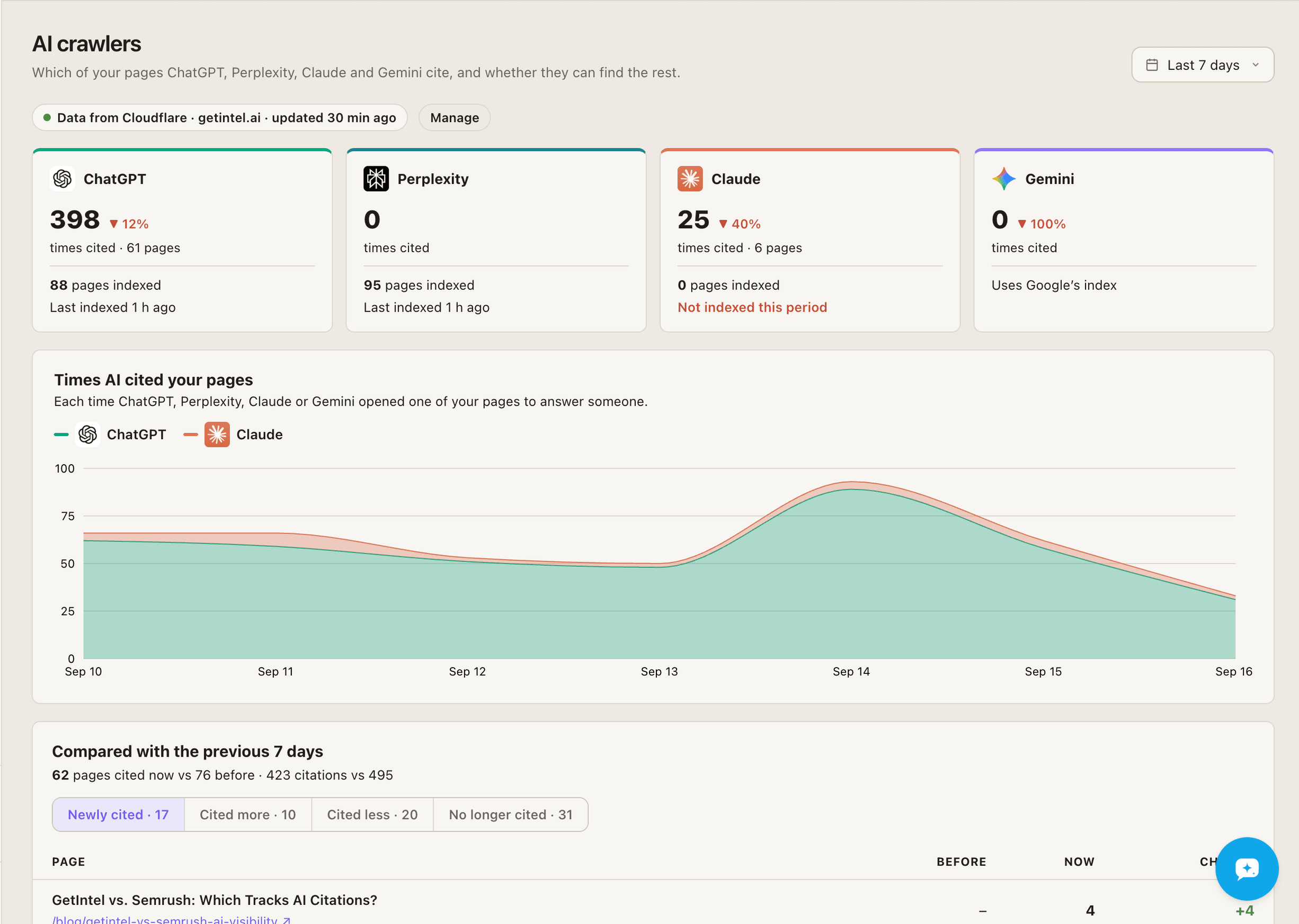
Connect
Section titled “Connect”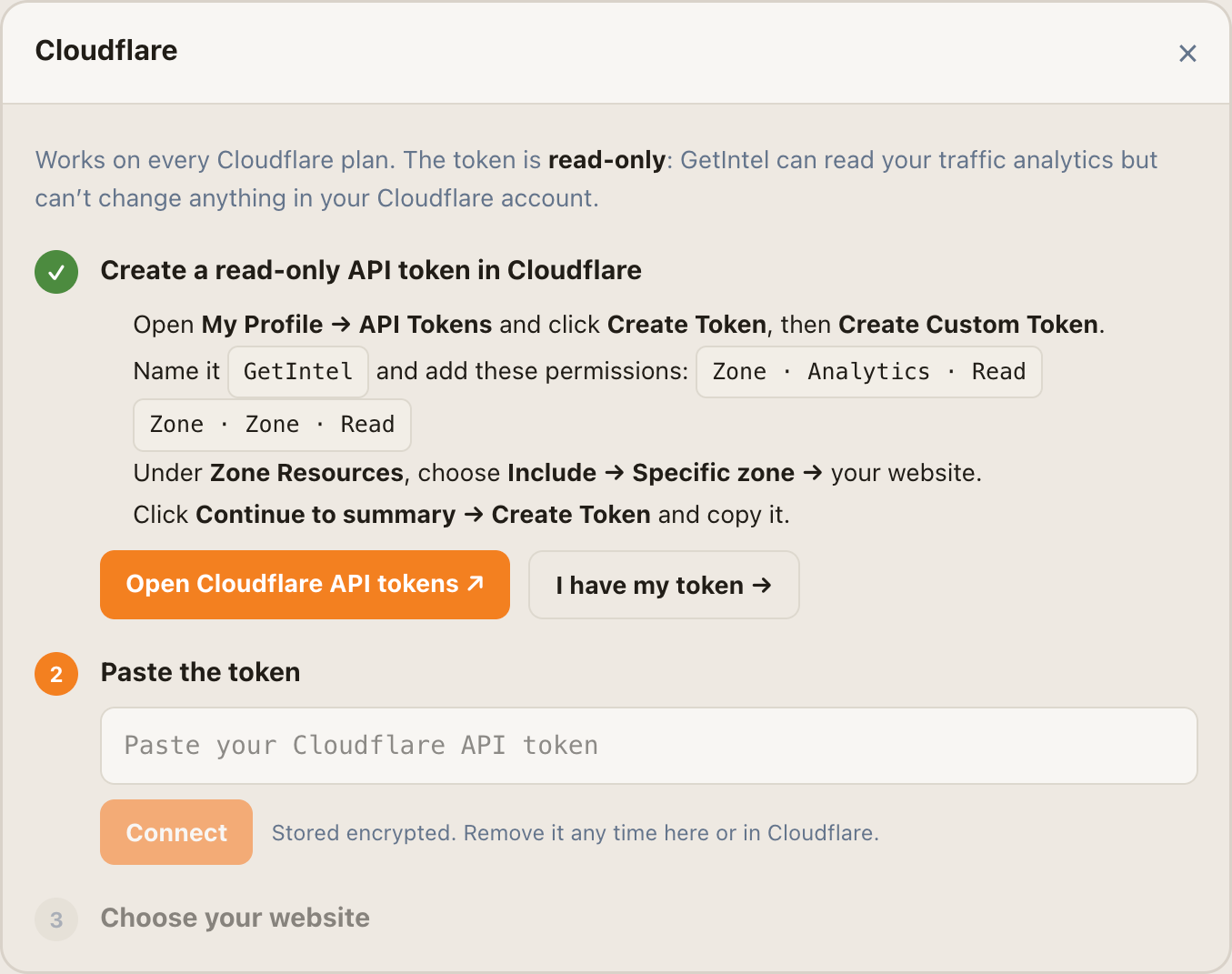
-
Create a token in Cloudflare. Open My Profile → API Tokens, click Create Token, then Create Custom Token.
-
Set its permissions. Name it
GetInteland add two permissions:Zone · Analytics · ReadandZone · Zone · Read. -
Limit it to your site. Under Zone Resources, choose Include → Specific zone → your website. Click Continue to summary → Create Token and copy the token.
-
Paste it into GetIntel. In Integrations (or on AI crawlers), open Cloudflare, paste the token and click Connect. GetIntel checks it and lists the websites it can see.
-
Choose your website. The one matching your GetIntel domain is marked Matches your website. Click Use to finish.
What happens next
Section titled “What happens next”- First numbers in a few minutes. GetIntel pulls the AI bot visits Cloudflare still holds, 8 days on most Cloudflare plans.
- Hourly updates. After the first sync, data refreshes every hour.
- Verified bots only. Each hit is checked against the IP ranges the AI vendor publishes, so a scraper pretending to be GPTBot is not counted.
Your MCP agent can read the same data with the get_ai_crawlers tool.
Manage the connection
Section titled “Manage the connection”- Swap the token: open Cloudflare in Integrations and choose Use a different token.
- Disconnect: choose Disconnect. AI crawlers stops updating; data already collected stays. You can also delete the token in Cloudflare.
Troubleshooting
Section titled “Troubleshooting”The token is rejected. Check it has both Zone · Analytics · Read and Zone · Zone · Read, and that it was copied in full.
Your website isn’t in the list. The token’s zone resources don’t include it. Edit the token in Cloudflare to include that zone, then connect again.
“Last sync failed” appears. The token was deleted or its permissions changed in Cloudflare. Create a new token and choose Use a different token.