
Topics
How GetIntel groups buyer questions into topics, what Found, Trend, Change and Win rate mean, and what each tab of a topic shows.
A topic is one subject your buyers ask about, such as pricing, a comparison, or an integration. Each topic is scored on its own, so you can see exactly which subjects you own and which a rival does.
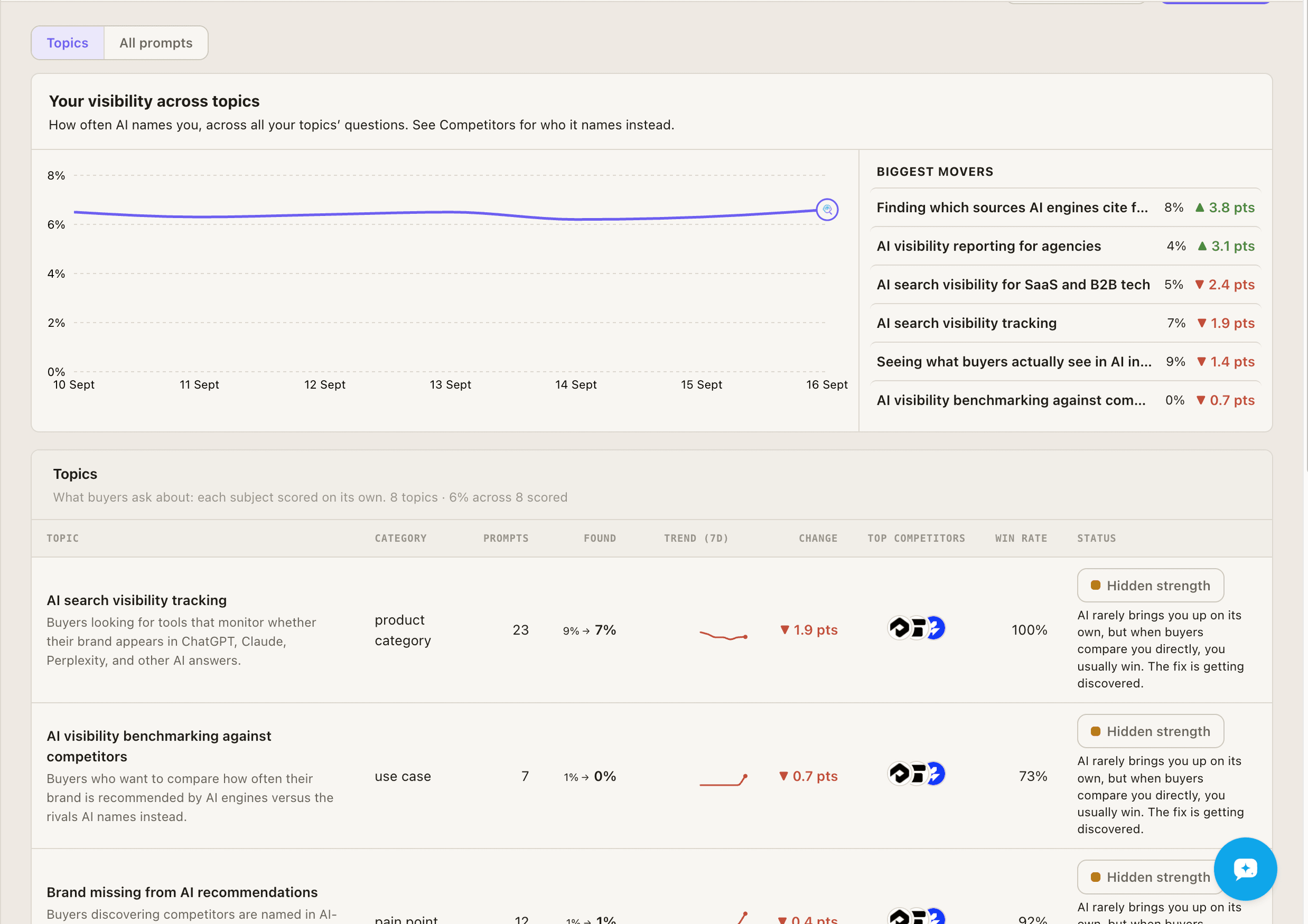
The topics table
Section titled “The topics table”| Column | What it shows |
|---|---|
| Prompts | How many buyer questions are in the topic. |
| Found | How often AI names you on this topic: the average daily score over the window. |
| Trend | The current window, with the previous one faded behind it. |
| Change | The point change against the previous window. |
| Top competitors | The rivals AI names most often in this topic. |
| Win rate | How often AI picks you when forced to choose between you and a rival. |
| Status | Where the topic stands. |
Scores use a rolling 7-day window. See How measurement works.
A topic in detail
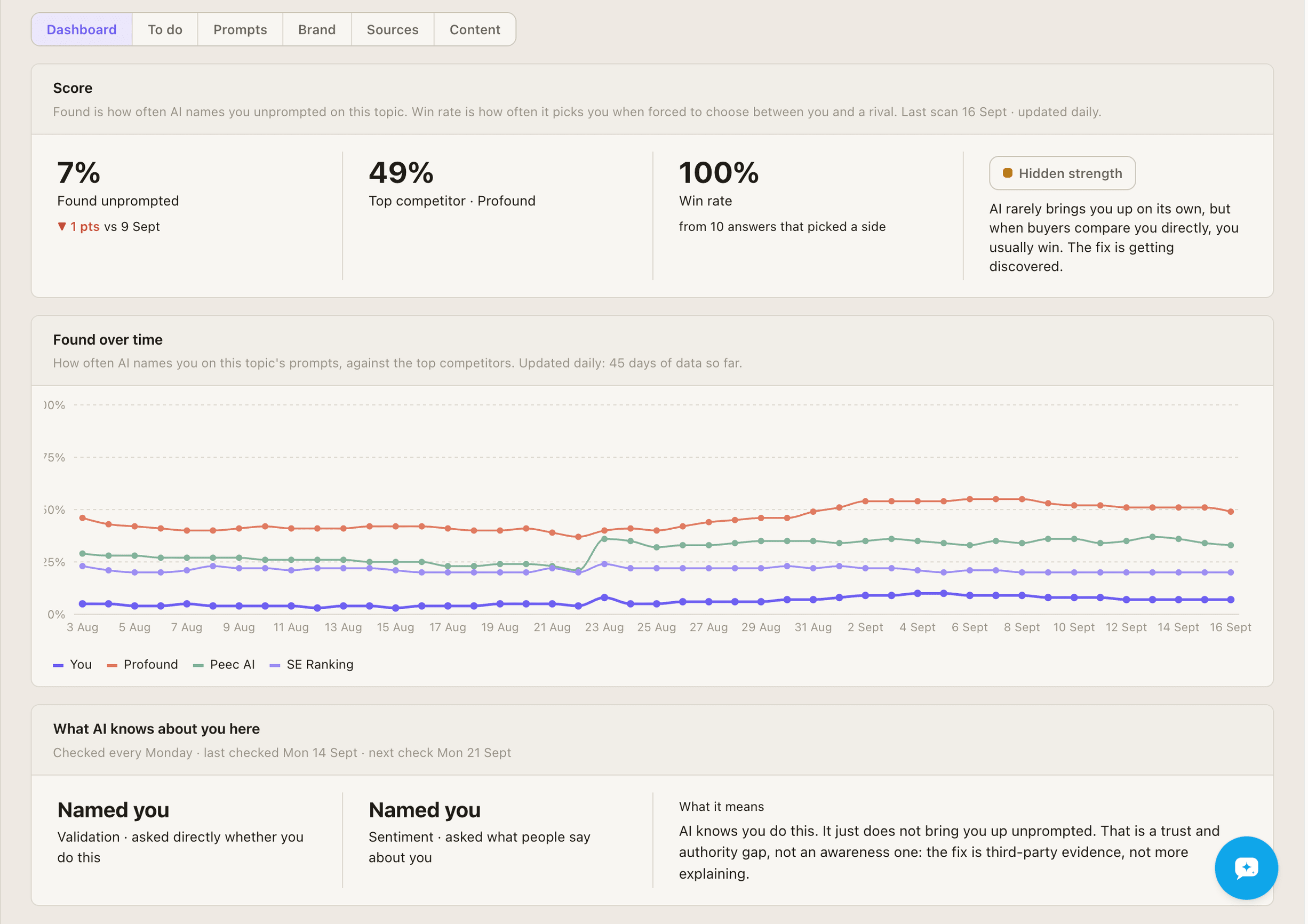
Section titled “A topic in detail”Open any topic for its tabs:
- Dashboard. Found unprompted, the Top competitor, and Win rate, with the score’s history.
- To do. The tasks that move this topic.
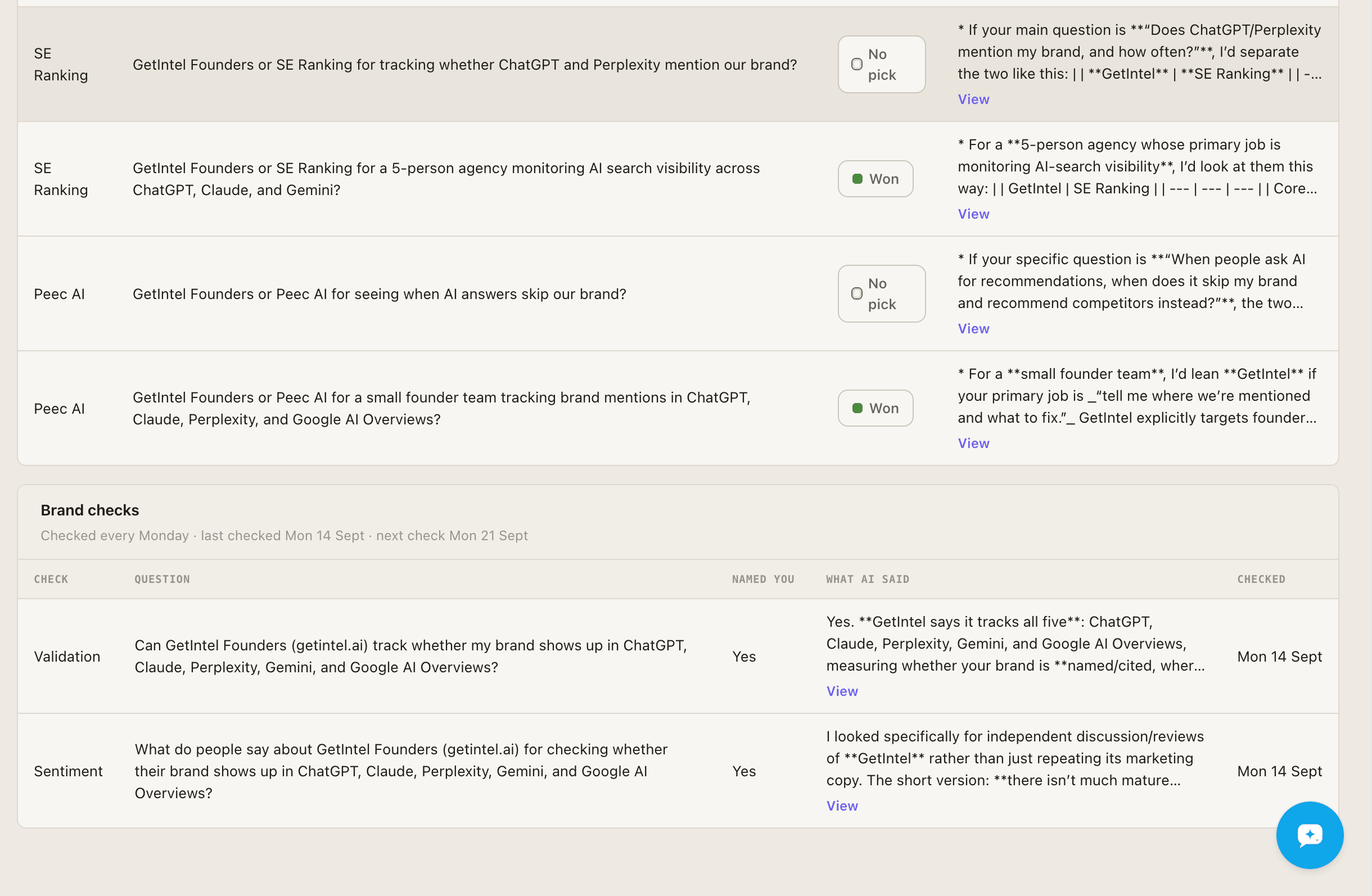
- Prompts. Every buyer question in the topic, with each engine’s latest answer.
- Brand. Head to head: the daily questions that pit you against a named rival, with the outcome and what AI said. Brand checks: questions that test whether AI knows you in this topic.
- Sources. What AI cites for this topic.
- Content. The facts AI compares for this topic and what a page needs to say to get cited.
Adding a topic
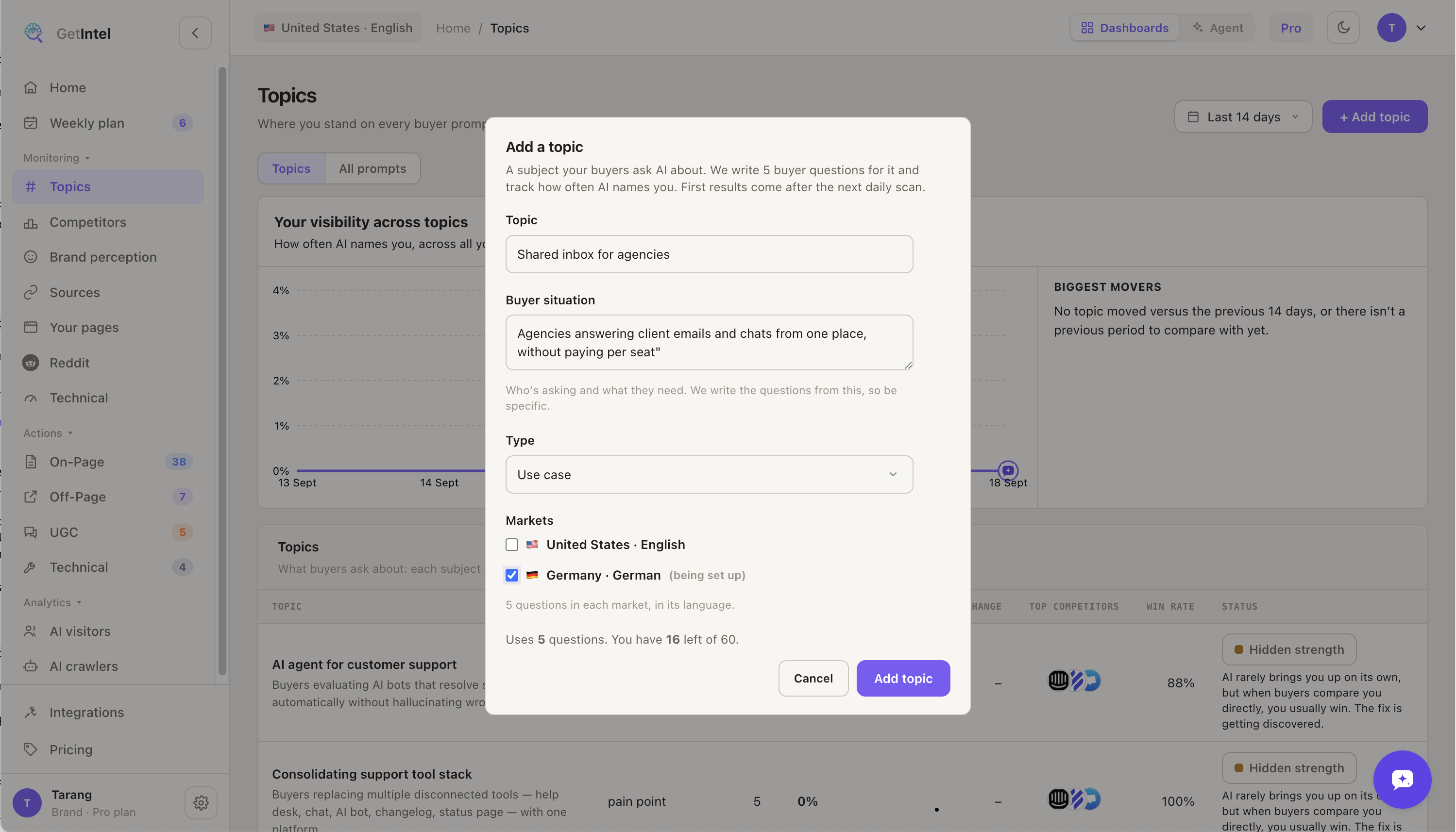
Section titled “Adding a topic”Choose + Add topic on the Topics page.
- Topic. The subject, such as “CRM for real estate agents”.
- Buyer situation. Who is asking and what they need, such as “Small agencies juggling listings and follow-ups across email and WhatsApp”. GetIntel writes the questions from this, so be specific. It is required.
- Type. What kind of subject it is: a product category, a use case, a pain point, and so on.
- Markets. With more than one market, pick where to track it. Questions are written in each market’s language.
A topic gets 5 buyer questions in each market, and they count against your question limit. The form shows the cost and what you have left. The questions are written in a minute or two, and the first results come after the next daily scan.
Archiving and restoring
Section titled “Archiving and restoring”Open a topic and choose Archive.
- Its questions stop being scanned in every market and stop counting against your limit.
- Its answers and score history are kept.
- Open tasks for only this topic are dismissed. Tasks shared with other topics stay open.
To bring it back, choose Show archived topics under the topics table, then Restore. It returns to the markets it was in with freshly written questions, and the tasks archiving dismissed reopen.
Other changes
Section titled “Other changes”- Rename a topic from its page.
- Add prompt adds a single buyer question to track, with an optional suggestion.
- To stop tracking a topic in one market only, change the market’s topics in Settings → Markets.
Adding, archiving and restoring topics are marked with a ◆ on the Home visibility chart, because they change what your visibility is calculated over. A topic’s own Found over time chart marks the days its questions were added, archived, reworded or moved. Your agent can do the same over MCP.