
Managing clients
Add client brands, switch between them, and understand what is shared across your account and what stays separate per client.
One GetIntel account can hold several brands. For an agency, each brand is a client with its own data, and everything in the app follows the brand you have selected.
Add a client
Section titled “Add a client”- Open the brand switcher in the header and choose + Add client, or go to Settings → Clients → + Add client.
- Enter Your Website. GetIntel reads the site to fill in the next steps.
- Your Product. Check the product name and what it does.
- Target Audience. Job title, industries, company size and geography.
- Pain Points & Messaging. The problems the product solves and its key value propositions.
GetIntel then sets up the client’s competitors, buyer questions and topics, and runs its first scan.
Switch between clients
Section titled “Switch between clients”Pick a client in the header switcher, or choose Switch next to it in Settings → Clients. The app reloads with every page scoped to that client.
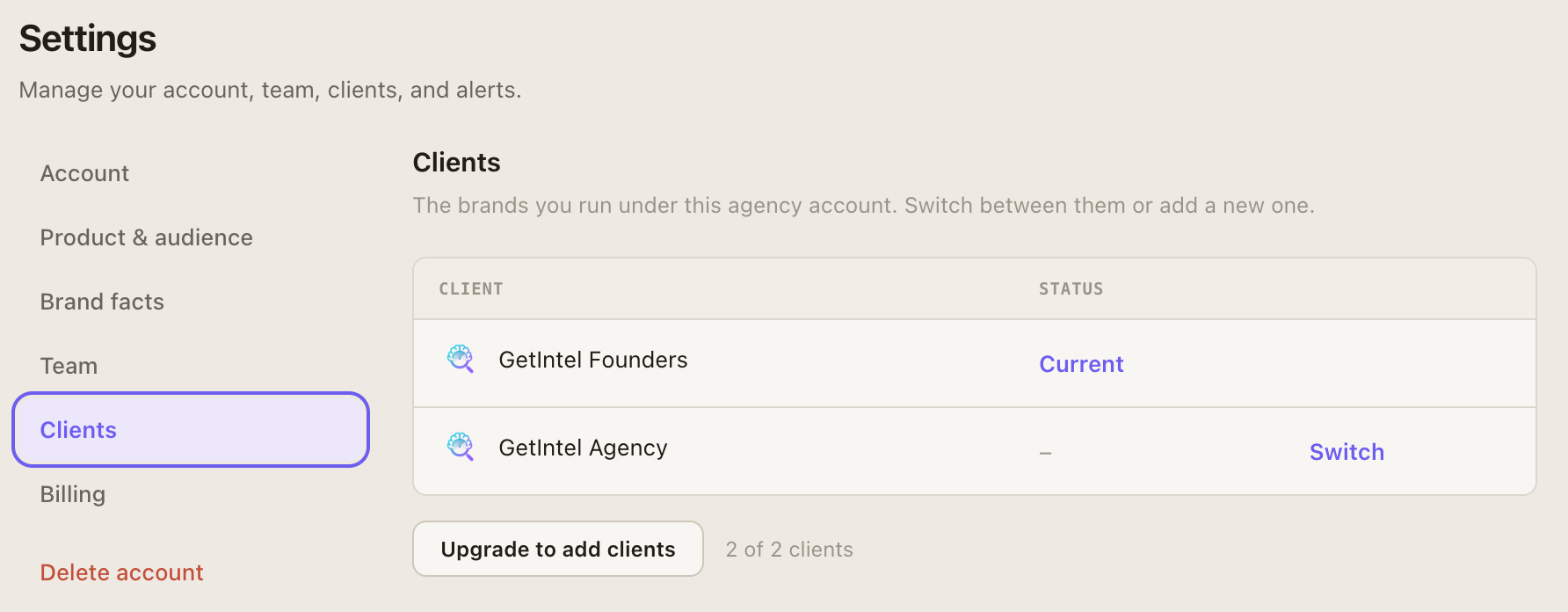
The switcher shows how many clients your plan allows (“X of Y clients”). When you reach the limit, Add client becomes Upgrade to add clients.
What is separate and what is shared
Section titled “What is separate and what is shared”| Separate per client | Shared across the account |
|---|---|
| Website and product profile | Team members |
| Competitors, buyer questions and topics | Billing and plan |
| Scores, answers, sources and tasks | The Looker Studio key: one key covers every client, and each report picks its client |
| MCP tokens: a token only sees the client it was created for |